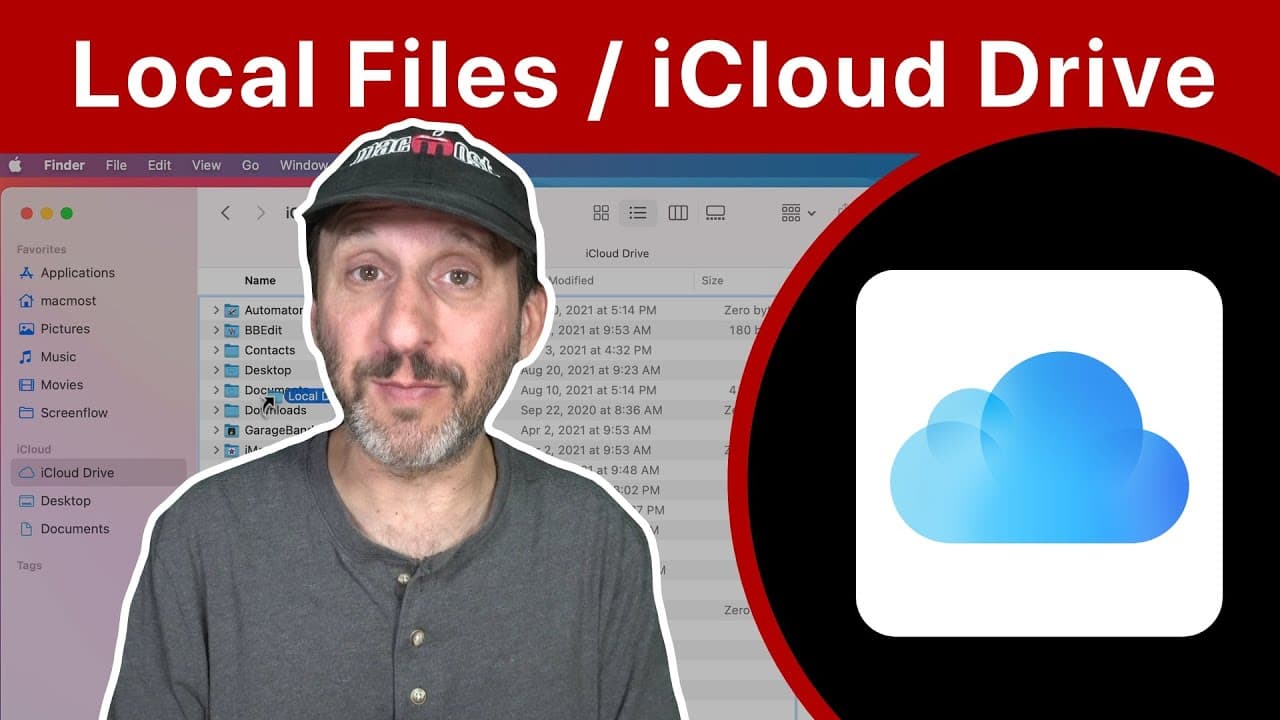
Storing Files Locally When Using iCloud Drive
TL;DR
Learn how to store files locally on iCloud Drive to ensure offline access and manage storage space.
Transcript
Hi, this is Gary with MacMost.com. Today let's talk about using iCloud Drive by forcing some files to be stored locally. MacMost is brought to you thanks to a great group of more than 1000 supporters. Go to MacMost.com/patreon. There you can read more about the Patreon Campaign. Join us and get exclusive content and course discounts. So ... Read More
Key Insights
- 🇲🇰 Enabling the "Optimize Mac Storage" feature in iCloud Drive ensures that files are accessible offline but limits the storage capacity to the size of your Mac's hard drive.
- 📁 Creating a separate local folder for files not part of iCloud Drive provides more control over which files are synced and ensures they are not mistakenly added to iCloud.
- 🖤 The ".nosync" method of excluding files from iCloud Drive is not recommended due to potential confusion and lack of technical support.
- 📁 Aliases can be used to conveniently access local folders from within the iCloud Drive folder without syncing them to iCloud.
Install to Summarize YouTube Videos and Get Transcripts
Explore YouTube Video Summarizer or Get YouTube Transcript Extractor
Questions & Answers
Q: How can I ensure that files on iCloud Drive are always accessible offline?
In System Preferences, go to Apple ID, select iCloud, and make sure the "Optimize Mac Storage" feature is turned off. This ensures that all files are stored locally on your Mac.
Q: What happens if I have more files on iCloud Drive than my Mac's storage capacity?
If your Mac's storage is limited, you can still store more files on iCloud Drive. However, you'll need to use the "Optimize Mac Storage" feature to manage which files are stored locally and prioritize access to recently accessed files.
Q: Can I manually download specific files from iCloud Drive to have offline access?
Yes, you can right-click or Control-click on a file and select "Download Now" to ensure that a local copy is available for offline access. However, your Mac may eventually offload the file if it's not frequently accessed.
Q: What is the recommended method for storing files that should not be part of iCloud Drive?
Rather than using the unsupported method of adding ".nosync" to file or folder names, it is better to create a separate local folder on your Mac, such as "Local Documents," for files that should not be synced to iCloud Drive.
Key Insights:
- Enabling the "Optimize Mac Storage" feature in iCloud Drive ensures that files are accessible offline but limits the storage capacity to the size of your Mac's hard drive.
- Creating a separate local folder for files not part of iCloud Drive provides more control over which files are synced and ensures they are not mistakenly added to iCloud.
- The ".nosync" method of excluding files from iCloud Drive is not recommended due to potential confusion and lack of technical support.
- Aliases can be used to conveniently access local folders from within the iCloud Drive folder without syncing them to iCloud.
- Regularly managing and organizing files in iCloud Drive and local folders can help optimize storage and ensure efficient access to files, both online and offline.
Summary & Key Takeaways
-
By default, files stored on iCloud Drive are also stored on Apple's servers, but you can force them to be stored locally on your Mac by turning off the "Optimize Mac Storage" feature in System Preferences.
-
This ensures that all files in iCloud Drive are always available, even when offline. However, it limits the storage capacity to the size of your Mac's hard drive.
-
Alternatively, you can create a separate local folder on your Mac for files that are not part of iCloud Drive, providing more control over which files are synced and taking up space.
Read in Other Languages (beta)
Share This Summary 📚
Summarize YouTube Videos and Get Video Transcripts with 1-Click
Try YouTube Summary with ChatGPT & Claude or YouTube Transcript Generator
Explore More Summaries from macmostvideo 📚

Summarize YouTube Videos and Get Video Transcripts with 1-Click
Try YouTube Summary with ChatGPT & Claude or YouTube Transcript Generator