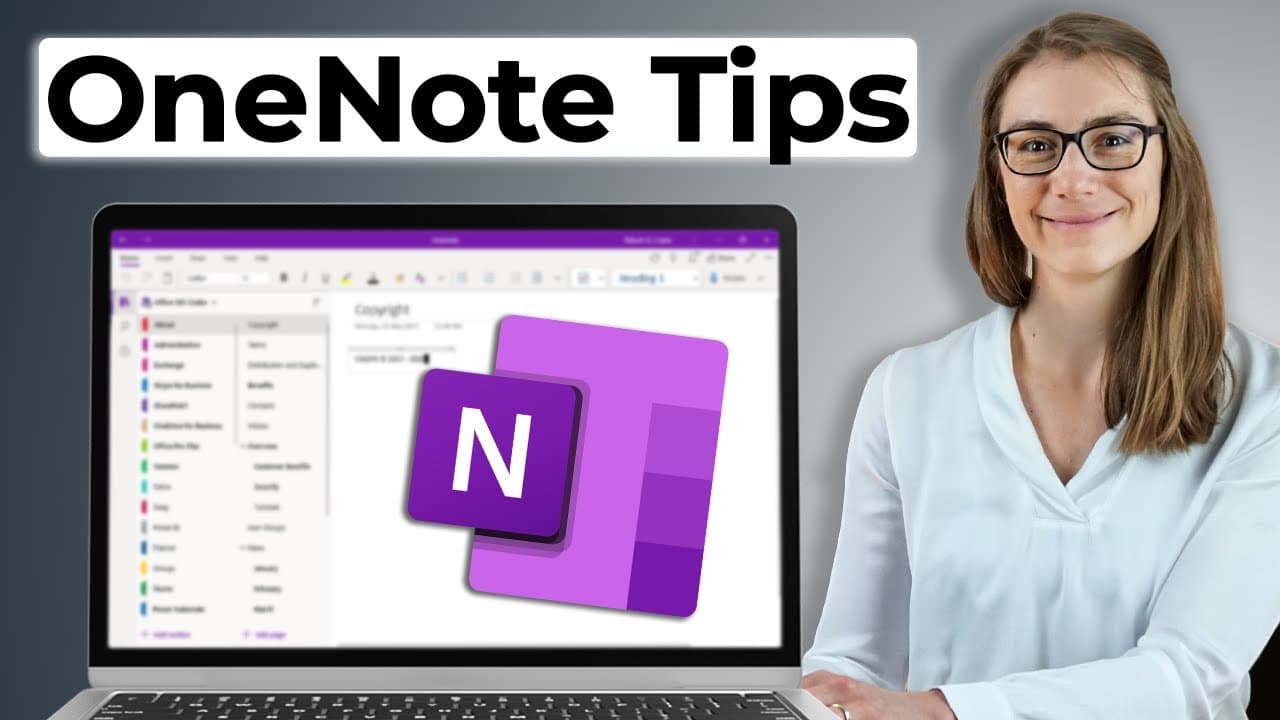
14 MUST-KNOW OneNote Tips & Tricks For Productivity
TL;DR
Discover powerful yet lesser-known features of OneNote for enhanced productivity.
Transcript
watching this video you will unlock so many useful features you would have never thought one note to have trust me I've been using OneNote for more than 10 years by now and can tell it might not be as fancy and hyped as other note taking tools but it certainly has tremendous power if you know one note's hidden features and how to properly use them ... Read More
Key Insights
- 👻 OneNote’s ability to extract text from images can significantly reduce the time spent retyping information, allowing users to focus on content creation instead of data entry.
- 📔 Collaboration features in OneNote make it easy for teams to work together on shared notebooks, fostering effective communication and note-sharing among colleagues.
- 📔 The option to display both notebooks and pages on one side enhances visual clarity, helping users quickly identify and access their notes.
- 🫥 Customizing page backgrounds and using rule lines can improve readability and organization, making note-taking more efficient for users focused on text-heavy content.
- 🍻 Creating a custom table of contents through paragraph links in OneNote can provide quick navigation for extensive note collections, streamlining the review process.
- 👨🔬 The search functionality in OneNote, including search capabilities within images, allows fast retrieval of information, making it easier to connect related notes without manual browsing.
- 👤 Built-in and user-created templates facilitate efficient note-taking by providing a structured format, enabling users to save and reapply optimal layouts for various use cases.
Install to Summarize YouTube Videos and Get Transcripts
Explore YouTube Video Summarizer or Get YouTube Transcript Extractor
Questions & Answers
Q: What is one of the most useful features of OneNote?
OneNote can extract text from images, such as screenshots or blocked PDFs. By pasting a picture into OneNote and selecting the "copy text from picture" option, users can easily copy and paste text without retyping. This feature saves time and enhances productivity by letting OneNote do the heavy lifting.
Q: How can users effectively organize their notes in OneNote?
OneNote allows extensive organization through various strategies, such as sorting pages alphabetically or by date, creating sections and subsections for better structure, and applying clear naming conventions to pages. Utilizing these methods can help users maintain a clear overview of their notebooks and improve navigation.
Q: What customization options does OneNote provide to improve the user experience?
OneNote offers numerous customization features, including the ability to change page layouts with grid lines, use varied colors for page backgrounds, and apply ready-made or personalized templates. These features allow for a more structured note-taking environment tailored to individual preferences.
Q: How can OneNote integrate with Outlook to enhance task management?
OneNote can seamlessly link with Outlook by allowing users to add meeting details directly into their notes and create Outlook tasks from action items mentioned in OneNote. This integration simplifies the process of managing reminders and tasks associated with meetings, creating a more organized workflow.
Summary & Key Takeaways
-
OneNote offers numerous hidden features that enhance productivity, such as extracting text from images and easy collaboration through shared notebooks. Understanding and utilizing these tools can significantly improve note-taking efficiency.
-
The platform allows users to organize sections and pages through various methods, including alphabetical sorting, subsections, and custom naming conventions, making navigation and retrieval easier.
-
Customization options like templates, page layouts, and translation features further enhance OneNote's usability, while integrations with Outlook help streamline task management directly from notes.
Read in Other Languages (beta)
Share This Summary 📚
Summarize YouTube Videos and Get Video Transcripts with 1-Click
Try YouTube Summary with ChatGPT & Claude or YouTube Transcript Generator
Explore More Summaries from Lea David 📚
Summarize YouTube Videos and Get Video Transcripts with 1-Click
Try YouTube Summary with ChatGPT & Claude or YouTube Transcript Generator