How to Restore Your Minecraft Save Using Backups
TL;DR
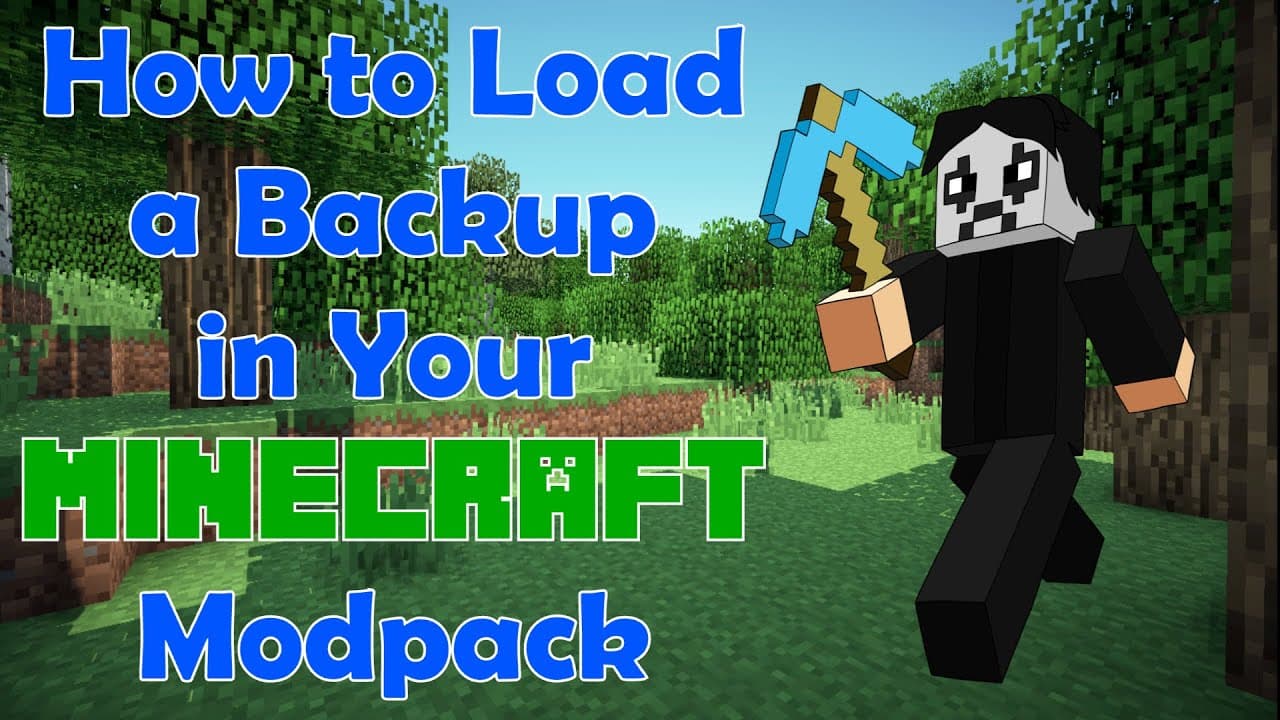
To restore your Minecraft world using backups, open the CurseForge launcher and navigate to the backups folder of your saved game. Select the desired backup, delete your current save files, and paste the backup files into the original save folder. This method allows you to recover your game to a previous state, minimizing loss after errors or unwanted changes.
Transcript
foreign only Draven here again and today I'm doing a tutorial showing you how to um reload your saved Minecraft world using an older backup so replacing your current save with an older save in the game this will be for the curse forged launcher specifically but it works the same for most if you find this video helpful and you like it please sure to... Read More
Key Insights
- 🤝 Using backups is essential for preserving progress in Minecraft, particularly when dealing with errors or unwanted changes.
- 👾 The CurseForge launcher provides a user-friendly interface for managing mod packs and game files, enhancing players' experiences.
- 🎮 Regular backups can mitigate the risks of losing extensive gameplay efforts due to glitches or errors in the game.
- 💾 Players should be aware of the folder structure of their Minecraft saves to navigate the restoration process smoothly.
- 📁 Awareness of the game's folder content, such as empty folders, can prevent unnecessary concern during the backup restoration process.
- 🥺 Community engagement through comments and suggestions can lead to valuable tutorial topics that help players further improve their skills.
- 👾 Establishing a routine for backing up game files can be an effective strategy for long-term game preservation.
Install to Summarize YouTube Videos and Get Transcripts
Explore YouTube Video Summarizer or Get YouTube Transcript Extractor
Questions & Answers
Q: What is the purpose of this tutorial?
The tutorial focuses on demonstrating how to restore saved Minecraft worlds using older backups, specifically targeting users of the CurseForge launcher. It addresses common issues such as corrupted files or mistakes made during gameplay, guiding players to safely revert their game to a previous state without losing significant progress.
Q: How do I locate my Minecraft saves and backups?
To find your Minecraft saves and backups using the CurseForge launcher, you first need to click on the mod pack icon, not the play button. Then select the three dots to open the folder containing your mod pack files. From there, you can access the 'saves' and 'backups' folders, where all current and older world data is stored.
Q: What precautions should I take before replacing my current save with a backup?
Before replacing your current save with your backup, it's advisable to create a separate folder to temporarily store the backup files. Delete the contents of the current saves folder only after verifying that the backup is intact and correctly copied. This way, you can avoid losing any additional progress inadvertently.
Q: What should I do if the backup has fewer files than the current save?
If the backup has fewer files than the current save, it’s generally not an issue. The backup may omit empty folders created by the game that contain no data. Once you replace your current save with the backup and start the game, the game will automatically create any necessary empty folders for new information, ensuring gameplay continuity.
Q: Can I recover my Minecraft save if I didn’t create a backup?
Unfortunately, if you did not create a backup before making significant changes or experiencing errors, recovery options are limited. Regularly creating backups is crucial to prevent data loss, and implementing a habit of backing up your game files after milestones can save you from future issues.
Q: Is the method discussed limited to Sky Factory or applicable to other mod packs?
While the tutorial specifically demonstrates the process using Sky Factory 4, the overall method for restoring saves applies to various Minecraft mod packs accessible through the CurseForge launcher. Players can adapt these steps to their specific mod pack setups with minor adjustments.
Q: How frequently should I back up my Minecraft world?
It's advisable to back up your Minecraft world frequently, especially after major gameplay milestones or before trying out new modifications. Setting a routine, such as daily or weekly backups, can help ensure less loss of progress if something goes wrong. Consider using automated backup tools to simplify this process.
Q: What if I encounter issues during the backup restoration process?
If you face issues while restoring from a backup, ensure you followed all steps correctly and that the files are intact. Double-check that you did not skip deleting the existing world folder and that you are dragging files from the correct backup folder. If problems persist, consult community forums or the content creator for further support.
Summary & Key Takeaways
-
This tutorial provides a step-by-step guide on restoring Minecraft worlds from older backups using the CurseForge launcher, applicable to most Minecraft mod packs.
-
The method is particularly useful for recovering game states after destructive actions or glitches, allowing players to revert to previous saves.
-
Viewers are encouraged to ask questions or request additional tutorials in the comments to enhance their gaming experience.
Read in Other Languages (beta)
Share This Summary 📚
Summarize YouTube Videos and Get Video Transcripts with 1-Click
Try YouTube Summary with ChatGPT & Claude or YouTube Transcript Generator
Explore More Summaries from Onlydraven Gaming 📚




Summarize YouTube Videos and Get Video Transcripts with 1-Click
Try YouTube Summary with ChatGPT & Claude or YouTube Transcript Generator