How to add Text in Canva | Text EditingTips + Best Font Combinations
TL;DR
Learn how to easily find, style, and pair fonts in Canva for impactful designs.
Transcript
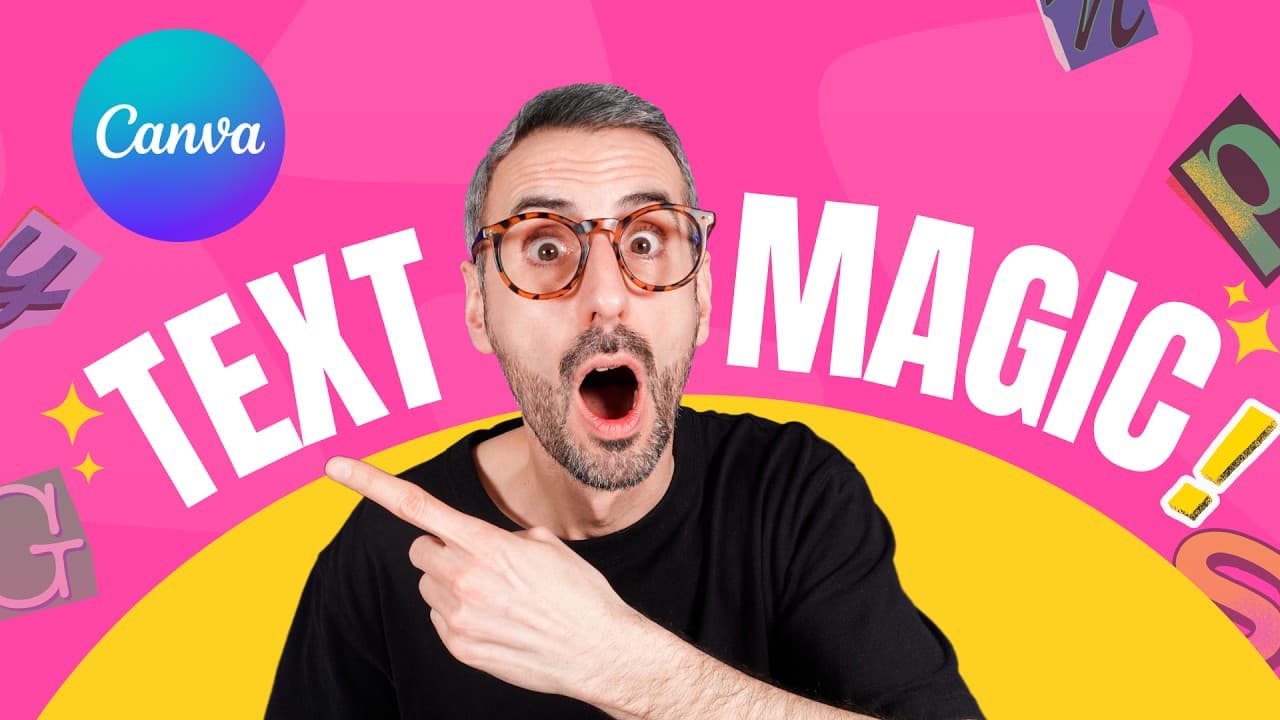
working with text in canva is one of my favorite things to do but I have to admit finding or mixing in matching the right fonts among canvas thousands of possibilities can be a bit of a finding wo moment for a canva beginner in this video I'm going to share some tips for finding the right fonts in the library and how to best work with text in Cana ... Read More
Key Insights
- 🤩 Two easy ways to add text in Canva: Text tab or T key shortcut.
- 🥶 Canva offers a variety of fonts, including free and Pro options, with the ability to filter for free fonts only.
- 🏋️ Font styling options in Canva include changing font, size, color, alignment, effects, and font weight.
- 🤔 Combining fonts in Canva for contrast involves pairing bold with thin fonts, tall with short fonts, serif with sans serif fonts, or playful with serious fonts.
- 😫 Canva provides preset font combinations and font sets for users to leverage in their designs.
- 🎨 Utilize Canva's Style tab to explore preset font combinations and design elements for cohesive designs.
Install to Summarize YouTube Videos and Get Transcripts
Explore YouTube Video Summarizer or Get YouTube Transcript Extractor
Questions & Answers
Q: How can you add text to a Canva design?
Text can be added by using the Text tab in the object panel or by pressing the T key on the keyboard to create a text box easily.
Q: What options are available for styling text in Canva?
Text in Canva can be styled by changing fonts, sizes, colors, alignments, bold/italic settings, spacing, effects, and even font weight within a font family.
Q: How can you search for specific fonts in Canva?
Canva allows users to search for specific fonts by name, style keywords like "bold," or explore suggested tags like paragraphs, serif, modern, and more.
Q: What are some tips for pairing fonts in Canva?
Tips for pairing fonts in Canva include creating contrast with bold vs. thin fonts, tall vs. short fonts, serif vs. sans serif fonts, and playful display fonts with more serious ones.
Summary & Key Takeaways
-
Adding text in Canva using the Text tab or the T key shortcut.
-
Styling text by changing fonts, sizes, colors, alignments, and effects.
-
Tips on pairing fonts for contrast and utilizing Canva's preset font combinations.
Read in Other Languages (beta)
Share This Summary 📚
Summarize YouTube Videos and Get Video Transcripts with 1-Click
Try YouTube Summary with ChatGPT & Claude or YouTube Transcript Generator
Explore More Summaries from Design with Canva 📚





Summarize YouTube Videos and Get Video Transcripts with 1-Click
Try YouTube Summary with ChatGPT & Claude or YouTube Transcript Generator