What Can You Do with Excel's Insert Tab?
TL;DR
The Insert tab in Excel allows you to enhance your worksheets with tables, illustrations, SmartArt, charts, and links. By using this feature, you can easily organize data, add visuals, create diagrams, insert screenshots, and include hyperlinks to navigate within documents or to external sources.
Transcript
hello welcome to the video in this video we are going to see in third tab option in Excel hello guys welcome back to Microsoft Excel training session in part 3 so in previous part we have seen the Home tab of Excel Mac Microsoft Excel in this particular session we are going to see the insert app so you can see the topics covered will be covering ta... Read More
Key Insights
- 📑 The Insert tab in Excel provides various tools for enhancing data presentation and visualization.
- 🧘 Tables make it easy to organize and manage data, with options for customizing the design and adding or editing data.
- 🖼️ Illustrations such as pictures and shapes can be added to Excel sheets to enhance visual appeal.
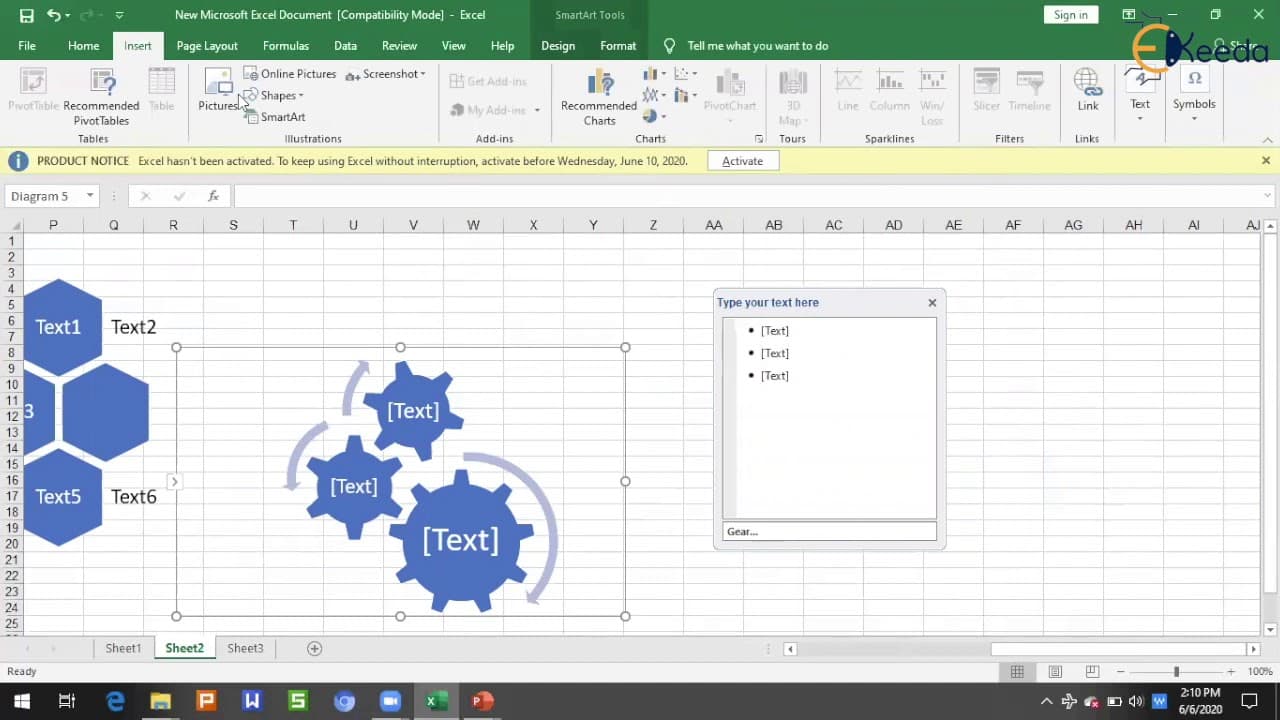
- 👻 SmartArt is a powerful feature that allows for the creation of diagrams and flowcharts.
- 🪡 Screenshots can be quickly added to Excel using the Insert tab, eliminating the need for external tools.
- 💹 Charts can be created and customized to represent data visually.
- 💌 Links can be created to navigate to different sheets, files, web pages, or even email addresses.
Install to Summarize YouTube Videos and Get Transcripts
Explore YouTube Video Summarizer or Get YouTube Transcript Extractor
Questions & Answers
Q: How can I add a table in Excel?
To add a table in Excel, go to the Insert tab, click on the "Table" button, select the range of data you want to turn into a table, and choose whether the table has headers or not. You can then customize the table's design and add or edit data easily.
Q: How do I insert illustrations, such as pictures and shapes, in Excel?
To insert illustrations in Excel, go to the Insert tab, click on the "Pictures" or "Shapes" button. You can either choose from the default pictures available or insert online pictures by providing their URL. For shapes, select the desired shape and add it to the worksheet. You can format and customize the content within these illustrations as needed.
Q: What is SmartArt and how can I add it to my Excel sheet?
SmartArt is a feature in Excel that allows you to create visually appealing diagrams and flowcharts. To add SmartArt, go to the Insert tab, click on the "SmartArt" button, and choose the desired SmartArt graphic. You can then input data into the SmartArt shapes and customize the layout, style, and colors according to your preference.
Q: How can I add a screenshot of a specific window in Excel?
To add a screenshot of a specific window in Excel, go to the Insert tab, click on the "Screenshot" button, and select the desired window from the available options. This allows you to quickly capture and paste a screenshot without needing to use external tools.
Summary & Key Takeaways
-
The video introduces the Insert tab in Microsoft Excel and explains the different options available.
-
Topics covered include adding tables, inserting illustrations such as pictures and shapes, creating SmartArt, adding screenshots, working with charts, and creating links.
-
The video provides step-by-step instructions on how to use each feature and demonstrates their usage on a sample sheet.
Read in Other Languages (beta)
Share This Summary 📚
Summarize YouTube Videos and Get Video Transcripts with 1-Click
Try YouTube Summary with ChatGPT & Claude or YouTube Transcript Generator
Explore More Summaries from Ekeeda 📚






Summarize YouTube Videos and Get Video Transcripts with 1-Click
Try YouTube Summary with ChatGPT & Claude or YouTube Transcript Generator