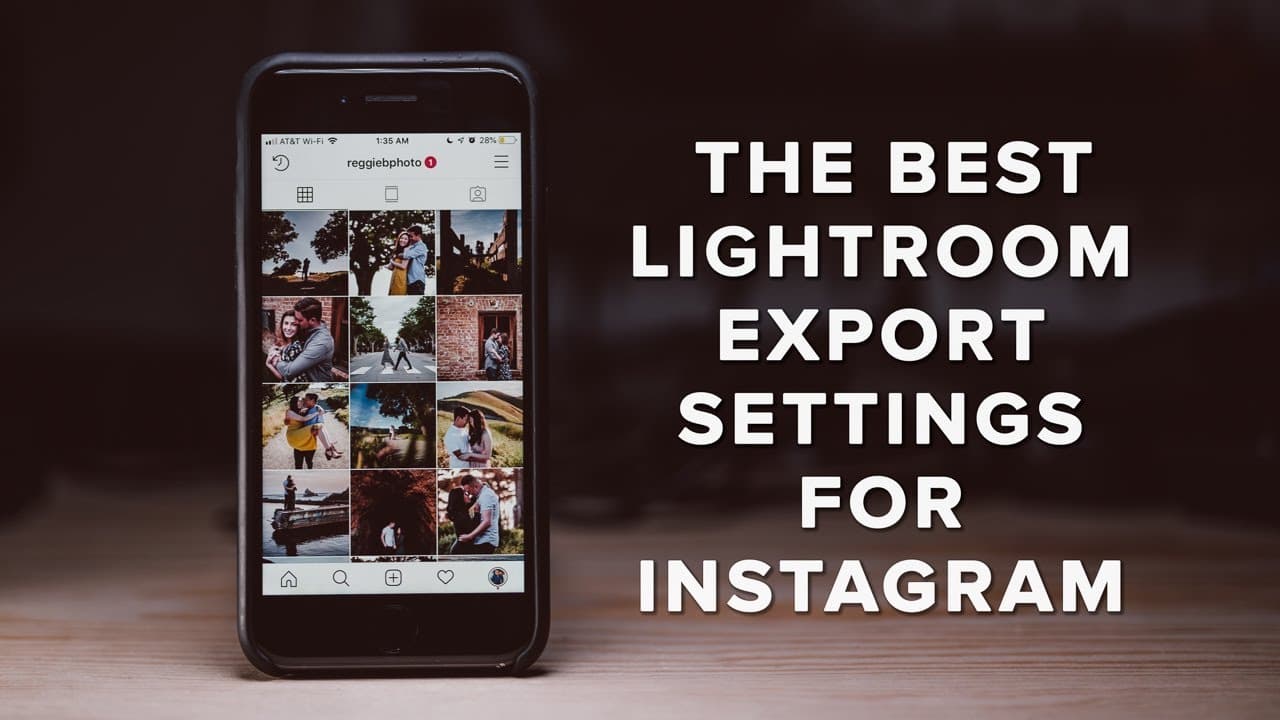
The Best LIGHTROOM Export SETTINGS for INSTAGRAM in 2019
TL;DR
Learn to optimize your Lightroom edits for Instagram in three straightforward steps.
Transcript
are you trying to post your latest Lightroom edit to Instagram and you're curious about what settings are best in today's video I'm going to show you guys my personal Instagram workflow for making high-quality intercom posts with just three simple steps prepping your photos in Lightroom creating an export preset to maximize quality and finally tran... Read More
Key Insights
- 🎙️ Cropping photos correctly is essential for maximizing engagement on Instagram; a square crop is often preferred for grid aesthetics.
- ✋ Using an export preset in Lightroom not only simplifies the export process but helps ensure high-quality images that comply with Instagram’s size limits.
- 😃 Vertical images provide more screen real estate on mobile devices, making them more eye-catching for users scrolling through their feeds.
- 😚 Employing tools like JPEGmini allows for significant size reduction without losing resolution, ensuring faster uploads and efficient storage.
- 🔉 Maintaining a consistent workflow in Lightroom can streamline the process of preparing photos for social media sharing.
- 💬 Include metadata in your exports to retain critical details about your photos for reference in comments or discussions on Instagram.
- 🌸 Accepting that some quality loss occurs during Instagram uploads is crucial; focus on methods that minimize these losses while maximizing presentation quality.
Install to Summarize YouTube Videos and Get Transcripts
Explore YouTube Video Summarizer or Get YouTube Transcript Extractor
Questions & Answers
Q: What are the recommended aspect ratios for photos on Instagram?
The recommended aspect ratios for Instagram photos include square (1:1), horizontal (typically 3:2 or 16:9), and vertical (up to 4:5). It's advised to crop images according to these ratios to optimize how they appear on users' feeds, with vertical images capturing more attention due to their size on mobile devices.
Q: How can I ensure the highest quality when exporting photos from Lightroom?
To achieve the highest quality when exporting, create a custom export preset in Lightroom; set the width to 1080 pixels, choose JPEG format with 100% quality, utilize the sRGB color space, and use sharpening for screens. Additionally, consider utilizing tools like JPEGmini to reduce file sizes without compromising image quality.
Q: What file transfer methods are best for moving images to your phone for Instagram?
The two best methods to transfer images to your phone are Airdrop for Apple devices or using Dropbox, especially if you're on a Windows computer. Both methods maintain image quality well. Select the appropriate folder in Dropbox to save the exported images directly to your camera roll.
Q: What steps should I follow after transferring photos to Instagram?
After transferring photos to Instagram, open the app and select the image from your camera roll. Adjust the crop if necessary using the expand tool to fit the entire photo in your post, add a caption, hashtags, and location tags before publishing to enhance visibility.
Summary & Key Takeaways
-
The content outlines a personal workflow for optimizing photos for Instagram, focusing on preparing images in Lightroom, creating export presets, and transferring files to mobile devices.
-
Step one emphasizes the importance of cropping images correctly for Instagram's format preferences, encouraging the use of square and vertical crops for maximum engagement.
-
Step two explains how to set up an export preset in Lightroom that maintains image quality while meeting Instagram's resolution standards, including using image compression tools.
Read in Other Languages (beta)
Share This Summary 📚
Summarize YouTube Videos and Get Video Transcripts with 1-Click
Try YouTube Summary with ChatGPT & Claude or YouTube Transcript Generator
Explore More Summaries from Reggie Ballesteros 📚
Summarize YouTube Videos and Get Video Transcripts with 1-Click
Try YouTube Summary with ChatGPT & Claude or YouTube Transcript Generator