Boost Engagement With Interactive Single Choice List Alert Dialogs
TL;DR
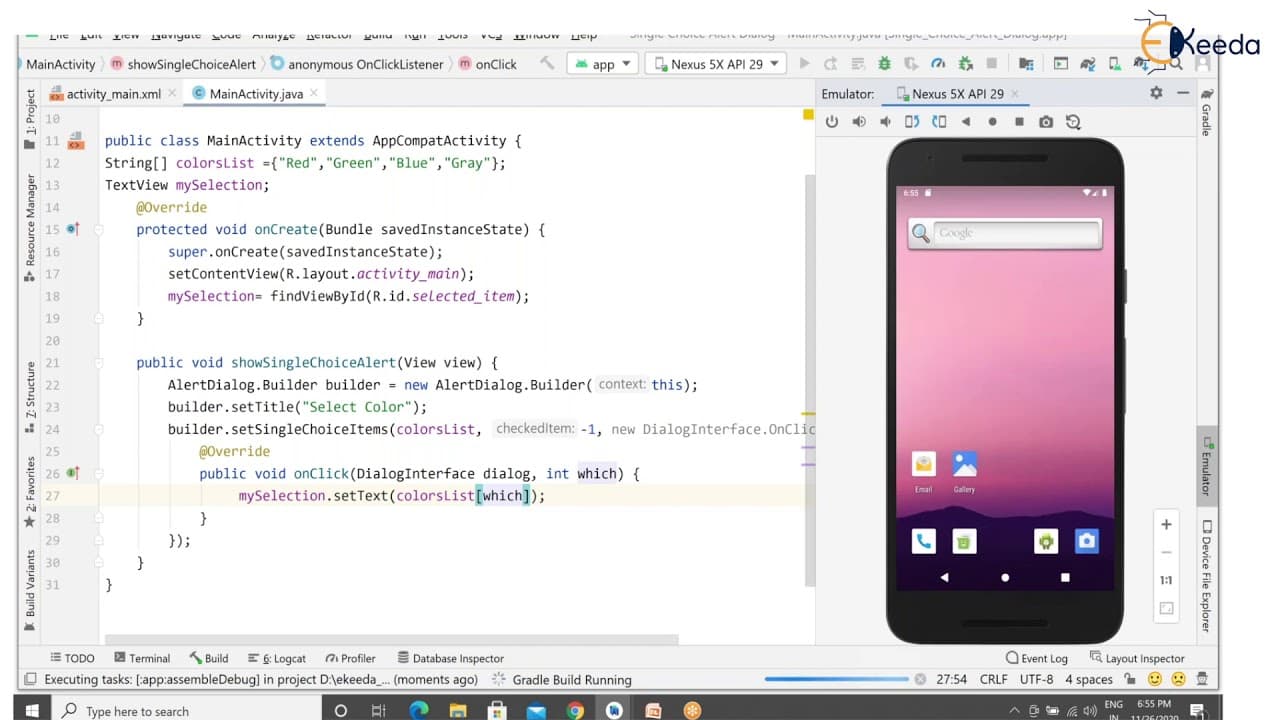
This video discusses how to create and use a single-choice alert dialog in an Android application.
Transcript
hello viewers welcome back in our previous session we have discussed about alert dialog with interruption model and in this session we are going to discuss about alert dialog with single choice list now let's create a project go to file new new project select empty activity click on next change your application name to single choice alert dialog cl... Read More
Key Insights
- 🏛️ The AlertDialog.Builder class is used to create and customize alert dialogs in Android.
- 👂 Single-choice alert dialogs are useful when you want the user to select only one option from a list.
- 😫 The setItems() method is used to set the list of items in a single-choice alert dialog.
- ❓ You can customize the appearance of the dialog by using methods like setTitle(), setPositiveButton(), and setNegativeButton().
- 👻 Implementing a listener for item selection allows you to react to the user's choice and perform actions accordingly.
- 💠 It is important to create the dialog inside the onCreate() method of the activity to ensure proper initialization.
- 😚 The dismiss() or cancel() methods can be used to close the dialog programmatically.
- 🚀 Clean data or wipe data in the AVD emulator can help resolve installation and launching issues.
Install to Summarize YouTube Videos and Get Transcripts
Explore YouTube Video Summarizer or Get YouTube Transcript Extractor
Questions & Answers
Q: What is a single-choice alert dialog in Android?
A single-choice alert dialog is a dialog box that displays a list of options, allowing the user to select only one item from the list.
Q: How can I create a single-choice alert dialog in my Android app?
To create a single-choice alert dialog, you need to use the AlertDialog.Builder class and set the list of items, check the default selected item, and implement a listener for item selection.
Q: How can I customize the appearance of the single-choice alert dialog?
You can customize the title, list items, and buttons of the single-choice alert dialog by using methods like setTitle(), setItems(), setPositiveButton(), setNegativeButton(), etc., provided by the AlertDialog.Builder class.
Q: How do I handle the selection made by the user in the single-choice alert dialog?
You can use the setPositiveButton() method to set a listener for the positive button, which will be triggered when the user selects an item. In the listener, you can retrieve the selected item and perform the necessary actions.
Summary & Key Takeaways
-
The video demonstrates how to create a simple view with a button that shows a single-choice list when clicked.
-
The selected item from the list is displayed in a text view in the layout.
-
The video explains how to create and customize the single-choice alert dialog using the AlertDialog.Builder class.
Read in Other Languages (beta)
Share This Summary 📚
Summarize YouTube Videos and Get Video Transcripts with 1-Click
Try YouTube Summary with ChatGPT & Claude or YouTube Transcript Generator
Explore More Summaries from Ekeeda 📚





Summarize YouTube Videos and Get Video Transcripts with 1-Click
Try YouTube Summary with ChatGPT & Claude or YouTube Transcript Generator