Most USEFUL Obsidian Plugins I Actually Use
TL;DR
This video explores various new community plugins available for Obsidian, categorized into 10 different categories, including essentials, journaling, super plugins, content consumption, content creating, artificial intelligence, integrations, vault maintenance, customizations, and simple but useful plugins.
Transcript
it has now been over two years since I began using obsidian daily and so much has changed since then obsidian has grown a lot in popularity and as a result we now have a bunch of new community plugins and in this video we're going over every single one I'm using many but not all the plugins I'll go over today have been previously covered in the cha... Read More
Key Insights
- 🥺 Obsidian has gained popularity over the past two years, leading to the development of numerous community plugins.
- 😫 Essential plugins like setting search, Commander, recent files, and paste URL in the selection enhance productivity in Obsidian.
- 👣 Journaling plugins like calendar, periodic notes, and tracker offer advanced features for tracking daily, weekly, monthly, and yearly activities.
- 🫵 Super plugins like Templar and data view provide comprehensive functionality for note-taking and organization.
- 📔 Content consumption plugins like book search, movie, and podcast offer convenient ways to manage and take notes on books, movies, and podcasts.
- 🫠 Content creation is facilitated by plugins like projects, database folder, reading time, and better word count, allowing users to plan, organize, and track their creative content.
- ❓ AI-related plugins, although currently limited, offer possibilities for text generation and AI utilization within Obsidian.
- 👤 Integrations with Kindle, Readwise, and Anki add further functionality and convenience for users.
Install to Summarize YouTube Videos and Get Transcripts
Explore YouTube Video Summarizer or Get YouTube Transcript Extractor
Questions & Answers
Q: What are the essential plugins every Obsidian user should have?
The essential plugins mentioned in the video include setting search, Commander, recent files, and paste URL in the selection. Setting search allows users to search through Obsidian settings, while Commander enables customization of commands and spacing. Recent files plugin helps users quickly locate the files they were working on, and paste URL in the selection simplifies the process of inserting URLs into texts.
Q: How can Obsidian be used for journaling purposes?
Obsidian offers several journaling plugins. The calendar plugin lets users create daily and weekly notes by clicking on specific dates, while periodic notes plugin extends this functionality to monthly, quarterly, and yearly notes. The tracker plugin allows users to track various aspects of their daily life, such as meditation, gym visits, mood, and weight, and renders the information in visual graphs.
Q: Which plugins facilitate content consumption in Obsidian?
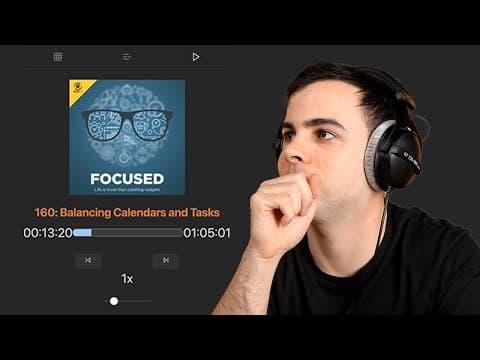
Book search plugin helps users import books and their metadata into Obsidian, allowing them to create to-read and read lists. The movie plugin enables note-taking while watching movies and creates a list with covers and ratings. The podcast plugin allows users to listen to podcasts within Obsidian and take notes on them.
Q: How can Obsidian be used for content creation?
The projects plugin is at the heart of content creation in Obsidian, enabling users to build multiple views of the same content, such as tables, calendars, boards, and galleries. The database folder plugin integrates with projects and provides Notion-like databases within Obsidian, offering property types and relational databases. Reading time and better word count plugins provide information on the duration and word count of written content, useful for video titles and social media posts.
Key Insights:
- Obsidian has gained popularity over the past two years, leading to the development of numerous community plugins.
- Essential plugins like setting search, Commander, recent files, and paste URL in the selection enhance productivity in Obsidian.
- Journaling plugins like calendar, periodic notes, and tracker offer advanced features for tracking daily, weekly, monthly, and yearly activities.
- Super plugins like Templar and data view provide comprehensive functionality for note-taking and organization.
- Content consumption plugins like book search, movie, and podcast offer convenient ways to manage and take notes on books, movies, and podcasts.
- Content creation is facilitated by plugins like projects, database folder, reading time, and better word count, allowing users to plan, organize, and track their creative content.
- AI-related plugins, although currently limited, offer possibilities for text generation and AI utilization within Obsidian.
- Integrations with Kindle, Readwise, and Anki add further functionality and convenience for users.
- Vault maintenance plugins, customization options, and simple but useful plugins provide additional features and customization choices to enhance the Obsidian experience.
Summary & Key Takeaways
-
The video discusses the growth of Obsidian over the past two years and the increasing popularity of community plugins.
-
The presenter categorizes the plugins into 10 different categories and provides an overview of each category.
-
Essential plugins like setting search and Commander, as well as journaling plugins like calendar and periodic notes, are highlighted.
-
Super plugins like Templar and data view, content consumption plugins like book search and Pod notes, content creating plugins like projects, and AI plugins like text generator are also covered.
-
Integrations with Kindle, Readwise, and Anki, vault maintenance plugins, customizations like home page and banners, and simple but useful plugins like natural language dates are discussed.
Read in Other Languages (beta)
Share This Summary 📚
Summarize YouTube Videos and Get Video Transcripts with 1-Click
Try YouTube Summary with ChatGPT & Claude or YouTube Transcript Generator
Explore More Summaries from FromSergio 📚

Summarize YouTube Videos and Get Video Transcripts with 1-Click
Try YouTube Summary with ChatGPT & Claude or YouTube Transcript Generator