How to Join and Separate Objects in Blender
TL;DR
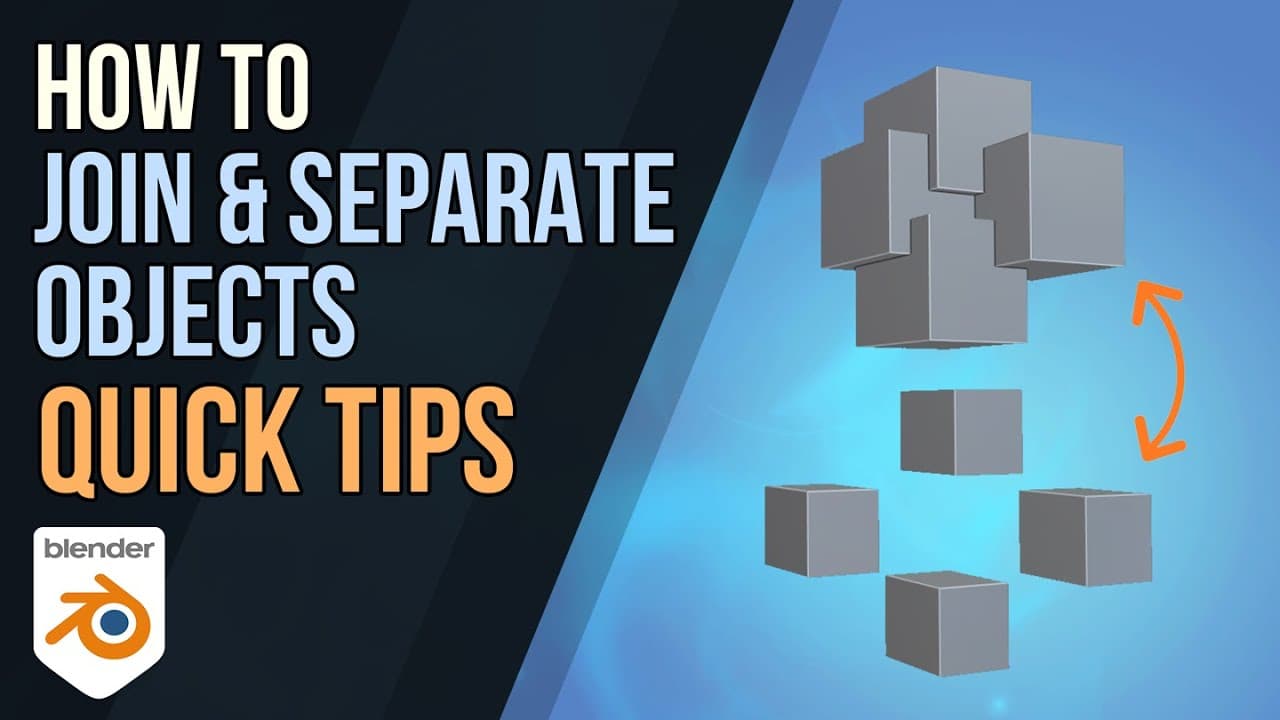
To join objects in Blender, select them in object mode and press Ctrl+J; they will merge into one object. To separate them, enter edit mode, select the object, and press P to choose 'by selection' or 'by loose parts.' Ensure one object is active during joining, as its properties will be adopted.
Transcript
hello and welcome to gabot media i'm grant abbott and today i'm going to talk about joining objects and detaching objects and some of the pitfalls and difficulties you might come across when doing so this is all part of the quick tips playlist so check out that playlist and other playlists in the description for more useful videos and courses also ... Read More
Key Insights
- 📳 Joining objects in Blender is done in object mode using the Ctrl+J command.
- 💩 Detaching objects is done in edit mode using the P key and selecting "by selection."
- 🧘 Objects joined in edit mode become part of the same object.
- ❓ Detached objects have their own separate properties and can be manipulated independently.
- 🚱 Overlapping geometry can result in non-manifold shapes, which may have limitations for certain purposes such as sculpting or 3D printing.
- ☢️ The active object determines the properties adopted when objects are joined.
- ❓ Proper adjustment, such as boolean operations, may be necessary to resolve overlapping geometry before sculpting or 3D printing.
Install to Summarize YouTube Videos and Get Transcripts
Explore YouTube Video Summarizer or Get YouTube Transcript Extractor
Questions & Answers
Q: How do you join objects in Blender?
To join objects, go to object mode, select the objects you want to join, then press Ctrl+J. They will become one object and can be manipulated together.
Q: Can objects be detached in Blender?
Yes, objects can be detached in Blender. Switch to edit mode, select the desired object, press P, and choose the "by selection" option. The detached object will become a separate object.
Q: What happens to the properties of the objects when they are joined?
When objects are joined in Blender, their properties, such as the center point, are adopted from the active object. Make sure to have the desired active object selected before joining.
Q: What issues can arise from overlapping geometry?
Overlapping geometry can result in non-manifold shapes, where objects share the same space. This can cause problems with sculpting or 3D printing. It's generally considered bad practice, but can be used in certain cases.
Key Insights:
- Joining objects in Blender is done in object mode using the Ctrl+J command.
- Detaching objects is done in edit mode using the P key and selecting "by selection."
- Objects joined in edit mode become part of the same object.
- Detached objects have their own separate properties and can be manipulated independently.
- Overlapping geometry can result in non-manifold shapes, which may have limitations for certain purposes such as sculpting or 3D printing.
- The active object determines the properties adopted when objects are joined.
- Proper adjustment, such as boolean operations, may be necessary to resolve overlapping geometry before sculpting or 3D printing.
- Being aware of the implications and limitations of joining and detaching objects is essential for efficient modeling in Blender.
Summary & Key Takeaways
-
Joining objects in Blender is done in object mode by selecting the objects and pressing Ctrl+J. They will become part of the same object and can be manipulated together.
-
Detaching objects is done in edit mode by selecting the desired object and pressing P, then choosing the "by selection" option. The detached object becomes a separate object.
-
When joining objects, their properties, including the center point, will be adopted from the active object.
-
Overlapping geometry and non-manifold shapes can occur when objects are joined without proper adjustments, which could impact sculpting or 3D printing.
Read in Other Languages (beta)
Share This Summary 📚
Summarize YouTube Videos and Get Video Transcripts with 1-Click
Try YouTube Summary with ChatGPT & Claude or YouTube Transcript Generator
Explore More Summaries from Grant Abbitt 📚

Summarize YouTube Videos and Get Video Transcripts with 1-Click
Try YouTube Summary with ChatGPT & Claude or YouTube Transcript Generator