How to Perform a T-Test in SigmaPlot 13
TL;DR
To perform a T-Test in SigmaPlot 13, enter your data into the spreadsheet, select the appropriate T-Test from the analysis pane, and run the test. The resulting report will show the two-tailed P value, which in the provided example is 0.003, indicating a statistically significant difference between the two groups compared.
Transcript
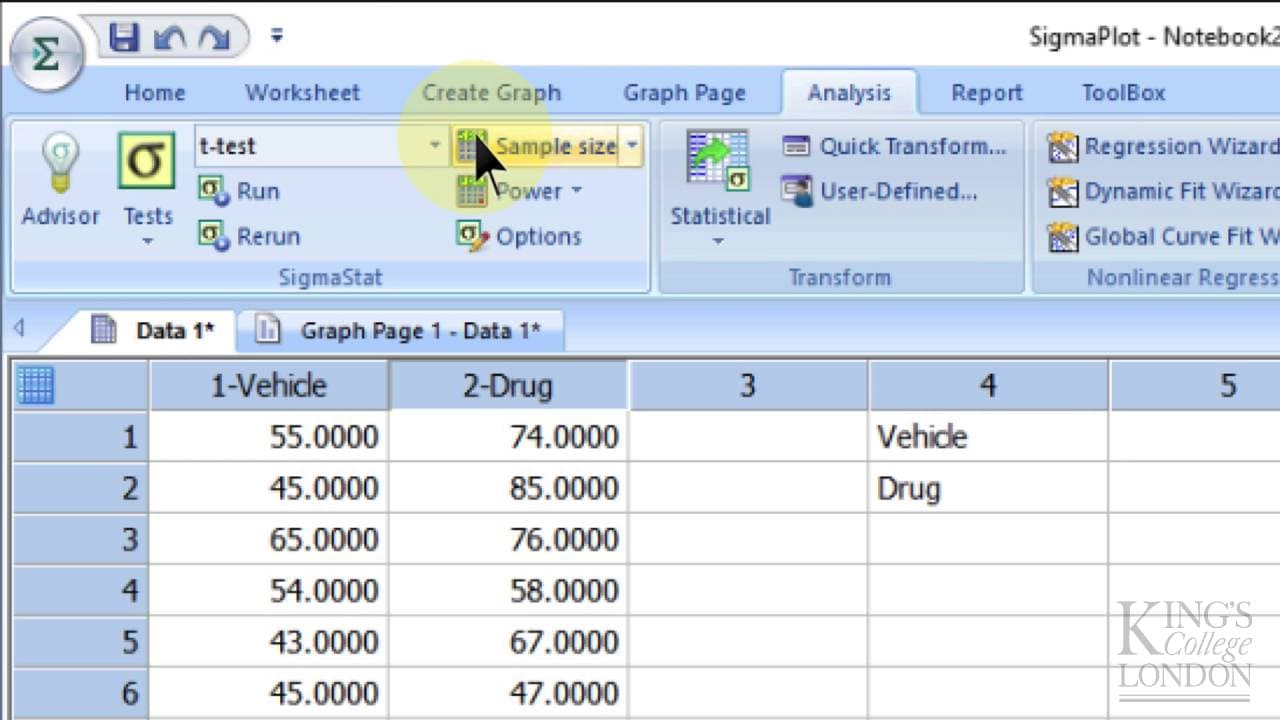
so here we are in Sigma plot version 13 for Windows and we want to do a T Test comparing two sets of data I've already entered the data into the spreadsheet but I'll explain what I've done we've got two groups for instance a vehicle and a drug treated group and we've entered the data we happen to have 11 replicates taken from each experiment and he... Read More
Key Insights
- 😫 Sigma Plot Version 13 offers a convenient way to perform T Tests for comparing two sets of data.
- 👻 The software allows users to choose between performing paired or unpaired T Tests.
- 🔝 The T Test report generated by Sigma Plot includes important statistical values such as the P value.
- 👥 The obtained P value can be used to determine if there is a statistically significant difference between the two groups.
- 🦖 Sigma Plot provides options to visually represent the results of a T Test, such as adding annotations to graphs.
- 🍸 Two-tailed and one-tailed P values serve different purposes in interpreting the results of a T Test.
- 🏆 Sigma Plot Version 13 simplifies the process of conducting T Tests, making it quick and efficient.
Install to Summarize YouTube Videos and Get Transcripts
Explore YouTube Video Summarizer or Get YouTube Transcript Extractor
Questions & Answers
Q: How can Sigma Plot Version 13 be used to perform a T Test?
To conduct a T Test in Sigma Plot Version 13, go to the analysis pane, select the T Test option from the drop-down box, and choose the appropriate data format (raw data in this case). Then, select the two sets of data for comparison and click finish.
Q: How does Sigma Plot determine the statistical significance in a T Test?
Sigma Plot calculates the P value, which represents the probability of observing a test statistic as extreme as the one calculated from the data, assuming the null hypothesis is true. In this example, the two-tailed P value obtained was 0.003, indicating that there is a statistically significant difference between the two groups.
Q: What does it mean to have a two-tailed or one-tailed P value in a T Test?
A two-tailed P value measures the probability of observing a statistically significant difference in either direction (higher or lower mean) between the two groups. On the other hand, a one-tailed P value focuses on a specific direction (either higher or lower mean) and tests if the observed difference is statistically significant in that direction only.
Q: How can the results of a T Test be visually represented in Sigma Plot Version 13?
In Sigma Plot Version 13, users can add annotations to graphs to indicate the significance of the T Test. For example, stars can be added to the graph to represent the P value obtained. In this case, two stars were added to indicate a P value corresponding to the T Test's P value.
Summary & Key Takeaways
-
Sigma Plot Version 13 allows users to conduct T Tests comparing two sets of data.
-
The example provided involves comparing a vehicle group and a drug-treated group, each with 11 replicates.
-
By selecting the appropriate test in the analysis pane and entering the data, Sigma Plot generates a T Test report.
-
The report includes a two-tailed P value of 0.003, indicating statistical significance.
Read in Other Languages (beta)
Share This Summary 📚
Summarize YouTube Videos and Get Video Transcripts with 1-Click
Try YouTube Summary with ChatGPT & Claude or YouTube Transcript Generator
Explore More Summaries from Dory Video 📚




Summarize YouTube Videos and Get Video Transcripts with 1-Click
Try YouTube Summary with ChatGPT & Claude or YouTube Transcript Generator