Mastering Nested Layouts In Android: A Complete Guide!
TL;DR
This video tutorial guides you on implementing nested layouts in Android using both relative and linear layouts.
Transcript
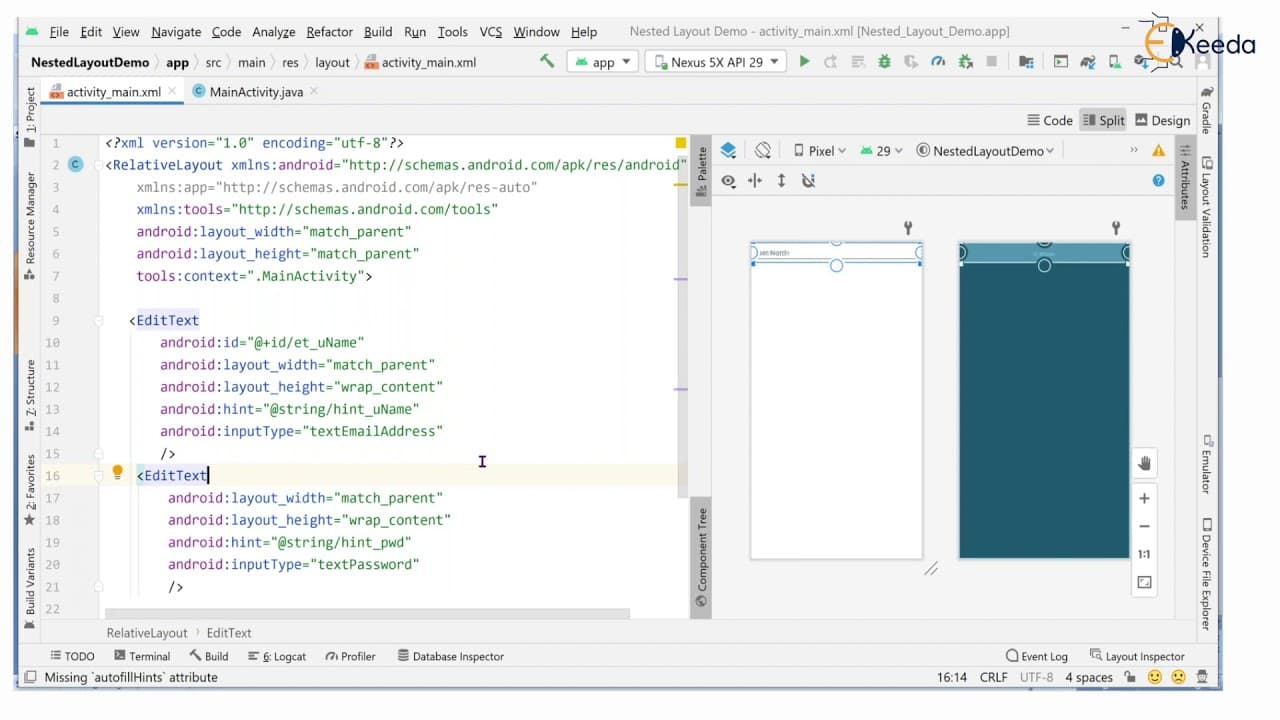
hello viewers welcome back in this session we are going to discuss about listed layouts or inner layouts here we will see the example whatever we have seen part of relative layout but here we are going to use the relative layout as well as the linear layout parent we are going to take it as relative layout inside that will take two edit text with r... Read More
Key Insights
- 👻 Nested layouts in Android allow for the creation of more complex and organized user interfaces.
- 🧘 Combining different layout types, such as relative and linear layouts, gives developers more flexibility in positioning UI elements.
- 🏑 EditText fields and buttons can be customized with various attributes to achieve the desired appearance.
- 😒 Proper use of layout parameters and hierarchy is crucial in achieving desired alignment and positioning of UI elements.
- 😀 Nested layouts can improve the visual appeal of an app and enhance the user experience.
- 👻 Utilizing string resources for button labels allows for easier localization and modification of text in the future.
- 😒 The use of linear layouts with horizontal orientation can create visually appealing and compact UI designs.
Install to Summarize YouTube Videos and Get Transcripts
Explore YouTube Video Summarizer or Get YouTube Transcript Extractor
Questions & Answers
Q: What is the purpose of using nested layouts in Android development?
The purpose of using nested layouts is to create complex and structured user interfaces. By combining different layout types, such as relative and linear layouts, developers can achieve more flexibility and control over the positioning and appearance of UI elements.
Q: How can I align the password EditText field below the username EditText field?
To align the password EditText field below the username field, you can use the attribute "android:layout_below" and reference the ID of the username EditText in the password EditText's layout parameters. This creates a sibling relationship between the two fields, resulting in the desired alignment.
Q: Can I customize the text and appearance of the sign up and sign in buttons?
Yes, you can customize the text and appearance of the buttons by modifying their attributes in the layout file. You can change the button text by referencing a string resource and adjust the button's size, color, and styling using various attributes such as "android:background" and "android:textColor".
Q: Is there a way to center align the sign up and sign in buttons?
Yes, you can center align the buttons within the linear layout by setting the gravity attribute to "end" or "right". This will position the buttons towards the right-hand side of the linear layout, creating a visually balanced layout.
Summary & Key Takeaways
-
The tutorial demonstrates how to create a nested layout using a combination of relative and linear layouts.
-
The example includes two EditText fields for username and password, and two buttons for sign up and sign in.
-
By utilizing proper view group hierarchy and layout attributes, the tutorial showcases an organized and visually appealing user interface.
Read in Other Languages (beta)
Share This Summary 📚
Summarize YouTube Videos and Get Video Transcripts with 1-Click
Try YouTube Summary with ChatGPT & Claude or YouTube Transcript Generator
Explore More Summaries from Ekeeda 📚




Summarize YouTube Videos and Get Video Transcripts with 1-Click
Try YouTube Summary with ChatGPT & Claude or YouTube Transcript Generator