Top 10 BEST Macbook Tips for Productivity!
TL;DR
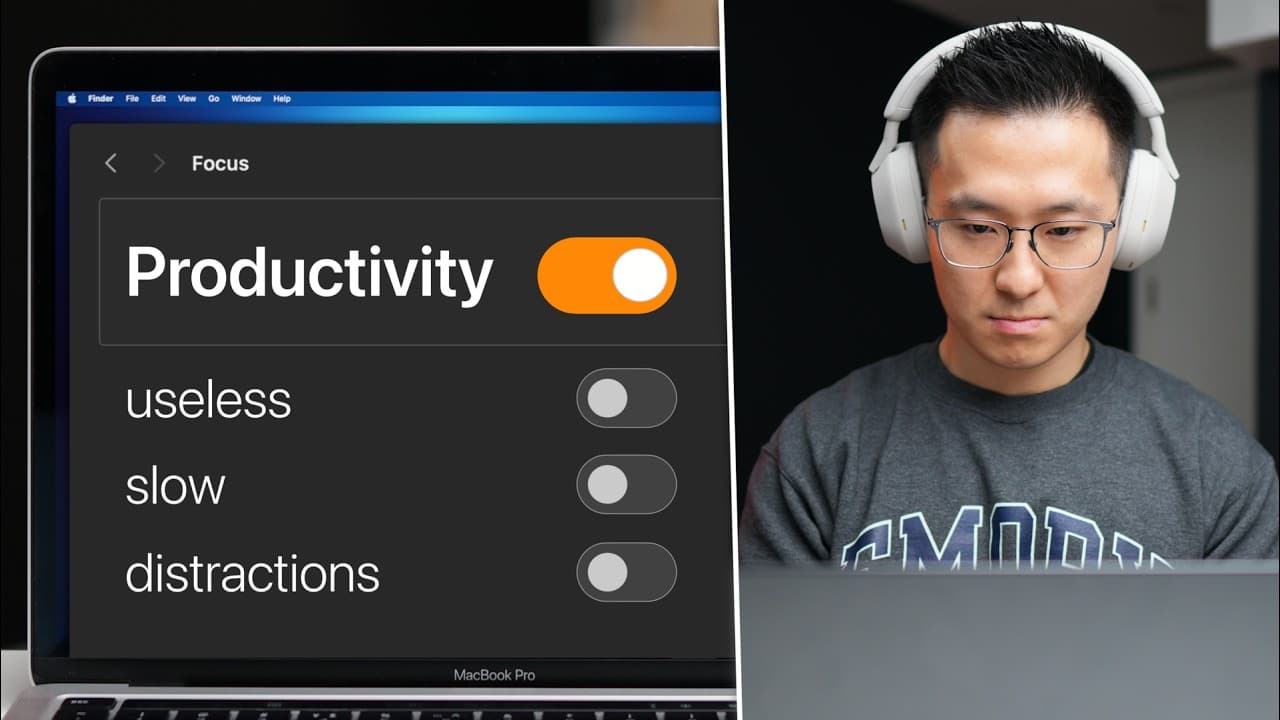
This video provides 10 practical productivity tips for daily use on Mac OS, covering Spotlight search, Safari settings, Airdrop, Notes app, and MacBook settings.
Transcript
recently we received a lot of updates for Mac OS so in this video we're cutting through the noise and going over the top 10 productivity tips you will actually use on a daily basis starting with Spotlight diving right into an example if I just type in hot Spotlight returns a bunch of random results from contacts to folders to photos of hot models b... Read More
Key Insights
- 👨🔬 Spotlight search offers various functionalities, including filtering, navigation, previewing, and web searching.
- 📑 Customizing Safari settings can help manage tabs and enhance privacy during browsing.
- 🪜 Airdrop can be made more efficient by adding the icon to the toolbar and enabling handoff between devices.
- 👏 Notes app productivity can be increased through the use of shortcuts, tags, smart folders, and font size adjustments.
- ❓ MacBook settings offer options to optimize productivity, such as Hot Corner shortcuts, Force Quit, and disabling predictive text.
- 😀 Uninstalling web apps created in Safari can be done through Spotlight or using third-party app cleaners.
- 😀 Drop Zone is a helpful app for Airdrop and file management on Mac.
Install to Summarize YouTube Videos and Get Transcripts
Explore YouTube Video Summarizer or Get YouTube Transcript Extractor
Questions & Answers
Q: How can Spotlight search be used to quickly access specific files or settings?
In Spotlight, you can type keywords to filter your search results, use arrow keys to navigate, and press space to preview files. To instantly open files in Finder, press Command+Enter. To search the web, type the search term and press Command+B.
Q: Can web apps created in Safari be uninstalled?
Yes, web apps created in Safari can be uninstalled by searching for them in Spotlight, using Command+Enter to reveal their location in Finder, and dragging them to the trash. Alternatively, you can use a third-party app cleaner for easier uninstallation.
Q: How can Airdrop be used more productively?
To enhance Airdrop productivity, you can add the Airdrop icon to the toolbar in the Finder window. Additionally, enabling handoff between Mac and iCloud devices allows for seamless copying and pasting of texts, links, and images.
Q: What tips can improve productivity in the Notes app?
Productivity in the Notes app can be enhanced by using keyboard shortcuts like Command+K to add hyperlinks, double angle brackets to quickly link to existing notes, and tags for automatic organization. Adjusting the font size and using smart folders can also improve productivity.
Key Insights:
- Spotlight search offers various functionalities, including filtering, navigation, previewing, and web searching.
- Customizing Safari settings can help manage tabs and enhance privacy during browsing.
- Airdrop can be made more efficient by adding the icon to the toolbar and enabling handoff between devices.
- Notes app productivity can be increased through the use of shortcuts, tags, smart folders, and font size adjustments.
- MacBook settings offer options to optimize productivity, such as Hot Corner shortcuts, Force Quit, and disabling predictive text.
- Uninstalling web apps created in Safari can be done through Spotlight or using third-party app cleaners.
- Drop Zone is a helpful app for Airdrop and file management on Mac.
- The video provides additional tips and resources for productivity on Mac OS.
Summary & Key Takeaways
-
Spotlight search allows for easy navigation and previewing of files, as well as searching the web directly from Spotlight.
-
Safari settings can be customized to automatically close unused tabs and use preferred search engines for private browsing.
-
Airdrop can be optimized by adding the icon to the toolbar and enabling handoff between Mac and iOS devices.
-
Notes app can be used more efficiently by utilizing keyboard shortcuts, creating smart folders, and adjusting font size.
-
MacBook settings can be adjusted to prevent accidental activation of hot corners, force quit unresponsive apps, and disable predictive text.
Read in Other Languages (beta)
Share This Summary 📚
Summarize YouTube Videos and Get Video Transcripts with 1-Click
Try YouTube Summary with ChatGPT & Claude or YouTube Transcript Generator
Explore More Summaries from Jeff Su 📚




Summarize YouTube Videos and Get Video Transcripts with 1-Click
Try YouTube Summary with ChatGPT & Claude or YouTube Transcript Generator