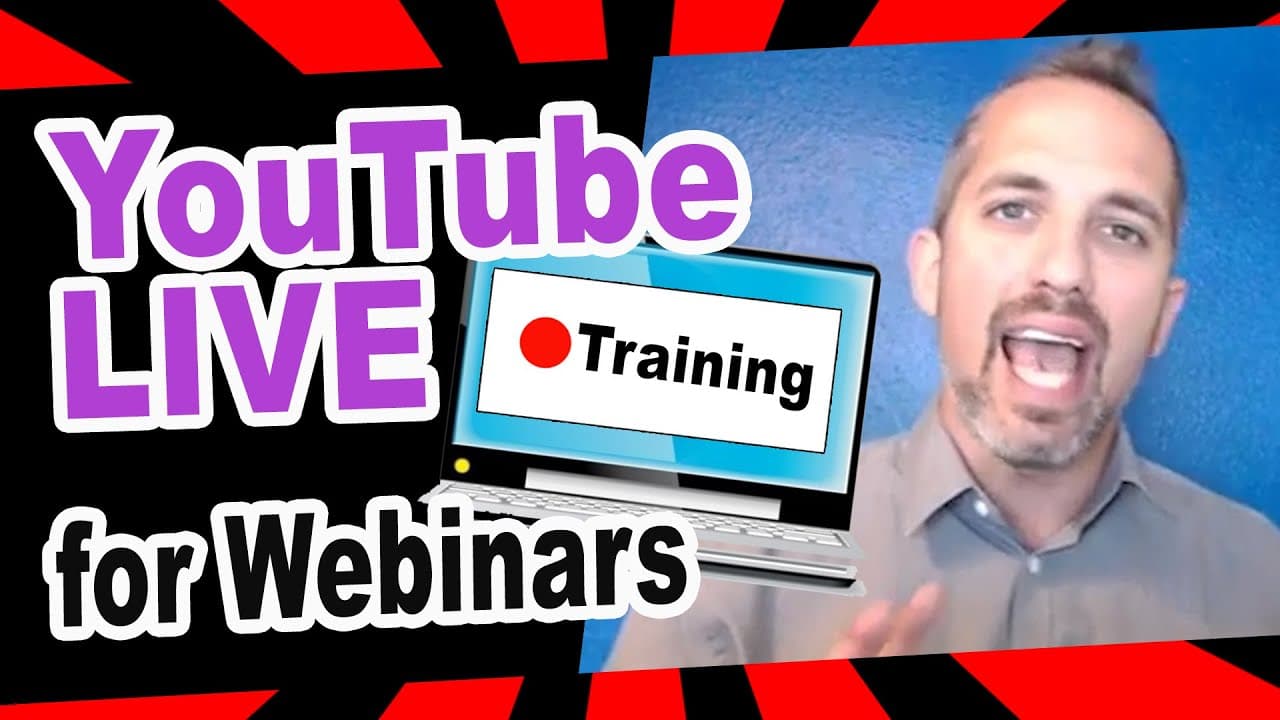
How to use YouTube LIVE for Webinars FULL TUTORIAL (video marketing)
TL;DR
Learn how to set up a webinar on YouTube Live, a platform that allows for live video, comments, and posting links.
Transcript
Google Hangouts might be a thing of the past but YouTube live isn't going anywhere in fact in the video masters Academy which is my private training group we work with business owners on YouTube live and how to set up a webinar using YouTube live you have live video plus you have comments the ability to post links and so it's a really great platfor... Read More
Key Insights
- 👻 YouTube Live is a valuable platform for hosting webinars due to its live video streaming capabilities, comment section, and link posting features.
- 🫒 Setting up a webinar on YouTube Live involves logging into your YouTube channel, accessing the Creator Studio, and navigating to the Live Streaming section to create a new live event.
- 📼 Tubebuddy is a recommended tool for setting up multiple profiles within YouTube, such as webinar profiles, live video profiles, and regular YouTube video profiles.
- 🍃 It is advisable to leave webinars unlisted to limit access to only those with the link, and adding a description and relevant tags can help with tracking and organizing videos.
- 😤 Inviting team members to join the Google Hangouts interface can be done by copying the provided link and sending it through various communication channels.
- 👥 YouTube Live uses the Google Hangouts interface, allowing for internal communication with team members and the ability to manage the webinar.
- 🫵 To engage with viewers, it is essential to have two windows open: one for the Google Hangouts interface and the other for viewing the live webinar on YouTube.
Install to Summarize YouTube Videos and Get Transcripts
Explore YouTube Video Summarizer or Get YouTube Transcript Extractor
Questions & Answers
Q: Can you explain the difference between YouTube Live and Google Hangouts?
While Google Hangouts is being phased out, YouTube Live still utilizes the Google Hangouts interface. YouTube Live allows for live video streaming, comments, and posting links, making it an ideal platform for webinars.
Q: Do I need multiple screens or computers to host a webinar on YouTube Live?
No, you only need two windows open: one for the Google Hangouts interface where you manage the webinar, and the other for viewing the live webinar on YouTube. You can also open a third window for email or Facebook Messenger for additional communication.
Q: How do I invite team members to join me in the Google Hangouts interface?
To invite team members, simply copy the link provided in the Hangouts interface and send it via email or through other communication channels. Team members will be able to join the Hangout and collaborate with you during the webinar.
Q: Is there a delay between what is seen on the YouTube live view and the Google Hangouts interface?
Yes, there is typically a 15-30 second delay between the YouTube live view and the Hangouts interface. It's important to mute the live video to avoid any echo and to engage with comments and questions in real-time from the Hangouts interface.
Summary & Key Takeaways
-
Google Hangouts may be outdated, but YouTube Live is still a valuable platform for hosting webinars.
-
The video provides a step-by-step guide on setting up a webinar on YouTube Live, including logging in to your YouTube channel, creating a new live event, and inviting team members and viewers.
-
The tutorial emphasizes the importance of having two windows open, one for the Google Hangouts interface and the other for viewing the live webinar on YouTube.
Read in Other Languages (beta)
Share This Summary 📚
Summarize YouTube Videos and Get Video Transcripts with 1-Click
Try YouTube Summary with ChatGPT & Claude or YouTube Transcript Generator
Explore More Summaries from Owen Video 📚

Summarize YouTube Videos and Get Video Transcripts with 1-Click
Try YouTube Summary with ChatGPT & Claude or YouTube Transcript Generator