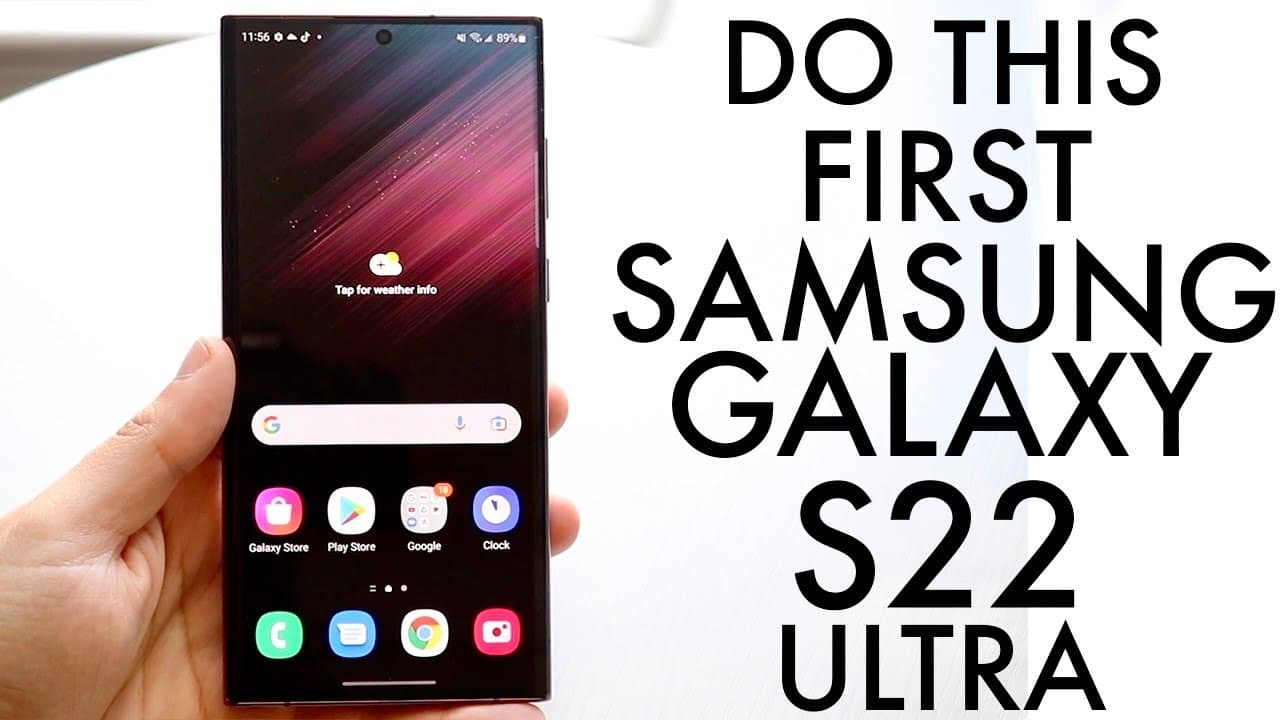
Samsung Galaxy S22 Ultra: BEST Tricks & Tips!
TL;DR
Learn essential setup tips for new Samsung Galaxy S22 Ultra owners to enhance their smartphone experience.
Transcript
welcome back everyone i wanted to go ahead and break down some of the best tricks or tips and probably the first things you should do as soon as you buy your samsung galaxy s22 ultra luckily for you this is a beautiful phone it's going to be supported for a very long amount of time and with that being said the first thing i would recommend doing is... Read More
Key Insights
- 🔒 Keeping the Galaxy S22 Ultra updated is essential for optimal performance and security.
- 😀 LED notifications can be customized for various apps, allowing for personalized visual alerts.
- 🛟 Dark mode can extend battery life and improve usability in dim environments.
- 🎹 Adjusting keyboard settings can enhance typing comfort and efficiency on the device.
- 🤟 Gesture navigation offers a cleaner interface and maximizes screen real estate.
- 👤 Remapping the side button to preferred functions increases convenience for users.
- 🎅 The S Pen adds significant value with its multipurpose functions for creativity and productivity.
Install to Summarize YouTube Videos and Get Transcripts
Explore YouTube Video Summarizer or Get YouTube Transcript Extractor
Questions & Answers
Q: Why is it important to update the software on the Galaxy S22 Ultra right after purchase?
Updating the software is crucial as it ensures your device has the latest features, enhancements, and security patches. Samsung often releases updates to fix bugs and introduce improvements. Failing to update may leave your phone vulnerable to security risks and limit its performance and functionality.
Q: How can I enable LED notifications on my Galaxy S22 Ultra?
To enable LED notifications, go to the Settings menu, select "Notifications," then navigate to "Brief pop-up settings." From there, you can add a lighting style and customize colors and effects based on the type of notification. This feature provides visual alerts for incoming messages and app notifications.
Q: What benefits does enabling dark mode provide on the Galaxy S22 Ultra?
Dark mode not only provides a visually appealing interface, but it also saves battery life, especially on AMOLED displays like the Galaxy S22 Ultra. By turning off the pixels associated with bright colors, you can extend your device's battery life while also reducing the strain on your eyes during low-light conditions.
Q: How do I customize the keyboard settings on my Galaxy S22 Ultra?
To customize your keyboard, open any text input area and tap on the keyboard icon. Then, access the settings from the three dots on the keyboard. You can modify the keyboard size, layout, and additional features like swipe typing for a more personalized experience suited to your typing preferences.
Q: What is the advantage of switching to a gesture-based navigation system on the Galaxy S22 Ultra?
Gesture-based navigation utilizes swipe motions instead of traditional buttons, allowing for more screen space and a more modern interface. This method enhances usability and provides an immersive experience by minimizing distractions, thus improving the overall functionality and aesthetic of the device.
Q: How can I remap the side button on my Galaxy S22 Ultra?
To remap the side button, navigate to Settings, search for "Side key" under Advanced features, and select the desired function. Options include launching apps, accessing the power menu, or quickly opening Bixby. Remapping can be very useful for personal convenience and efficiency in accessing frequently used features.
Q: What key features does the S Pen provide within the Galaxy S22 Ultra?
The S Pen offers functionalities like screen-off memos for quick notes, air actions for remote control of your phone (such as taking photos), and customizable shortcuts. The S Pen enhances productivity and offers creative capabilities, making it a valuable tool for users who often take notes or draw.
Summary & Key Takeaways
-
The first crucial step after purchasing the Samsung Galaxy S22 Ultra is to perform a software update to ensure the device runs on the latest features and security patches.
-
Enabling LED notifications enhances the user experience by providing visual alerts for messages and notifications, allowing for customization in colors and styles.
-
Additional tips for improving usability include enabling dark mode for battery conservation, modifying the keyboard size, and utilizing the S Pen features for enhanced productivity.
Read in Other Languages (beta)
Share This Summary 📚
Summarize YouTube Videos and Get Video Transcripts with 1-Click
Try YouTube Summary with ChatGPT & Claude or YouTube Transcript Generator
Explore More Summaries from Simple Alpaca 📚


Summarize YouTube Videos and Get Video Transcripts with 1-Click
Try YouTube Summary with ChatGPT & Claude or YouTube Transcript Generator