How to Use a DSLR as a Webcam on Linux
TL;DR
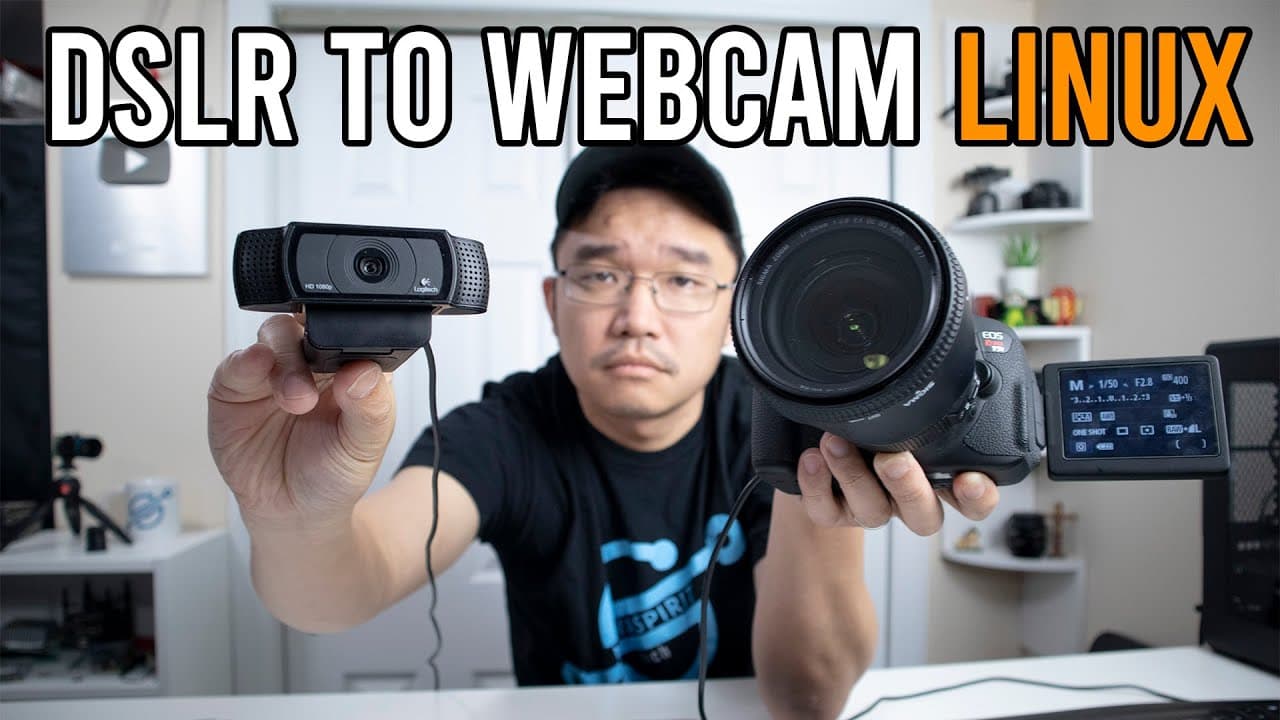
To use a DSLR as a webcam in Linux, install GPhoto, v4l2loopback, and ffmpeg. After configuring these tools, your DSLR can capture high-quality video for streaming on platforms like OBS. Ensure your camera is compatible and remove any conflicting firmware like Magic Lantern to avoid setup issues.
Transcript
hey guys what's going on it's on here from Nova spirit Tech and welcome back to our Channel and today we are gonna be turning our DSLR into a webcam in Linux so let's get started some of you may already know that I recently started streaming on Twitch which I'll leave a link right here also down in the description below and on that stream I usually... Read More
Key Insights
- ✋ The guide emphasizes the importance of high-quality video for serious streaming, advocating for DSLR usage over conventional webcams.
- 😀 Canon's recent software development for DSLR usage as webcams is limited to Windows, revealing the unique challenges faced by Linux users.
- 🎥 The setup requires specific programs that streamline camera detection and video capture, highlighting the technical aspects involved in the process.
- 🎥 Ensuring that optional firmware like Magic Lantern is removed or disabled can prevent complications during camera setup.
- 👤 The detailed steps provided enable users to automate webcam startup, simplifying the process for future streaming sessions.
- 🫵 Additionally, the video provides insights into potential latency issues during live streaming, equipping viewers with knowledge to troubleshoot common problems.
- 😷 Incorporating community engagement, the creator encourages viewers to interact by asking questions or leaving comments for further clarification.
Install to Summarize YouTube Videos and Get Transcripts
Explore YouTube Video Summarizer or Get YouTube Transcript Extractor
Questions & Answers
Q: What are the benefits of using a DSLR as a webcam over a regular webcam?
Using a DSLR as a webcam can significantly enhance video quality due to larger sensors and interchangeable lenses, enabling improved focus and depth of field. This is particularly advantageous for streaming and content creation where visual clarity is paramount. Additionally, DSLRs often perform better in varying lighting conditions, providing more versatility for different setups.
Q: Which software is required to set up a DSLR webcam on Linux?
To set up a DSLR webcam on Linux, you'll need to install G photo, v4l2loopback, and ffmpeg. G photo detects the camera and captures images, while v4l2loopback turns the video stream into a virtual webcam device. Ffmpeg is used for transcoding the video format, allowing it to be read by streaming applications like OBS.
Q: How can users check if their DSLR is compatible with G photo?
Users can check compatibility by visiting a linked website that lists supported cameras. If the DSLR model is included in the list and supports live view functionality, it is likely to work with G photo as a capture device. If the camera is not listed, it may not function properly for this setup.
Q: What should a user do if they encounter delays while streaming with their DSLR?
If delays occur while streaming from a DSLR, users are advised to optimize the setup by ensuring that their connection method is efficient and to use OBS instead of VLC for quicker response times. Additionally, minimizing background processing and adjusting video settings can help reduce latency, allowing for a smoother streaming experience.
Summary & Key Takeaways
-
The video provides a guide on setting up a DSLR camera as a webcam on a Linux system, which offers better picture quality compared to standard webcams.
-
Viewers will learn about necessary software installations, including G photo, v4l2loopback, and ffmpeg, which are essential for capturing and streaming video.
-
The creator details troubleshooting steps, camera compatibility, and the importance of minimizing latency in video capture when using OBS or other streaming applications.
Read in Other Languages (beta)
Share This Summary 📚
Summarize YouTube Videos and Get Video Transcripts with 1-Click
Try YouTube Summary with ChatGPT & Claude or YouTube Transcript Generator
Explore More Summaries from Novaspirit Tech 📚






Summarize YouTube Videos and Get Video Transcripts with 1-Click
Try YouTube Summary with ChatGPT & Claude or YouTube Transcript Generator