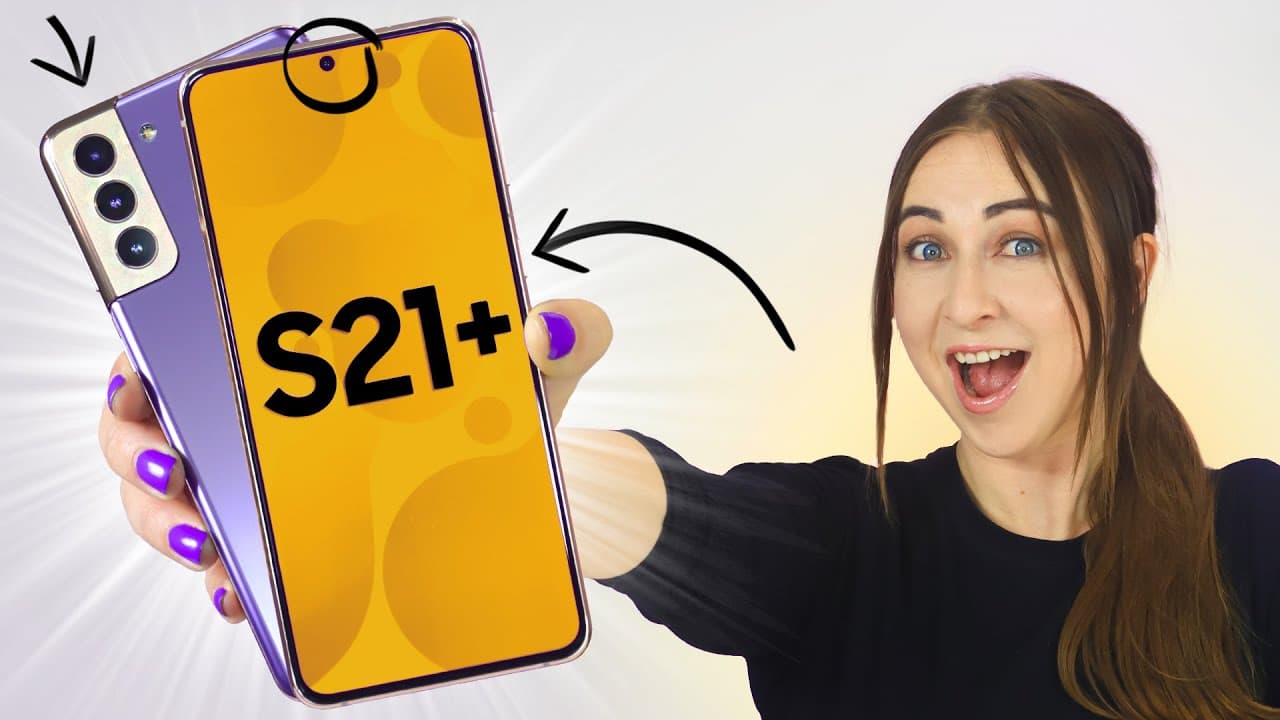
Samsung Galaxy S21 & S21+ Tips, Tricks & Hidden Features + ONE UI 3.1 !!
TL;DR
Learn how to use object erase, capture high-quality snapshots while recording 8K videos, create your own custom emoji and set it as your call screen background, shoot pictures in raw for better editing capabilities, enhance portrait shots with different effects, use video background effects for video calls, customize your always-on display, adjust sound quality and effects, access hidden widgets from the lock screen, use picture-in-picture mode, add widgets directly from app icons, change notification colors based on keywords, and download free wallpapers for the Galaxy S21 range.
Transcript
hey guys welcome back to hale's world and if you haven't already seen my video on the galaxy s21 ultra then i highly suggest you do because there are some great features in there too but in this video i'm going to show you even more awesome tips and tricks on the s21 and s21 plus starting off with object erase so for this what you do is open up the... Read More
Key Insights
- 🧡 The Galaxy S21 and S21 Plus offer a range of useful features that enhance user experience and creativity.
- 👻 The object erase feature in the gallery allows users to easily remove unwanted objects from images.
- 🛤️ Capturing snapshots while recording 8K videos is a convenient way to get high-quality still images.
- 📲 Custom emojis for call screen backgrounds add a fun and personalized touch to phone calls.
- 💁 Shooting pictures in raw format enables greater editing possibilities and preserves more image details.
- 📳 The enhanced portrait mode provides various effects for stunning portrait shots.
- 🎮 Video background effects during video calls offer an engaging and customizable experience.
- ⏰ Customizing the always-on display with clock styles and custom images or GIFs adds personalization to the device.
- 👂 The Galaxy S21 and S21 Plus offer sound quality and effects customization options for optimal audio experience.
- 🔓 Hidden lock screen widgets provide quick access to important functions without unlocking the device.
- 🖼️ Picture-in-picture mode allows users to watch videos while using other apps on the device.
- 😀 Widgets can be added directly from app icons for faster customization.
- ⚾ Notification colors can be customized based on specific keywords for easier identification.
Install to Summarize YouTube Videos and Get Transcripts
Explore YouTube Video Summarizer or Get YouTube Transcript Extractor
Questions & Answers
Q: How do you use the object erase feature on the Galaxy S21 and S21 Plus?
To use the object erase feature, open the gallery and select an image. Tap on the edits icon, swipe to the right, and tap on the object erase icon. Select the object you want to remove, tap the erase button, and the object will be removed from the background.
Q: Can you capture snapshots while recording 8K videos on the Galaxy S21 and S21 Plus?
Yes, while recording an 8K video, you can tap on the picture icon in the video mode to capture high-quality snapshots. If you forget to take snapshots while recording, you can find the desired frame in the video, tap the icon in the top left corner, and capture a still image.
Q: How do you create a custom emoji for the call screen background on the Galaxy S21 and S21 Plus?
Open the AR Zone app, select AR Emoji Studio, and create your custom emoji. Then, go to the Call Screen options and choose your emoji as the call screen background. When someone calls you, your customized emoji will appear and animate on the screen.
Q: How can you shoot pictures in raw format on the Galaxy S21 and S21 Plus?
Open the camera app, access the camera settings, and enable the raw copies option. When taking pictures, the gallery will display both JPEG and raw images, allowing for more advanced editing possibilities with the raw files.
Q: What enhancements does the portrait mode offer on the Galaxy S21 and S21 Plus?
The portrait mode offers various effects like studio high key mono or low-key mono, along with intensity adjustments. Regardless of the effect chosen, portrait shots taken with the Galaxy S21 and S21 Plus will look fantastic due to the improved camera capabilities.
Q: How can you change video background effects for video calls on the Galaxy S21 and S21 Plus?
Enable video call effects in the advanced features settings. Once enabled, you can choose between blur, color, and image backgrounds. Select your preferred background and test it out using Google Duo or any other video calling app.
Q: How can you customize the always-on display on the Galaxy S21 and S21 Plus?
In the lock screen settings, enable the always-on display feature. Then, choose clock style and select custom clock colors and designs. You can also add custom images or GIFs to personalize your always-on display.
Q: How do you access hidden widgets from the lock screen on the Galaxy S21 and S21 Plus?
On the lock screen, tap on the clock to reveal the hidden widgets. Scroll down to the settings option and customize the widgets' order and toggle certain ones off if desired. These widgets provide quick access to various functions such as weather and music control.
Summary & Key Takeaways
-
The video highlights several useful features of the Samsung Galaxy S21 and S21 Plus, including object erase in the gallery, capturing snapshots while recording 8K videos, creating custom emojis for call screen backgrounds, shooting pictures in raw format, enhancing portrait shots with different effects, using video background effects for video calls, customizing the always-on display, adjusting sound quality and effects, accessing hidden lock screen widgets, utilizing picture-in-picture mode, and changing notification colors based on keywords.
-
The content provides step-by-step instructions and demonstrations for each feature, showcasing their benefits and how to use them effectively.
-
The video also offers a bonus of free downloadable wallpapers specifically designed for the Galaxy S21 range.
Read in Other Languages (beta)
Share This Summary 📚
Summarize YouTube Videos and Get Video Transcripts with 1-Click
Try YouTube Summary with ChatGPT & Claude or YouTube Transcript Generator
Explore More Summaries from Hayls World 📚


Summarize YouTube Videos and Get Video Transcripts with 1-Click
Try YouTube Summary with ChatGPT & Claude or YouTube Transcript Generator