How to Live Stream Vertically on YouTube
TL;DR
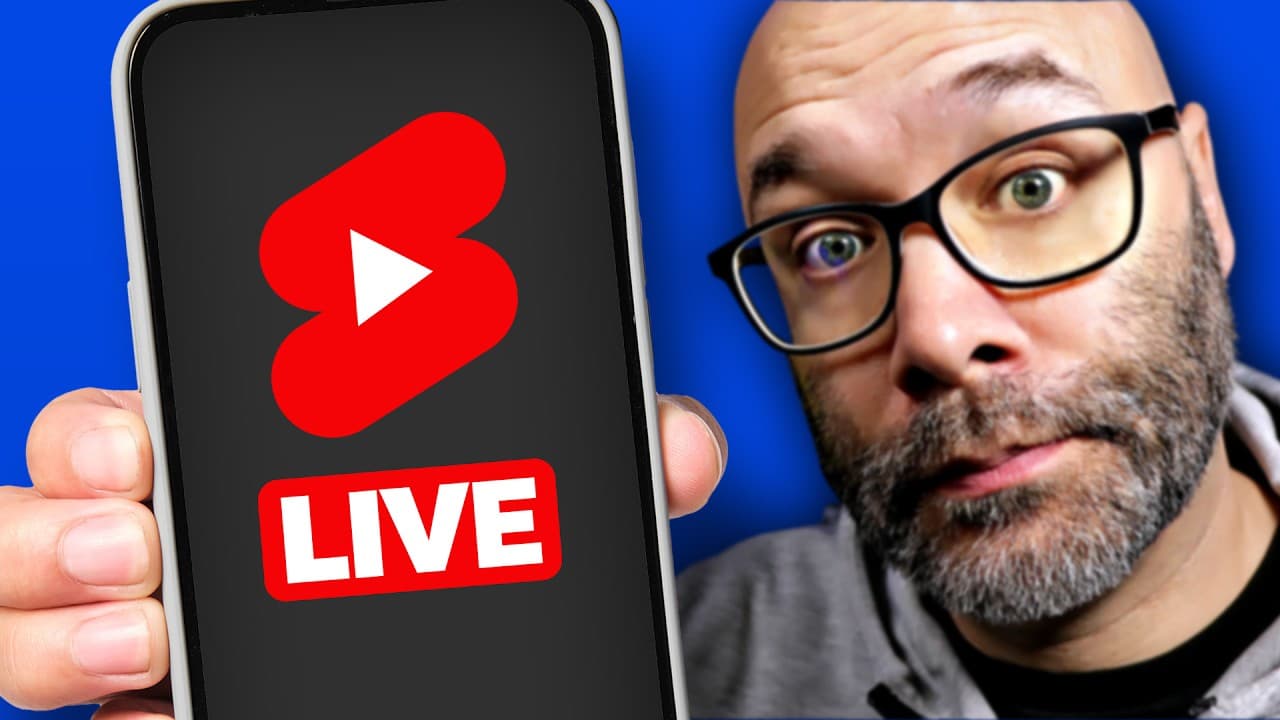
To live stream vertically on YouTube, use the YouTube app on your phone, adding stream details and selecting vertical orientation before tapping 'go live.' For PC, it's best to avoid direct streaming due to limitations; instead, consider using StreamYard for professional features like screen sharing, audio checks, and guest invites, ensuring a smoother experience.
Transcript
- You've seen it on TikTok, you've seen it on Instagram. Now, ladies and gentlemen, we have the ability here on YouTube to go live into the vertical feed, which shows up directly in YouTube shorts when people are looking at YouTube shorts. This is gonna get you in front of more people that might not have clicked on a regular live stream, and by doi... Read More
Key Insights
- 🤱 Live streaming vertically on YouTube through the vertical feed in YouTube shorts can help you reach a wider audience.
- 🫒 Going live on YouTube from a phone is simple and basic: just open the app, add stream details, make it vertical, and tap "go live."
- 🍿 Streaming directly on YouTube from a PC is less ideal due to limitations in orientation, features, and potential internet disruptions.
- 🫒 StreamYard offers a better solution for professional live streaming with features like screen sharing, audio checks, graphics, and guest invites.
- 🫵 With StreamYard, you can ensure a vertical view, adjust lighting and framing, share screens, and add graphics and branding elements.
- 👻 StreamYard allows for easy invitation of guests through a shared link and displaying viewer comments on-screen.
- 🎏 Adding graphics and branding elements to your StreamYard stream can enhance your branding and engagement.
Install to Summarize YouTube Videos and Get Transcripts
Explore YouTube Video Summarizer or Get YouTube Transcript Extractor
Questions & Answers
Q: How can I go live on YouTube from my phone?
Open the YouTube app, click the plus icon, add stream details, make it vertical, and tap "go live." Make sure your chat is on and toggle between camera views if needed.
Q: Can I directly live stream on YouTube from my PC?
Yes, but it is not recommended due to potential landscape orientation and limitations in features like comments and branding. However, you can do so by clicking the plus icon on youtube.com, filling in details, and going live.
Q: What are the advantages of using StreamYard for live streaming?
StreamYard allows you to stream professionally with features like screen sharing, audio and video checks, graphics, and guest invites. It also offers a vertical view, ensuring you don't lose viewers during disruptions.
Q: How can I make money from my live streams?
Explore the ways to monetize your live streams by watching the related playlist that highlights different methods.
Summary & Key Takeaways
-
Learn how to go live on YouTube from your phone by opening the YouTube app, adding stream details, making it vertical, and tapping "go live."
-
For PC users, going live directly on YouTube is not recommended due to potential landscape orientation and lack of features like showing comments and branding.
-
To live stream in a professional manner with features like screen sharing, audio and video checks, graphics, and guest invites, use StreamYard.
Read in Other Languages (beta)
Share This Summary 📚
Summarize YouTube Videos and Get Video Transcripts with 1-Click
Try YouTube Summary with ChatGPT & Claude or YouTube Transcript Generator
Explore More Summaries from Nick Nimmin 📚



Summarize YouTube Videos and Get Video Transcripts with 1-Click
Try YouTube Summary with ChatGPT & Claude or YouTube Transcript Generator