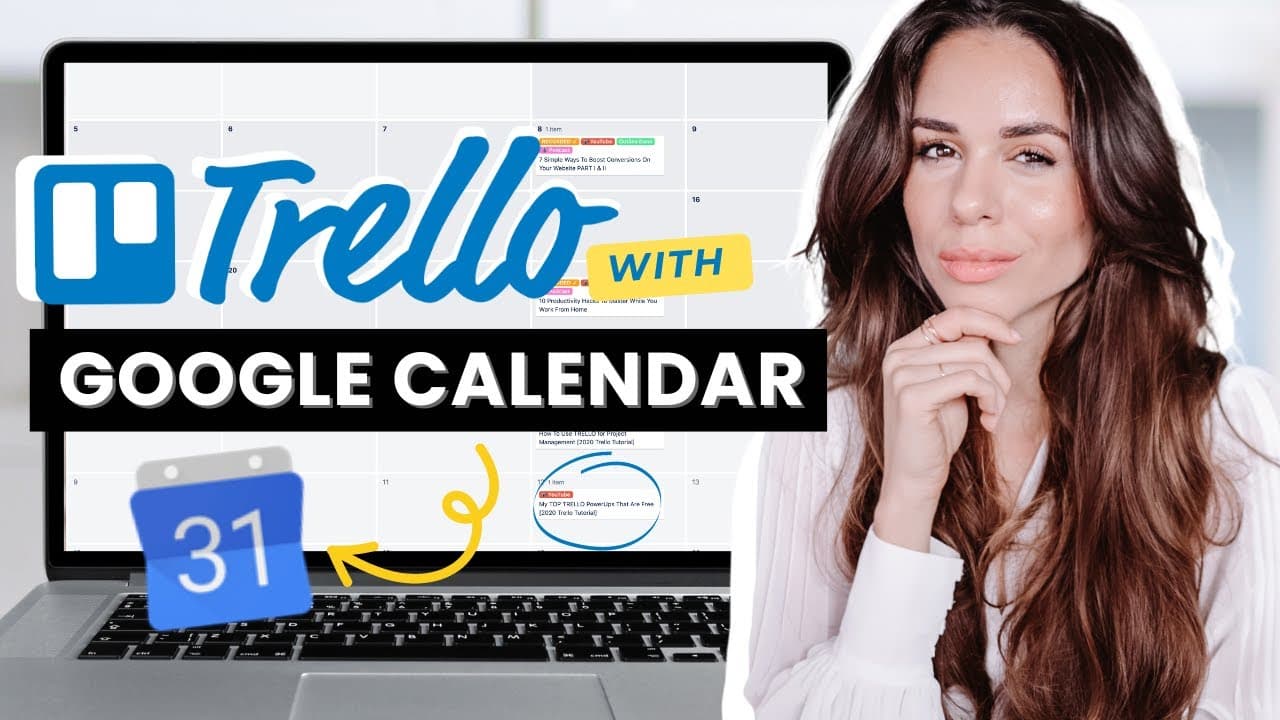
How To Sync Trello With Google Calendar (2 Minutes)
TL;DR
Learn to sync Trello tasks with Google Calendar efficiently.
Transcript
if you love using google calendar to organize your to-do's check appointments but you also love using trello in this video i'm going to show you how you can be syncing both so that you can see all of your trello deadlines all of your due dates all of the projects in your google calendar coming up what's up familia i'm kim jimenez and i'm so excited... Read More
Key Insights
- The video provides a step-by-step guide to integrating Trello with Google Calendar, enhancing task management by displaying Trello deadlines directly in Google Calendar.
- To sync tasks, users must first assign due dates to Trello cards, ensuring they appear in the Google Calendar once synchronized.
- Enabling the calendar power-up in Trello is crucial for integration, and users on the free plan can use one power-up per board.
- The tutorial highlights the simplicity of setting up a new calendar in Google Calendar using the iCalendar feed from Trello.
- Completed tasks in Trello are marked with a strikethrough in Google Calendar, providing a clear visual of task status.
- Users can access Trello card details directly from Google Calendar, streamlining workflow and improving productivity.
- The integration allows users to decide if their calendar should be public or private, catering to both personal and business needs.
- The video encourages viewers to explore additional Trello hacks through a playlist and invites feedback on preferred Trello integrations.
Install to Summarize YouTube Videos and Get Transcripts
Explore YouTube Video Summarizer or Get YouTube Transcript Extractor
Questions & Answers
Q: How do you ensure Trello tasks appear in Google Calendar?
To ensure Trello tasks appear in Google Calendar, you must first assign due dates to each Trello card you wish to sync. Once due dates are set, enable the calendar power-up in Trello and use the iCalendar feed to integrate with Google Calendar, allowing tasks to be displayed.
Q: What is the role of the calendar power-up in Trello?
The calendar power-up in Trello is essential for integrating Trello with Google Calendar. It allows users to view all due dates and deadlines within Trello and facilitates the syncing process by enabling the iCalendar feed necessary for integration with Google Calendar, enhancing task management.
Q: Can you access Trello card details from Google Calendar?
Yes, you can access Trello card details directly from Google Calendar once the integration is complete. This feature streamlines workflow by allowing users to view and manage task details without switching between platforms, thereby improving productivity and efficiency in task management.
Q: What happens to completed tasks in Google Calendar?
Completed tasks in Google Calendar are marked with a strikethrough, providing a clear visual indication of task status. This feature helps users easily distinguish between pending and completed tasks, ensuring effective task management and tracking within the integrated calendar view.
Q: How do you set up a new calendar in Google Calendar for Trello tasks?
To set up a new calendar in Google Calendar for Trello tasks, you need to add a new calendar using the 'From URL' option. Copy the iCalendar feed URL from Trello and paste it into Google Calendar. This process allows Trello tasks to be displayed in the new calendar.
Q: Is it possible to make the integrated calendar public?
Yes, it is possible to make the integrated calendar public by adjusting the settings in Google Calendar. However, most users prefer to keep it private for personal or business purposes. The option to make it public provides flexibility for users who may need broader access.
Q: What additional resources are available for Trello users?
Additional resources for Trello users include a playlist of Trello hacks and tutorials offered by Kim Jimenez. These resources provide further insights into maximizing Trello's functionality and exploring various integrations, helping users enhance productivity and task management skills.
Q: What feedback does the video encourage from viewers?
The video encourages viewers to provide feedback on their preferred Trello integrations and any tools they would like to see integrated with Trello. This feedback helps create a community dialogue and allows the creator to tailor future content to the audience's needs and interests.
Summary & Key Takeaways
-
This tutorial demonstrates how to sync Trello with Google Calendar, allowing users to manage tasks efficiently by displaying Trello deadlines in Google Calendar. It covers setting up due dates in Trello, enabling the calendar power-up, and using the iCalendar feed to integrate with Google Calendar.
-
Kim Jimenez explains the process of syncing Trello and Google Calendar, emphasizing the importance of assigning due dates to Trello cards. The video also discusses the benefits of enabling the calendar power-up and provides insights into managing task statuses within Google Calendar.
-
The video offers practical advice on integrating Trello with Google Calendar, highlighting the ease of accessing Trello card details directly from Google Calendar. It also explores the flexibility of public versus private calendar settings, enhancing both personal and professional task management.
Read in Other Languages (beta)
Share This Summary 📚
Summarize YouTube Videos and Get Video Transcripts with 1-Click
Try YouTube Summary with ChatGPT & Claude or YouTube Transcript Generator
Explore More Summaries from Kimberly Ann Jimenez 📚
Summarize YouTube Videos and Get Video Transcripts with 1-Click
Try YouTube Summary with ChatGPT & Claude or YouTube Transcript Generator