How to Wrap Text in Excel Cells to Display Fully
TL;DR
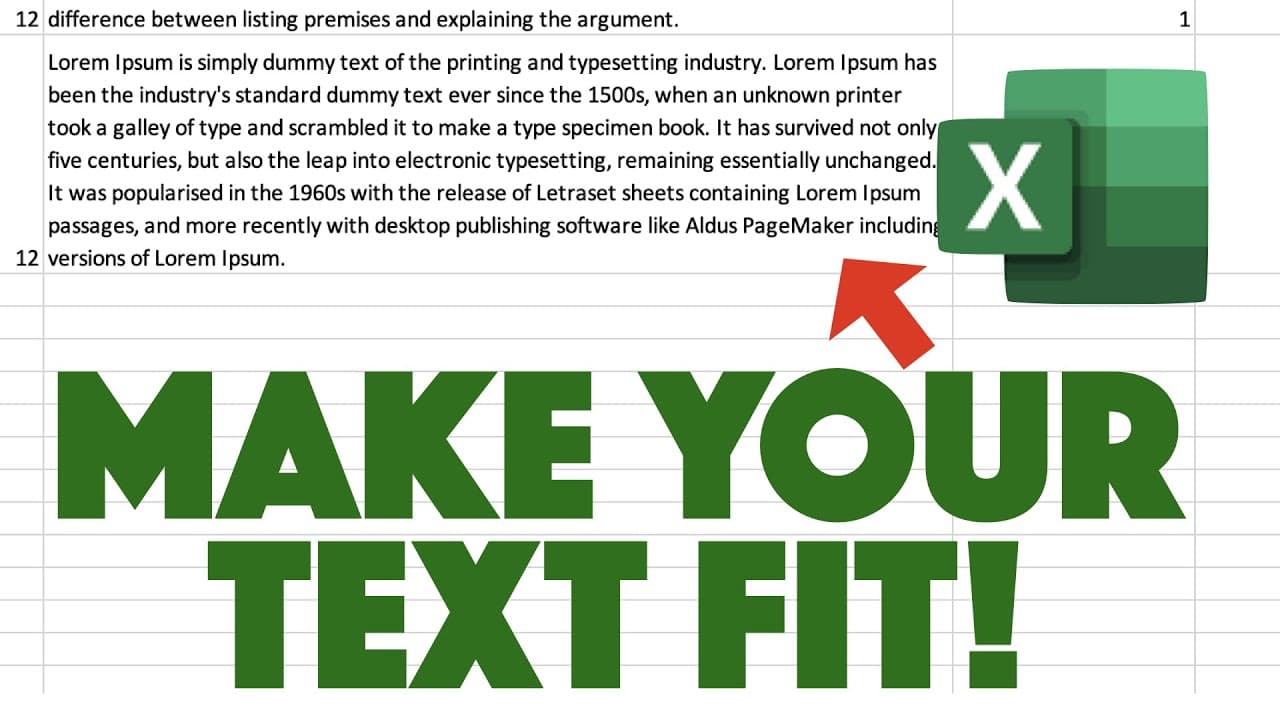
To wrap text in Excel cells for full visibility, right-click the cell, select 'Format Cells,' go to the 'Alignment' category, and check 'Wrap Text.' This feature ensures that all text within the cell is displayed even if the column width is limited, improving readability.
Transcript
so let me show you a quick fix to a common problem that you may have encountered especially if you're a beginner in excel so here's an example of a spreadsheet that i have it's from a survey and you notice that right over here column c has an entire paragraph of text and because of the column size right over here you can see that it's really only s... Read More
Key Insights
- 👻 Wrapping text in Excel columns allows for the display of complete paragraphs, even when the column size is limited.
- ❓ The "Wrap Text" function can be found under the "Alignment" category in the "Format Cells" option.
- ⌛ Applying the "Wrap Text" feature to multiple cells simultaneously saves time and ensures consistency.
- 🤨 Adjusting the row height may be necessary to eliminate any dead space at the top of the cell after wrapping the text.
- 🔂 This quick fix is particularly useful for beginners in Excel who may encounter issues with displaying lengthy text in a single cell.
- 🗯️ The method demonstrated can be used on both Windows and Mac devices, as the right-click functionality and "Format Cells" option are available in both operating systems.
- 💨 Wrapping text is a handy way to enhance readability and avoid the need for resizing columns repeatedly.
Install to Summarize YouTube Videos and Get Transcripts
Explore YouTube Video Summarizer or Get YouTube Transcript Extractor
Questions & Answers
Q: What is the common problem addressed in this video?
The common problem addressed in this video is when Excel columns display only a small portion of text, especially when dealing with paragraphs of text.
Q: How can you display the entire paragraph of text in a cell?
To display the entire paragraph of text in a cell, you can right-click on the cell, select "Format Cells," go to the alignment category, and enable the "Wrap Text" option. This allows the text to wrap within the cell and be fully visible.
Q: Can this method be applied to multiple cells at once?
Yes, the method shown in the video can be applied to multiple cells at once. Simply highlight the cells, right-click, select "Format Cells," choose "Alignment," and enable "Wrap Text." This will ensure all selected cells display the full text.
Q: What should you do if there is dead space at the top of the cell after wrapping the text?
If there is dead space at the top of the cell after wrapping the text, you can adjust the row height to eliminate the extra space. Modify the row height to fit the wrapped text without any unnecessary gaps.
Summary & Key Takeaways
-
This video provides a quick fix for displaying paragraphs of text in Excel columns.
-
The tutorial shows how to use the "Wrap Text" function to ensure that all text in a cell is visible.
-
The method involves right-clicking on the cell, selecting "Format Cells," navigating to the alignment category, and enabling the "Wrap Text" option.
Read in Other Languages (beta)
Share This Summary 📚
Summarize YouTube Videos and Get Video Transcripts with 1-Click
Try YouTube Summary with ChatGPT & Claude or YouTube Transcript Generator
Explore More Summaries from EdTech Hustle 📚

![Keynote: Remove The Background of Any Photo [Using Instant Alpha] thumbnail](/_next/image?url=https%3A%2F%2Fi.ytimg.com%2Fvi%2F0Ji-uTffzJE%2Fhqdefault.jpg&w=750&q=75)




Summarize YouTube Videos and Get Video Transcripts with 1-Click
Try YouTube Summary with ChatGPT & Claude or YouTube Transcript Generator