How to Use a Button to Trigger Google Assistant on Raspberry Pi
TL;DR
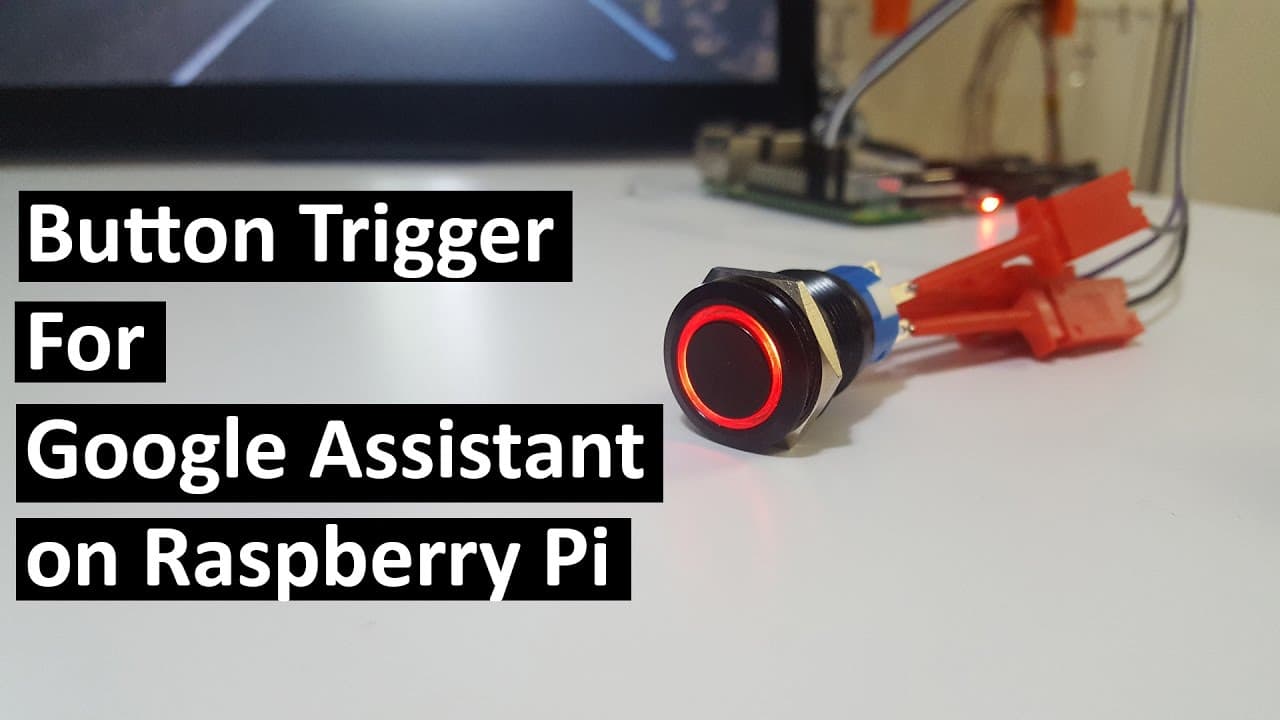
To activate Google Assistant with a button on a Raspberry Pi, set up GPIO pins using the RPi.GPIO library. Configure one pin for button input and another for an LED output, then modify the Google Assistant sample code to listen for button presses, triggering assistant queries. This setup enhances user experience by providing a physical control option.
Transcript
Hey guys what's going on it's Don here from Novaspirit Tech and today we are going to be adding button trigger activation on our Google assistant So let's get started Alright so we're going to need a button, an LED, resistors, some wires and I managed to find this button that has everything the ring light in there and a momentary switch, which I'll... Read More
Key Insights
- 👤 The integration of a physical button with Google Assistant enhances usability for users who prefer tactile control over voice commands.
- 😴 RPi.GPIO library is essential for managing GPIO pins on Raspberry Pi, allowing for straightforward interaction with external components.
- 🤩 Proper indentation in Python scripts is key to maintaining execution flow and preventing errors, as Python relies heavily on structured formatting.
- 📽️ The tutorial highlights the flexibility of Raspberry Pi in supporting various hardware projects, including IoT applications with voice assistant capabilities.
- 👤 Users are encouraged to explore voice activation features alongside button triggers, widening the functionality of their Google Assistant integration.
- 🧑💻 The process involves both hardware setup and software coding, demonstrating the dual nature of maker projects in tech.
- 💦 Communicating with the audience about future projects fosters community engagement, enticing viewers to subscribe and follow the creator's work.
Install to Summarize YouTube Videos and Get Transcripts
Explore YouTube Video Summarizer or Get YouTube Transcript Extractor
Questions & Answers
Q: What materials are needed for setting up the button trigger with Google Assistant?
To set up a button trigger with Google Assistant, you'll need a button, an LED, resistors, wires, and a Raspberry Pi. The button should include a momentary switch for triggering, while the LED provides visual feedback. Additionally, ensure you have the RPi.GPIO library installed to control the GPIO pins effectively.
Q: How do I configure the GPIO pins for the button and LED?
To configure the GPIO pins for the button and LED, you'll use two specific pins on the Raspberry Pi: GPIO 18 for the button as input and GPIO 23 for the LED as output. The initialization involves setting the pin modes using the GPIO.setup method in your Python script, enabling the button to detect presses and the LED to indicate status.
Q: What is the significance of indentations in the Python code for this project?
In Python, indentation is crucial as it defines the structure of the code blocks. With this project, maintaining consistent indentation is important, particularly because the sample code requires specific spacing to function properly. Misaligning the indentations can lead to errors, such as unexpected behavior or script failure, especially when handling GPIO inputs.
Q: How can I test if the button trigger is working correctly?
To test the button trigger, run the modified Google Assistant sample script after saving your changes. Once executed, press the button physically. If the button is configured correctly, it should activate Google Assistant, allowing you to issue commands like asking for the weather or telling a joke. The LED should light up when the button is pressed, indicating the trigger is functioning.
Summary & Key Takeaways
-
This tutorial demonstrates how to integrate a button and LED with Google Assistant on a Raspberry Pi using RPi.GPIO library.
-
The setup involves configuring GPIO pins for button input and LED output, and modifying the Google Assistant sample code.
-
The final result allows users to activate Google Assistant with a physical button, with additional planned features for voice activation.
Read in Other Languages (beta)
Share This Summary 📚
Summarize YouTube Videos and Get Video Transcripts with 1-Click
Try YouTube Summary with ChatGPT & Claude or YouTube Transcript Generator
Explore More Summaries from Novaspirit Tech 📚






Summarize YouTube Videos and Get Video Transcripts with 1-Click
Try YouTube Summary with ChatGPT & Claude or YouTube Transcript Generator