VLookUp - How To Extract Data From an Excel Spreadsheet Given Customer ID Number
TL;DR
Learn how to use the VLOOKUP function in Excel to quickly retrieve specific information from a large database.
Transcript
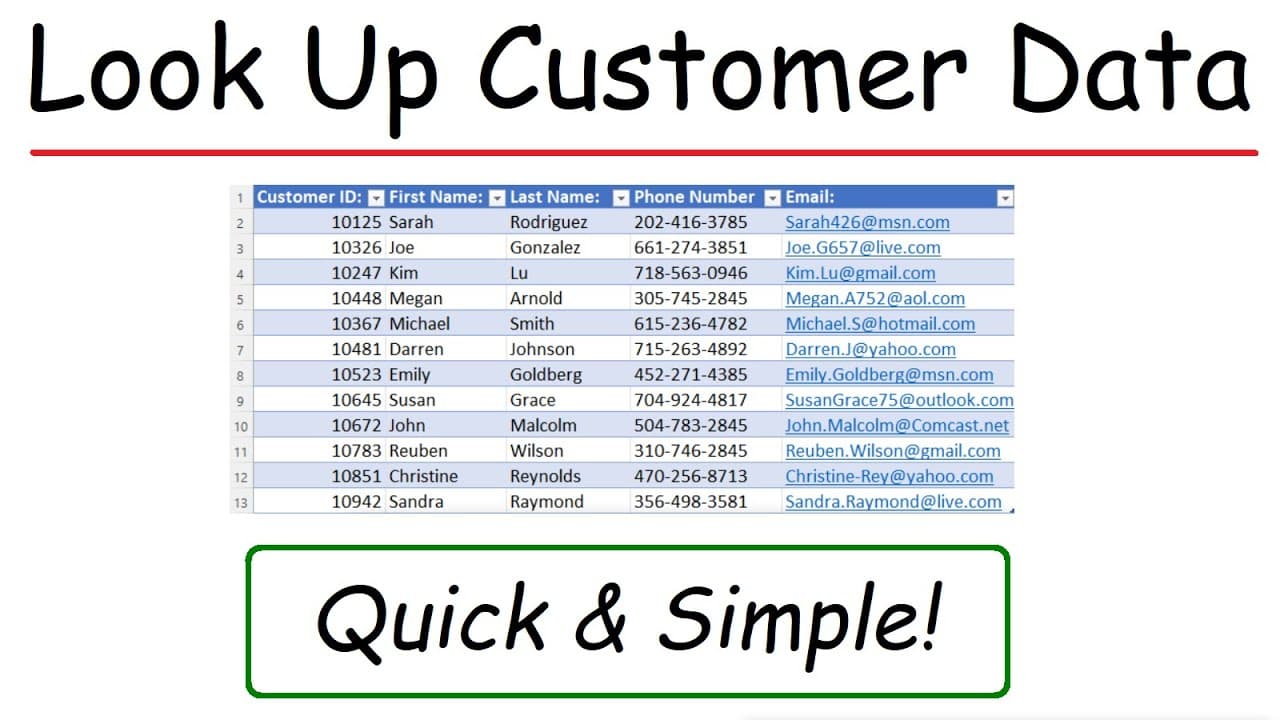
in this video we're going to talk about how to use vlookup to extract data from an Excel spreadsheet now imagine if you're a business owner and you have more than 5 000 customers in your database let's say if you need to look up a customer's information you don't want to scroll down to row 2481 to look up the information of a particular customer yo... Read More
Key Insights
- 🌥️ The video demonstrates how VLOOKUP can efficiently retrieve specific data from a large Excel database using a customer ID.
- 🫰 By specifying the table array, column index, and match type, you can customize the retrieval process.
- 💨 VLOOKUP eliminates the need for manual searching and scrolling through extensive spreadsheets, making data extraction faster and more accurate.
- 👻 The function allows you to extract data from multiple columns, providing flexibility in retrieving different types of information.
- 🤝 Using VLOOKUP saves time and effort, especially when dealing with databases containing thousands of entries.
- 🔨 Simple adjustments to the VLOOKUP formula can retrieve data from various columns, providing a versatile tool for data analysis.
- 💁 The choice between an approximate or exact match in VLOOKUP determines the level of accuracy in retrieving information.
Install to Summarize YouTube Videos and Get Transcripts
Explore YouTube Video Summarizer or Get YouTube Transcript Extractor
Questions & Answers
Q: How can VLOOKUP be used to extract data from an Excel spreadsheet?
To use VLOOKUP, select the cell where you want the data to appear, type "=VLOOKUP(" followed by the customer ID cell. Then, specify the table array, column index, and exact match. This formula will fetch the corresponding value from the specified column.
Q: What is the advantage of using VLOOKUP to retrieve data?
VLOOKUP allows you to quickly access information from a large database without the need to manually search through numerous rows. It simplifies the process of retrieving specific data, saving time and effort.
Q: Can VLOOKUP extract data from multiple columns?
Yes, VLOOKUP can retrieve information from any column in the specified table array. By adjusting the column index number, you can extract data from different columns in the spreadsheet.
Q: What is the difference between an approximate match and an exact match in VLOOKUP?
An approximate match (using "true") allows VLOOKUP to find the closest match to the specified value if an exact match is not found. An exact match (using "false") only returns the value if it is an exact match to the lookup value.
Summary & Key Takeaways
-
The video explains how to use the VLOOKUP function in Excel to extract data from a spreadsheet.
-
By entering a customer ID, you can retrieve information such as the customer's name, phone number, and email.
-
The VLOOKUP function saves time and effort by efficiently finding and displaying the desired information.
Read in Other Languages (beta)
Share This Summary 📚
Summarize YouTube Videos and Get Video Transcripts with 1-Click
Try YouTube Summary with ChatGPT & Claude or YouTube Transcript Generator
Explore More Summaries from The Organic Chemistry Tutor 📚



Summarize YouTube Videos and Get Video Transcripts with 1-Click
Try YouTube Summary with ChatGPT & Claude or YouTube Transcript Generator