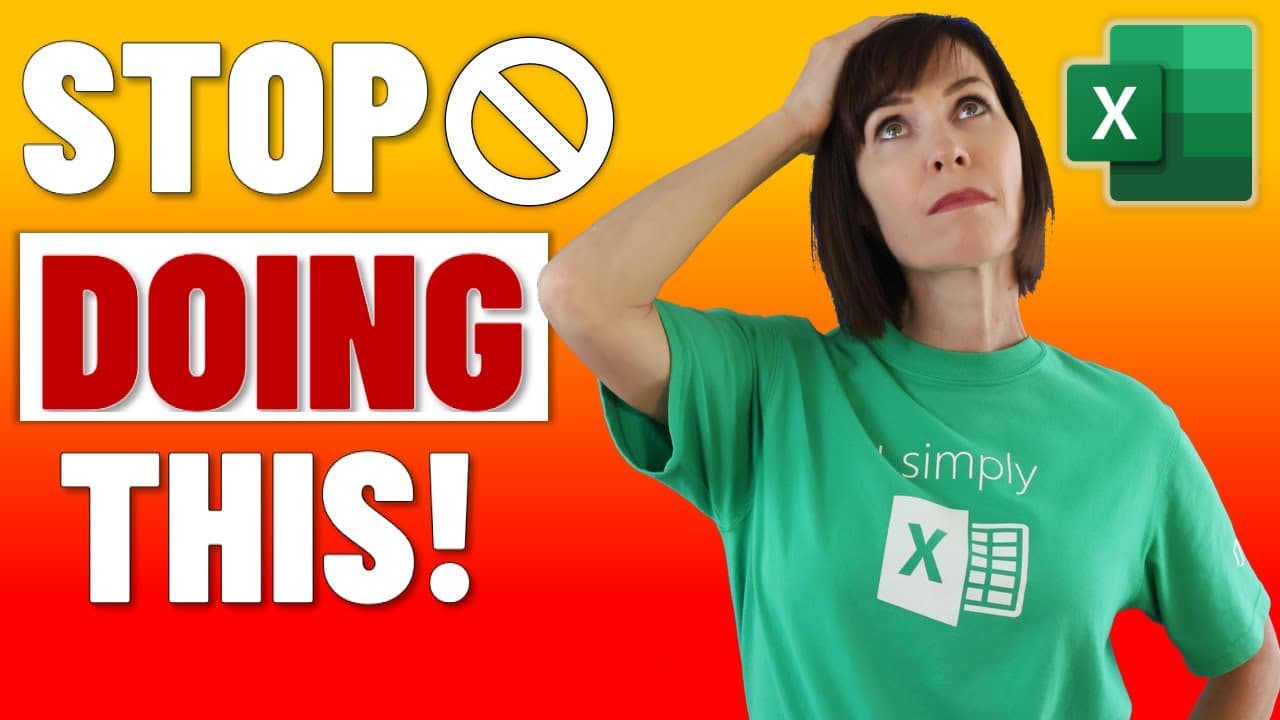
10 Excel Things You Should NEVER Do and What to do Instead
TL;DR
Learn the 10 common mistakes to avoid in Excel, such as merging and centering cells, incorrect data layout, text-formatted dates, referencing closed external files, excessive formatting, using cell fill colors, data cramming, and using outdated file formats.
Transcript
i received a lot of excel files from our members over the years and i've seen the same mistakes time and again so in this video i'm going to list the 10 things you should never do in excel and what to do instead to avoid trouble 99 of the time you don't need to merge and center cells now one of the problems with merged and centered cells is they in... Read More
Key Insights
- 🚩 Merged and centered cells can cause issues when selecting ranges and can prevent sorting and copying and pasting. It is better to use "Center Across Selection" for horizontal alignment.
- 📊 Data should be laid out in a tabular format to easily utilize features like pivot tables and formulas. This can be achieved by having separate columns for different variables.
- 📅 Dates formatted as text can cause problems when referencing them in formulas. It is important to convert text dates to date serial numbers for accurate calculations.
- 🔗 Updating external file links can lead to errors and data integrity issues. Using Power Query to bring data into the file allows for easy updates without breaking formulas.
- 💡 Formatting entire columns with cell fill colors adds unnecessary data to the file. Formatting data as a table instead allows for dynamic formatting and avoids excessive empty cells.
- 🎨 Using cell fill colors to encode data can make it difficult to reference and analyze the data. It is better to use numbers or text codes and apply conditional formatting for visualization.
- 💥 Overloading a single cell with too much data makes it difficult to analyze with formulas. It is better to separate data into individual cells for easier analysis and manipulation.
- 💣 Using the SUM function to add new rows of data can result in the new row being omitted from the sum. It is recommended to use the OFFSET function to reference the cells directly above the formula.
- 💾 Saving files as .xls format can limit functionality, security, and compatibility. It is better to make a copy of the file and save it as .xlsx for better performance and compatibility with newer versions of Excel.
Install to Summarize YouTube Videos and Get Transcripts
Explore YouTube Video Summarizer or Get YouTube Transcript Extractor
Questions & Answers
Q: Why should I avoid merging and centering cells in Excel?
Merging and centering cells can cause selection issues, sorting errors, and formula problems. It's recommended to use the "Center Across Selection" feature instead, which avoids these issues and provides a cleaner layout for your data.
Q: How can I ensure proper data layout in Excel?
Incorrect data layout, such as splitting values across multiple columns, makes it difficult to use pivot tables and formulas. It's best practice to use a tabular layout, with separate columns for each data category, to allow for easier analysis and calculations.
Q: What should I do if I have text-formatted dates in Excel?
Text-formatted dates can't be referenced in formulas, leading to errors. To convert them to date serial numbers, use the keyboard shortcut Control + Back Quote to display the date serial numbers. This will ensure accurate calculations and formula compatibility.
Q: What are the risks of referencing closed external files in Excel?
Referencing closed external files can result in data integrity issues and formula errors. Instead of updating the links or opening the external file, it's recommended to use Power Query to import the data into your Excel file, allowing for easy updates and formula stability.
Q: Why should I avoid excessive formatting of entire columns in Excel?
Formatting entire columns, even with empty cells, can lead to larger file sizes and slower performance. It's best to format your data in a table, as it automatically applies formatting to new rows and doesn't waste space with unnecessary formatting in empty cells.
Q: How can I encode data in Excel without using cell fill colors?
Using cell fill colors to encode data makes it difficult to reference them in formulas. Instead, use numbers or text to represent different categories, and then apply conditional formatting to highlight or format those cells based on their values.
Q: What is the downside of cramming multiple data points into a single cell in Excel?
Cramming multiple data points into a single cell makes data analysis and calculations difficult. It's recommended to use separate cells for each data point, allowing for easier formula calculations, filtering, and sorting of data.
Q: Why should I avoid using outdated file formats like .xls in Excel?
Outdated file formats like .xls have limitations in functionality, row and column capacity, and security. It's best to convert these files to the newer .xlsx format, which offers better compatibility, larger capacity, and improved security measures.
Summary & Key Takeaways
-
Merging and centering cells can cause selection issues, sorting errors, and formula problems; use the "Center Across Selection" feature instead.
-
Incorrect data layout, such as splitting values across multiple columns, makes it difficult to use pivot tables and formulas; use a tabular layout instead.
-
Text-formatted dates can't be referenced in formulas; convert them to date serial numbers for correct calculations.
-
Referencing closed external files can lead to data integrity issues and formula errors; use Power Query to bring the data into your file.
-
Excessive formatting of entire columns wastes space and can lead to slower performance; format your data in a table instead.
-
Using cell fill colors to encode data makes it difficult to reference them in formulas; use numbers or text instead.
-
Cramming multiple data points into a single cell makes analysis difficult; use separate cells for each data point.
-
Adding new rows to a sum formula can result in the new row being omitted; use the OFFSET function to reference the correct range.
-
Using outdated file formats like .xls limits functionality, row and column capacity, and security; convert them to .xlsx format.
Read in Other Languages (beta)
Share This Summary 📚
Summarize YouTube Videos and Get Video Transcripts with 1-Click
Try YouTube Summary with ChatGPT & Claude or YouTube Transcript Generator
Explore More Summaries from MyOnlineTrainingHub 📚



Summarize YouTube Videos and Get Video Transcripts with 1-Click
Try YouTube Summary with ChatGPT & Claude or YouTube Transcript Generator