How to Build a Full Stack Food Delivery App in React & Node
TL;DR
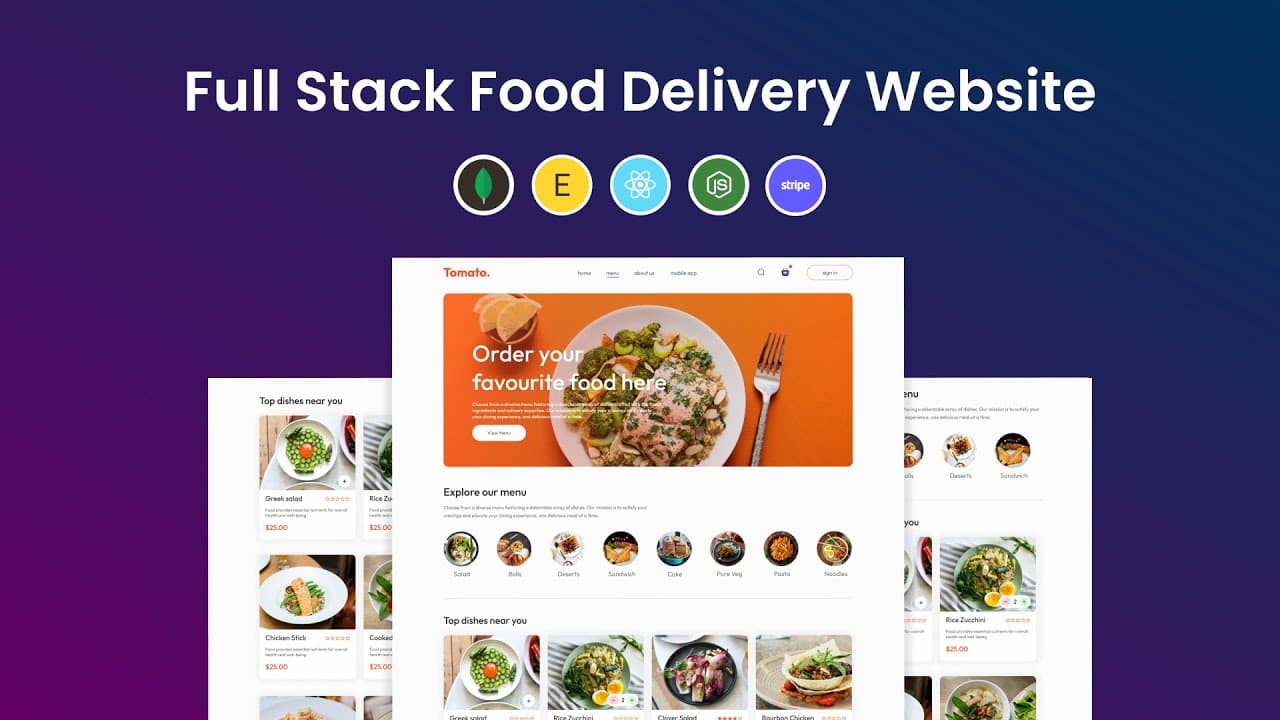
Building a full stack food ordering website with the MERN stack requires three parts: a React frontend, a Node/Express backend, and a separate admin panel. The app includes user authentication, a shopping cart with quantity controls, Stripe payment integration, and order status tracking that syncs between the customer site and admin dashboard.
Transcript
hi guys welcome back to another exciting tutorial of greatest attack in this tutorial we will learn how to make a full stack food ordering web app using reactjs we will build the front end backend and admin panel with the help of M Stack so let's see the project overview that we are going to create in this tutorial so this is the homepage of our fo... Read More
Key Insights
- The MERN stack (MongoDB, Express, Node JS, React) powers the entire food ordering app, with the project split into three parts: a frontend website, an admin panel, and a backend server built together in one tutorial.
- The React project is scaffolded using 'npm create vite@latest', selecting React and JavaScript, then installing dependencies with 'npm install' and adding 'react-router-dom' for page navigation before running with 'npm run dev'.
- User authentication lets anyone create an account and log in, with password validation that rejects weak passwords by showing a 'please enter a strong password' warning until a strong one is entered.
- The shopping cart uses plus and minus icons to increase or decrease item quantity, and the cart page displays product image, name, price, quantity, total price, and delivery charges before checkout.
- Stripe payment gateway is integrated at the payment page, where the order information, food item names, quantities, email, and card details are entered to complete an online payment.
- Order status tracking connects both sides: after payment the order shows 'Food Processing' on the My Orders page, and admins can change it to 'Out for Delivery' or 'Delivered', which the user then sees after refreshing.
- The admin panel has three options, Add Items, List Items, and Orders, letting admins add new food products with an image, name, description, category, and price, or delete existing items from the live site.
- Project assets are organized in an 'assets.js' file where all images and icons are imported and exported as an object named 'assets', so components reference them like 'assets.logo' for efficient, organized use.
Install to Summarize YouTube Videos and Get Transcripts
Explore YouTube Video Summarizer or Get YouTube Transcript Extractor
Questions & Answers
Q: What technologies are used to build this full stack food delivery website?
The food ordering web app is built with the MERN stack: MongoDB, Express, Node JS, and React JS, plus Stripe for the payment gateway. The tutorial creates three parts together, the frontend website, the admin panel, and the backend server. React JS handles the user-facing interface, while Stripe is integrated to process online payments during checkout.
Q: How do you create the React project for this app?
Create a project folder, open it in VS Code, and use the integrated terminal to run 'npm create vite@latest', naming the project 'frontend' and selecting React then JavaScript. Navigate into the frontend folder with 'cd frontend', run 'npm install' to install dependencies, then 'npm install react-router-dom' for routing. Finally run 'npm run dev' to start the local server.
Q: How does the shopping cart quantity system work?
Each food item has a plus icon and a minus icon. Clicking the plus icon adds the product to the cart, and clicking it again increases the quantity, for example going from two to three. Clicking the minus icon decreases the quantity. The cart page then shows the product image, name, price, quantity, total price, and delivery charges before checkout.
Q: How is the Stripe payment integrated into the checkout flow?
After adding items and proceeding to checkout, the user enters delivery information including name, address, and phone number, then clicks proceed to payment. This opens the payment page built with Stripe, which displays the order information with food item names and quantities. The user adds an email and card details, then clicks pay to complete the transaction, opening the My Orders page.
Q: How can an admin change the status of an order?
In the admin panel, the Orders section lists new orders with their information and delivery address, plus an option to change the order status. The admin can select Out for Delivery or Delivered from a dropdown. When the user refreshes the website, they see the updated status. Newly placed orders begin with the 'Food Processing' status by default.
Q: What can you do in the admin panel of this food delivery app?
The admin panel offers three options: Add Items, List Items, and Orders. Under Orders you view new orders and update their delivery status. List Items shows all food items on the site, where you can delete a product, which then disappears from the homepage. Add Items lets you upload a product image, enter a name, short description, category, and price, then click Add.
Q: How do you add a new food product to the website?
Open the admin panel and go to Add Items. There you upload a product image, enter the product name, a small description, select the category, and set the price, then click the Add button. A 'food added' message confirms it. Refreshing the frontend website shows the newly added food item appearing at the end of the list on the homepage.
Q: What does the homepage of the food ordering website include?
The homepage displays a list of food items available to order and a menu for filtering by category. Clicking dessert shows only desserts, clicking noodles shows only noodles, and clicking the menu again displays all items. The page is fully responsive and looks correct across different screen sizes. It also has a sign-in button leading to sign up and login forms.
Summary & Key Takeaways
-
The tutorial builds a full stack food ordering web app using the MERN stack, covering a responsive React frontend, a Node/Express backend, and an admin panel. The homepage lists food items filterable by menu category such as dessert or noodles, and adapts to different screen sizes.
-
Core features include user sign up and login with strong-password validation, a shopping cart with plus/minus quantity controls, a checkout flow collecting delivery name, address, and phone, and Stripe payment integration that records order details after a successful payment.
-
The admin panel manages orders and products: admins view new orders with delivery addresses, update order status to Out for Delivery or Delivered, delete items from the live site, and add new food items with an image, name, description, category, and price.
Read in Other Languages (beta)
Share This Summary 📚
Summarize YouTube Videos and Get Video Transcripts with 1-Click
Try YouTube Summary with ChatGPT & Claude or YouTube Transcript Generator
Explore More Summaries from GreatStack 📚




Summarize YouTube Videos and Get Video Transcripts with 1-Click
Try YouTube Summary with ChatGPT & Claude or YouTube Transcript Generator