Linux Resolution Scaling 1080p panel to 4K
TL;DR
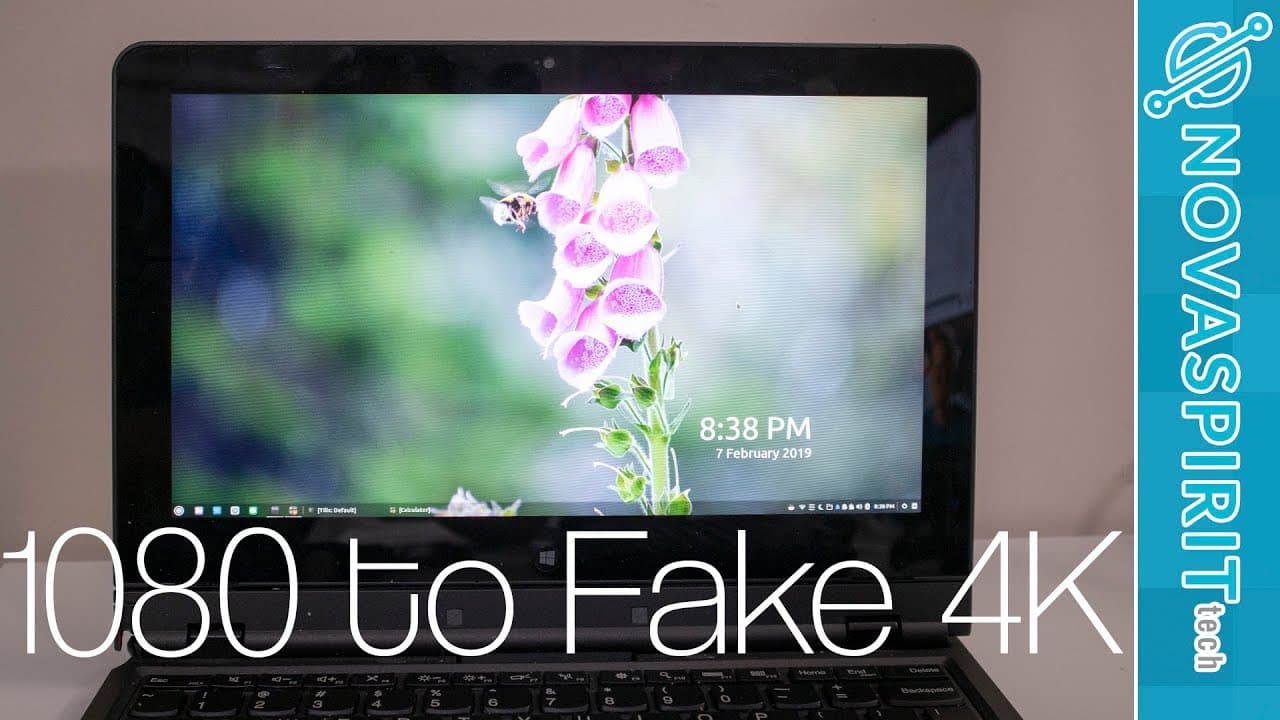
This tutorial explains how to perform resolution scaling on Linux laptops for better display usability.
Transcript
hey guys going on it's dawn here from Nova spirit Tech and today I got a quick tutorial for you guys which is resolution scaling for linux desktops or laptops mainly laptops so so let me give you a little bit of context for some of you who are just starting to get into linux and you're popping this thing into an older laptop with like 1366 by 768 r... Read More
Key Insights
- 😘 Resolution scaling can significantly enhance usability on older laptops with low native resolutions.
- 💨 Using commands in the terminal, such as xrandr, provides a powerful way to adjust screen settings on Linux.
- 👤 Understanding the difference between DPI and resolution scaling helps users make informed decisions about their display preferences.
- 👋 Experimenting with different scale factors is essential to achieving the best visual clarity based on individual display characteristics.
- ❓ It's important to know your output display's specific name when using xrandr, as it varies between setups.
- ⚖️ The quality of a monitor can influence how well scaling adjustments render text and images.
- 🫵 This technique is especially valuable for developers or designers who need to view applications or websites at different resolutions.
Install to Summarize YouTube Videos and Get Transcripts
Explore YouTube Video Summarizer or Get YouTube Transcript Extractor
Questions & Answers
Q: What is the main purpose of this tutorial?
The main purpose of this tutorial is to teach Linux users, particularly those on lower-resolution laptops, how to effectively scale their display resolution for better usability. This can help in situations where interface elements are too small to interact with comfortably, enhancing the overall experience on such devices.
Q: How does resolution scaling differ from DPI scaling?
Resolution scaling modifies the effective resolution of the display itself, allowing for a larger visual workspace or larger elements on the screen, whereas DPI scaling adjusts the size of fonts and images without changing the actual resolution. This distinction is crucial for users looking for specific adjustments based on their screen size and usage requirements.
Q: What is the command to check the current display output in Linux?
To check the current display output in Linux, you can use the command xrandr --current. This command displays the connected screens and identifies which one is being utilized, giving users insight into their display configuration before making any scaling adjustments.
Q: What are the steps to implement 4K scaling on a laptop with a 1080p display?
To implement a 4K scaling on a 1080p display using xrandr, you would first determine your current output ID using xrandr --current. Then, you would use the command xrandr --output <output ID> --scale 2x2 --panning 3840x2160 to simulate a 4K display. This effectively tricks the system into believing the resolution is higher than it is, resulting in smaller interface elements.
Q: How can a user find the best scale factor for their specific display?
A user can find the best scale factor by starting with a reasonable estimate based on their screen resolution, then adjusting the scale factor incrementally using values like 1.25 or 0.75. It is recommended to fine-tune this using multiples of 0.01 until achieving clear visuals that do not appear blurry.
Q: Why was the recording method chosen for this video tutorial?
The recording method used in the tutorial was chosen because traditional screen recording software could interfere with the scaling process, potentially leading to incorrect visual representations. Using a camera to record the screen allows for a reliable demonstration of the effects of scaling without complicating the technical aspects of the tutorial.
Q: What factors may affect the clarity of scaling on different displays?
The clarity of scaling on different displays can be affected by various factors, including the pixel density of the monitor, its native resolution, and the quality of the display panel itself. Lower quality panels may become blurry when scaled, necessitating careful adjustments to find a balance that maintains readability and usability.
Q: What should users do if scaling results in unclear text or images?
If scaling results in unclear text or images, users should try adjusting the scale factor incrementally, testing combinations of scaling factors between 0.75 and 1.25, and calculate updated panning resolutions to match their display. Finding the sweet spot might take experimentation, as different displays respond uniquely to scaling changes.
Summary & Key Takeaways
-
The video tutorial focuses on resolution scaling for Linux desktops and laptops, specifically aimed at users with lower resolution screens.
-
It differentiates between DPI scaling and resolution scaling, emphasizing that the latter changes the effective display resolution rather than just resizing interface elements.
-
The tutorial provides practical commands and calculations to implement scaling, ensuring users can customize their display settings for improved readability and usability.
Read in Other Languages (beta)
Share This Summary 📚
Summarize YouTube Videos and Get Video Transcripts with 1-Click
Try YouTube Summary with ChatGPT & Claude or YouTube Transcript Generator
Explore More Summaries from Novaspirit Tech 📚






Summarize YouTube Videos and Get Video Transcripts with 1-Click
Try YouTube Summary with ChatGPT & Claude or YouTube Transcript Generator