How to Change The Perspective of ANYTHING In Photoshop [Complete Guide]
TL;DR
Learn how to use the perspective warp tool in Photoshop to change the perspective of objects and create realistic composites.
Transcript
this is one of photoshop's most powerful photo manipulation tools the perspective warp in this tutorial you will learn how to change the perspective of anything in Photoshop this is the document that we're going to start with it contains a background layer and this crate and as you can see I've already masked out the crate from its Background by th... Read More
Key Insights
- 🖼️ The perspective warp tool in Photoshop is a powerful tool for photo manipulation, allowing users to change the perspective of objects in photos. It is done in two steps - creating a layout grid and then warping the image.
- 🖱️ By creating a grid and matching the lines of the object to the grid, users can achieve realistic perspective changes.
- 📲 Keyboard shortcuts can be utilized for convenience while using the perspective warp tool. L key for layout view, W key for warp view, and tapping Enter/Return key to apply changes.
- 🌇 In scene composition, paying attention to the ground plane, sky, and horizon line is crucial to achieving realistic results with the perspective warp tool.
- 🏢 The perspective warp tool can also be used to change the perspective of buildings by creating grids and adjusting the perspective to match the photo.
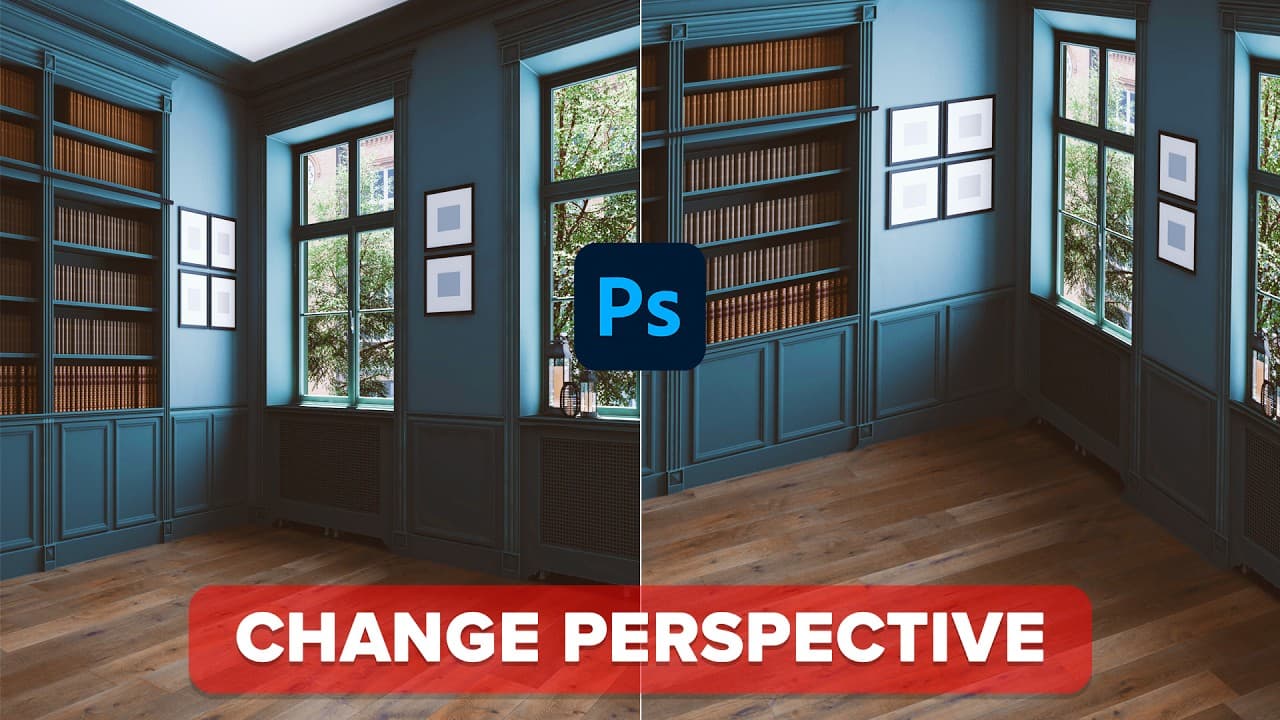
- 🛠️ The perspective warp tool is versatile and can be used for various purposes such as placing logos on the floor, changing the perspective of a room, and applying graphics to steps.
- 🎨 Users can further enhance the realism of the perspective warp changes through techniques like blending modes, layer styles, and texture overlays.
- 🔍 The perspective warp tool provides the flexibility of non-destructive editing by working with smart objects, enabling users to make adjustments at a later point.
Install to Summarize YouTube Videos and Get Transcripts
Explore YouTube Video Summarizer or Get YouTube Transcript Extractor
Questions & Answers
Q: What is a smart object in Photoshop and why is it useful?
In Photoshop, a smart object is a layer that preserves the original information of the object it contains. It allows for non-destructive editing, meaning you can make changes to the object at any point in your workflow without losing any quality or information. This is especially useful when using tools like perspective warp, as it allows you to go back and make adjustments easily.
Q: How can you create a realistic composite using the perspective warp tool?
To create a realistic composite using the perspective warp tool, you need to understand the concept of the ground plane and the sky in a scene. By aligning the perspective of the object with the perspective of the ground plane and matching the horizon line, you can make the object seamlessly blend into the scene, giving it a natural and realistic appearance.
Q: Can you adjust the perspective of a room using the perspective warp tool in Photoshop?
Yes, you can adjust the perspective of a room using the perspective warp tool in Photoshop. By creating a grid that aligns with the perspective lines of the room, you can manipulate the perspective of the entire room. This can be useful for architectural visualization or creating dramatic effects in interior photography.
Q: How can you change the perspective of a building using the perspective warp tool?
To change the perspective of a building using the perspective warp tool, you would first convert the building layer into a smart object. Then, you can create a grid that matches the perspective lines of the building. By manipulating the grid, you can adjust the perspective of the building, allowing for more creative and dynamic compositions.
Q: What is the process of applying an object in perspective and converting it into a template using the perspective warp tool?
To apply an object in perspective and convert it into a template using the perspective warp tool, you would create a grid that follows the perspective lines of the object. This grid serves as a template. Then, you can double click on the smart object thumbnail to open it in a new tab and add any desired graphics or textures. The changes made in the smart object will automatically be applied to the object in the original document.
Summary & Key Takeaways
-
The tutorial demonstrates how to use the perspective warp tool in Photoshop to change the perspective of objects in an image.
-
The process involves creating a grid by aligning the perspective lines of the object with the grid lines.
-
The tutorial showcases examples of using the perspective warp tool to manipulate the perspective of various objects, such as a crate, a room, a building, and a logo.
Read in Other Languages (beta)
Share This Summary 📚
Summarize YouTube Videos and Get Video Transcripts with 1-Click
Try YouTube Summary with ChatGPT & Claude or YouTube Transcript Generator
Explore More Summaries from Photoshop Training Channel 📚
![How To Blur Backgrounds in Photoshop [FAST & EASY!] thumbnail](/_next/image?url=https%3A%2F%2Fi.ytimg.com%2Fvi%2Fm_Qk8QsLbAs%2Fhqdefault.jpg&w=750&q=75)
Summarize YouTube Videos and Get Video Transcripts with 1-Click
Try YouTube Summary with ChatGPT & Claude or YouTube Transcript Generator