19 AMAZING Photoshop Keyboard Shortcuts You (Probably) DON'T Know
TL;DR
Learn over 19 powerful Photoshop keyboard shortcuts that can enhance your productivity and efficiency in using the software.
Transcript
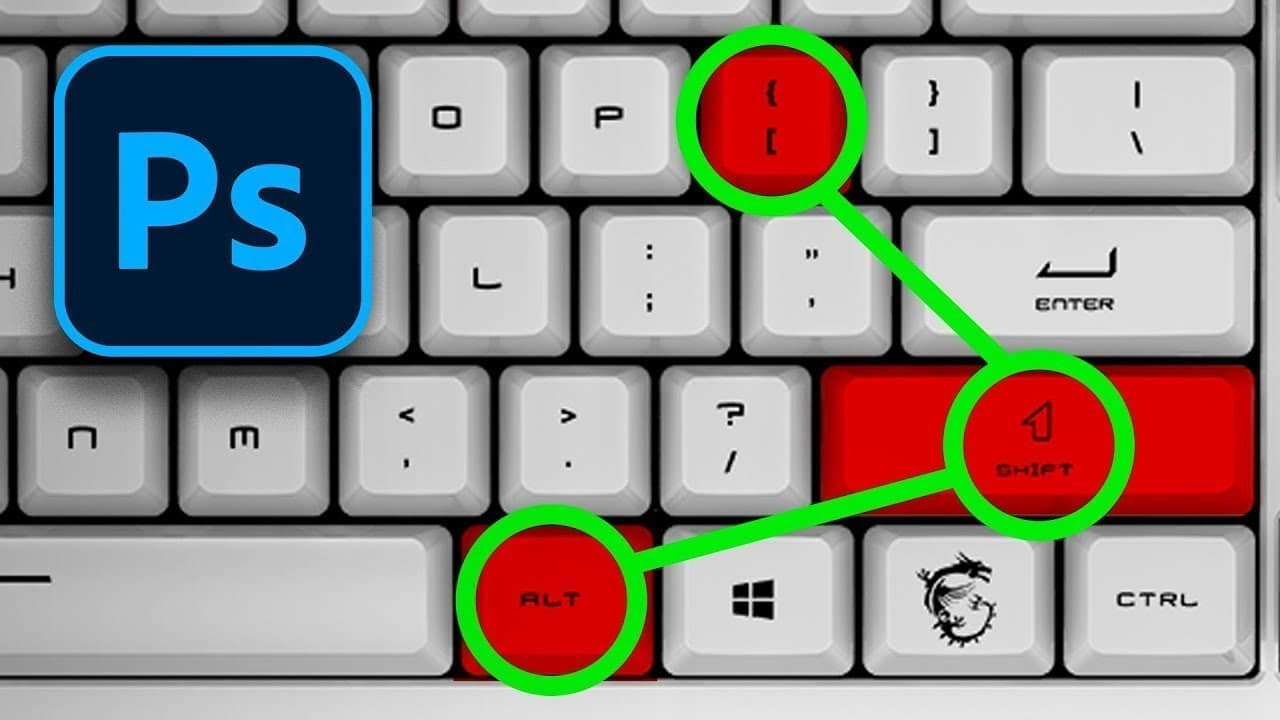
with the Clone stamp tool you can hold alt and click to set a sample Source then you can paint with those sampled pixels but did you know that if you hold alt and shift and the bracket keys on the keyboard you can scale the sample Source I'm currently tapping on the left bracket key to scale down and when I paint I get a scaled down version of the ... Read More
Key Insights
- 🔨 The Clone Stamp tool can be further customized by scaling and rotating the sample source.
- 👶 Transformations can be easily repeated and placed in new layers using Ctrl+Alt+Shift+T.
- 🎯 Selective adjustments can be made by loading the luminosity of the image as a selection and targeting specific pixels.
- ❓ Liquify filter offers reconstruction options and color-specific filling.
- 🤩 The tilde (~) key and blending modes provide efficient erasing options.
- 🤩 Kerning adjustments in text layers can be made by holding Alt and tapping the arrow keys.
- 💦 The MSI Aegis RS desktop and MSI Optix monitor are recommended for professional work and gaming.
Install to Summarize YouTube Videos and Get Transcripts
Explore YouTube Video Summarizer or Get YouTube Transcript Extractor
Questions & Answers
Q: How can the Clone Stamp tool be scaled and rotated?
To scale the Clone Stamp tool's sample source, hold Alt, Shift, and the bracket keys to adjust the size. To rotate the sample source, hold Alt, Shift, and the greater/less than keys.
Q: How can I repeat a transformation and place it in a new layer?
Pressing Ctrl+Alt+Shift+T will repeat the last transformation and create a new layer with the transformed object.
Q: How can I target specific pixels in a selective adjustment layer?
Press Ctrl+Alt+2 to load the luminosity of the image as a selection. Then, create an adjustment layer like curves and adjust the range of selected pixels by dragging the Black Point and White Point sliders.
Q: How can I erase with the same brush I'm painting with?
Hold the tilde (~) key and paint to erase with the active brush. Another option is to select the Clear blending mode or use the keyboard shortcut Alt+Shift+R to switch to the Clear blending mode.
Key Insights:
- The Clone Stamp tool can be further customized by scaling and rotating the sample source.
- Transformations can be easily repeated and placed in new layers using Ctrl+Alt+Shift+T.
- Selective adjustments can be made by loading the luminosity of the image as a selection and targeting specific pixels.
- Liquify filter offers reconstruction options and color-specific filling.
- The tilde (~) key and blending modes provide efficient erasing options.
- Kerning adjustments in text layers can be made by holding Alt and tapping the arrow keys.
- The MSI Aegis RS desktop and MSI Optix monitor are recommended for professional work and gaming.
- Layer management and opacity adjustments can be quickly done using keyboard shortcuts.
Summary & Key Takeaways
-
The Clone Stamp tool can be scaled and rotated using keyboard shortcuts (Alt+Shift+Bracket keys or greater/less than keys).
-
Transforming an object can be repeated and placed in a new layer using Ctrl+Alt+Shift+T.
-
Adjusting luminosity and targeting specific pixels can be done using keyboard shortcuts (Ctrl+Alt+2, Image>Adjustment>Levels).
-
Liquify filter has a reconstruction option and the ability to fill with different colors using keyboard shortcuts.
-
Erasing with the same brush can be done using the tilde (~) key or by selecting the Clear blending mode.
-
Kerning adjustments in text layers can be made by holding Alt and tapping the arrow keys.
Read in Other Languages (beta)
Share This Summary 📚
Summarize YouTube Videos and Get Video Transcripts with 1-Click
Try YouTube Summary with ChatGPT & Claude or YouTube Transcript Generator
Explore More Summaries from Photoshop Training Channel 📚
![How To Blur Backgrounds in Photoshop [FAST & EASY!] thumbnail](/_next/image?url=https%3A%2F%2Fi.ytimg.com%2Fvi%2Fm_Qk8QsLbAs%2Fhqdefault.jpg&w=750&q=75)
Summarize YouTube Videos and Get Video Transcripts with 1-Click
Try YouTube Summary with ChatGPT & Claude or YouTube Transcript Generator