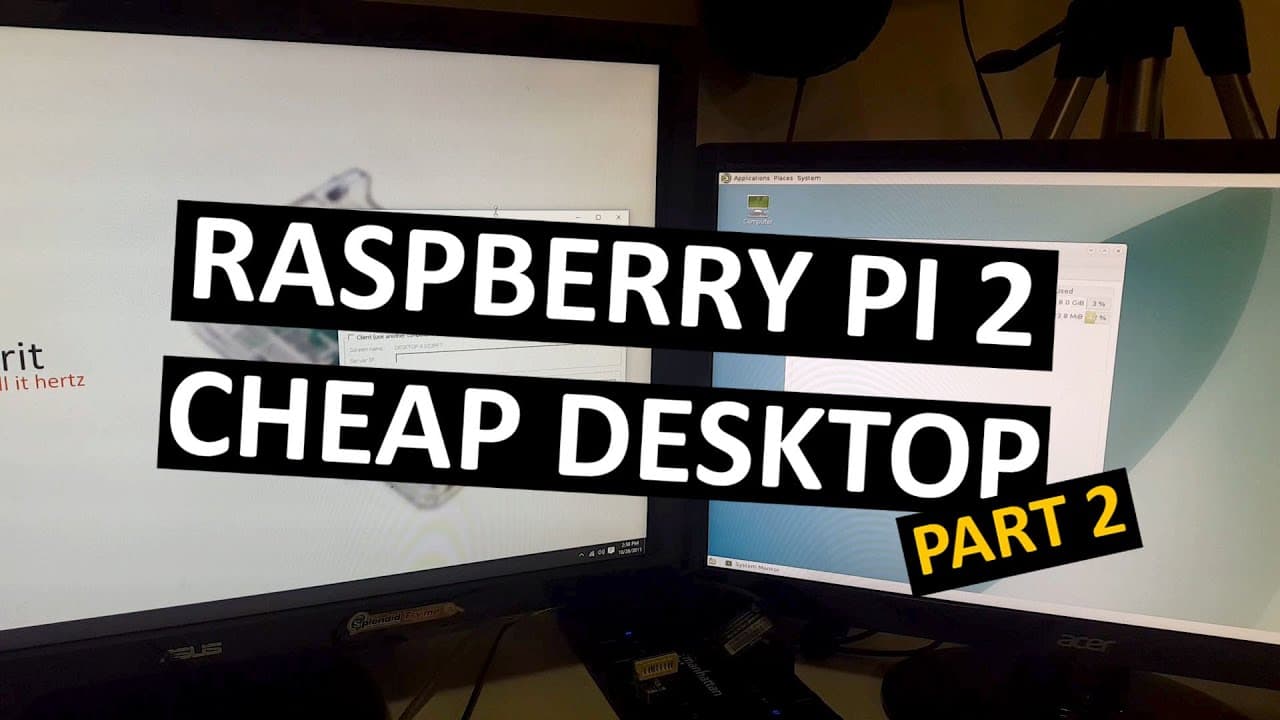
Low End Tech - Raspberry Pi Cheap Desktop Part 2 (running on hdd)
TL;DR
This tutorial improves a Raspberry Pi desktop setup by using an external hard drive and setting up additional features.
Transcript
hey what's going on YouTube it's Don here from Nova spirit and today we are actually going to be circling back to an episode I released earlier which is the cheap desktop PC install for Raspberry Pi now I've been using it for a couple of weeks and I'm actually going to show you a couple of things that I did to improve my experience using this cheap... Read More
Key Insights
- 🫚 The Raspberry Pi can be transformed into a powerful desktop by using an external hard drive for the root filesystem.
- 💁 Partitioning and formatting an HDD are critical steps to ensure compatibility with the Raspberry Pi's Linux OS.
- 🫥 Editing the command line and fstab configurations is essential for proper boot settings after transferring the root filesystem.
- 🏃 Utilizing a swap file increases the effective memory capacity for applications running on the Raspberry Pi.
- 💻 The MATE desktop environment is recommended for its enhanced user experience compared to the standard desktop options in Raspberry Pi.
- 👻 Software like Synergy creates a more efficient workspace by allowing keyboard and mouse sharing across multiple devices.
- ♓ Regular maintenance of the external HDD ensures the ongoing reliability of the Raspberry Pi setup.
Install to Summarize YouTube Videos and Get Transcripts
Explore YouTube Video Summarizer or Get YouTube Transcript Extractor
Questions & Answers
Q: Why is using an external hard drive beneficial for Raspberry Pi?
Using an external hard drive instead of the SD card significantly extends the lifespan of the operating system. SD cards can degrade quickly due to constant read/write cycles. An HDD not only provides more storage but also enhances performance and stability, making it an ideal choice for long-term use.
Q: How do you partition and format the external hard drive for Raspberry Pi?
To partition and format the external HDD for Raspberry Pi, one should use commands like 'sudo fdisk' to delete existing partitions, create a new one, and then format it to EXT4. This sets up the drive to be read by the Raspberry Pi's operating system, allowing for proper functionality.
Q: What steps are necessary after copying the root filesystem to the hard drive?
After copying the root filesystem, one must edit the cmdline.txt file to point the root to the new HDD location, add a delay for the drive initialization, and update the fstab file to ensure the operating system recognizes the HDD as the root filesystem upon booting.
Q: How can you increase the RAM on a Raspberry Pi setup?
To increase RAM availability on a Raspberry Pi, a swap file can be created. This involves modifying the default swap size in the configuration file, creating a larger swap file, and restarting the swap program. This allows the system to utilize disk space as virtual memory, improving performance.
Q: What is the advantage of using the MATE desktop environment?
The MATE desktop environment offers a more visually appealing interface than the default desktop manager. Its features include better customization options, improved aesthetics, and enhanced performance, providing users an enjoyable and functional computing experience on their Raspberry Pi.
Q: How does Synergy enhance the use of multiple devices?
Synergy allows users to control multiple computers with a single keyboard and mouse through the network, facilitating a seamless transition between devices. This creates a more unified workflow, particularly useful when connecting a Raspberry Pi to a desktop setup and needing to navigate efficiently between them.
Summary & Key Takeaways
-
The video explains how to enhance a Raspberry Pi desktop experience by installing the root file system on an external hard drive, reducing wear on the SD card.
-
It provides step-by-step instructions for partitioning the HDD, formatting it, and transferring the root file system from the SD card to the hard drive.
-
Additional features such as installing a swap file and changing the desktop environment to MATE are covered, resulting in a more efficient and visually appealing setup.
Read in Other Languages (beta)
Share This Summary 📚
Summarize YouTube Videos and Get Video Transcripts with 1-Click
Try YouTube Summary with ChatGPT & Claude or YouTube Transcript Generator
Explore More Summaries from Novaspirit Tech 📚





Summarize YouTube Videos and Get Video Transcripts with 1-Click
Try YouTube Summary with ChatGPT & Claude or YouTube Transcript Generator