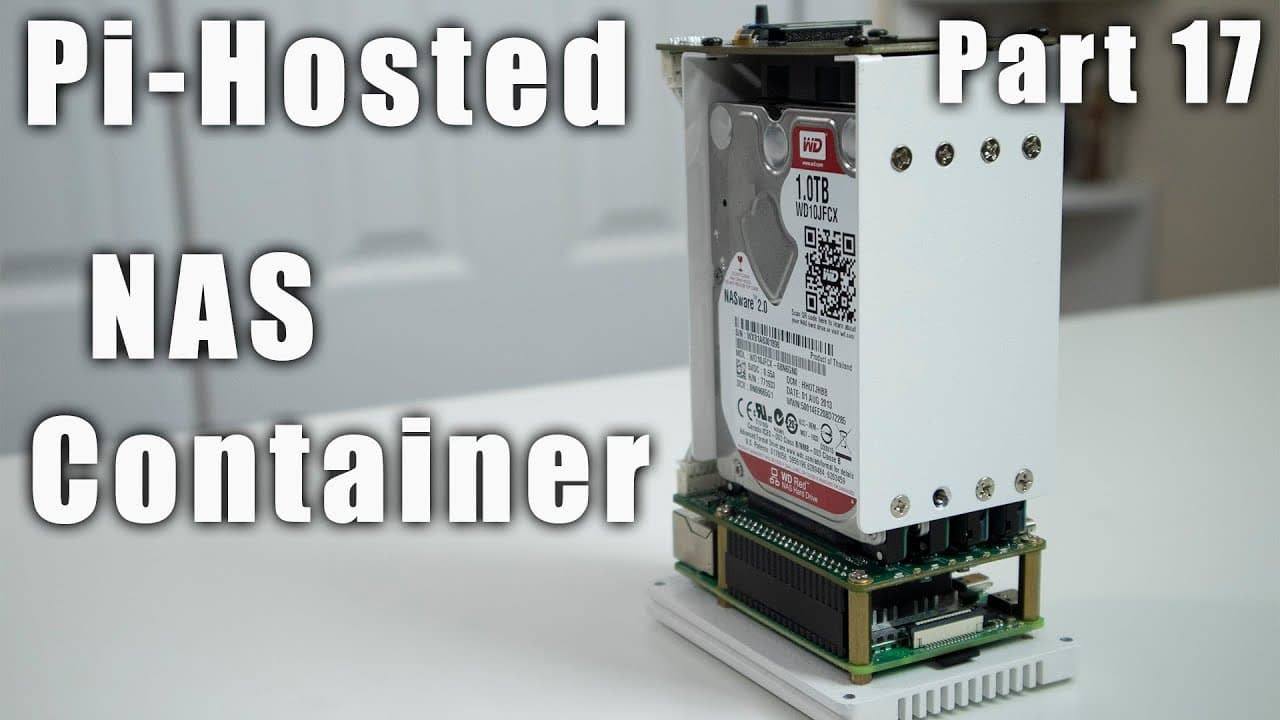
Pi Hosted : Building NAS with Container
TL;DR
This content guides you through creating a NAS using Docker and Samba on Raspberry Pi.
Transcript
hey guys what's going on it's Don here from Nova Spirit Tech and welcome back to our Channel and today we're going to be creating a Nas just using Dockers so let's get started now if you guys are new to the pie Hostess series I will leave a link right here in the top left corner for you guys so you guys can follow along I will be adding a container... Read More
Key Insights
- 📁 Using Samba with Docker on Raspberry Pi provides a simple solution for creating a NAS, facilitating file sharing across various operating systems seamlessly.
- 💁 The tutorial emphasizes the importance of proper hard drive partitioning and formatting for optimal functionality within the NAS setup.
- 👻 Configuring user access can be tailored to individual needs, allowing different permissions and usernames for enhanced data security.
- 😄 The ease of deploying containers through Portainer is highlighted, which simplifies application management and boosts user-friendliness.
- 😀 The tutorial suggests that users can add more functionalities by incorporating additional apps or containers into the NAS environment.
- 👤 Detailed instructions on managing shared folders help users maintain organized data storage that is easily accessible.
- 🦮 By following the guide, even beginners can successfully configure a NAS, demonstrating the operational capabilities of Raspberry Pi as a cost-effective server solution.
Install to Summarize YouTube Videos and Get Transcripts
Explore YouTube Video Summarizer or Get YouTube Transcript Extractor
Questions & Answers
Q: What is the primary software used for creating the NAS in this tutorial?
The primary software used in this tutorial for creating the NAS is Docker combined with Samba. Docker provides a streamlined method to run applications in containers, while Samba allows file sharing between different operating systems like Windows and Mac OS. This combination simplifies the deployment and setup process for users looking to establish a NAS using a Raspberry Pi.
Q: How can I ensure that my new hard drive mounts every time the Raspberry Pi is rebooted?
To ensure that your new hard drive automatically mounts upon each reboot of the Raspberry Pi, you will need to edit the fstab configuration file. This involves obtaining the UUID of the hard drive using the blkid command, and then adding a line to the /etc/fstab file specifying the UUID, mount point, file system type, and mount options. This way, the system recognizes the drive and mounts it consistently during startup.
Q: Are there any limitations when using Docker for NAS setup?
Yes, while Docker is convenient for deploying applications like Samba, it comes with limitations such as resource allocation and management complexity. Containers share the host's resources, which can become a bottleneck if not properly managed, particularly with multiple containers running. Additionally, Docker's network configuration may require advanced understanding if customization beyond basic settings is needed.
Q: How do you configure user credentials for the Samba share?
User credentials for the Samba share can be configured through the environment settings in the Docker container. During the setup process, you can modify the user and password fields; initially, the tutorial uses "guest" as both the username and password for simplicity. For enhanced security or specific user management, you can add more environment variables for each user, allowing you to customize access permissions and credentials.
Summary & Key Takeaways
-
The video demonstrates how to set up a Network Attached Storage (NAS) using Docker and Samba on a Raspberry Pi, simplifying file sharing across devices.
-
Viewers will learn to deploy a Samba container through Portainer and configure it for network sharing, including partitioning and formatting a new hard drive.
-
Additional tips on customizing user settings and ensuring persistent drive mounting upon reboot are provided, enhancing the overall data management experience.
Read in Other Languages (beta)
Share This Summary 📚
Summarize YouTube Videos and Get Video Transcripts with 1-Click
Try YouTube Summary with ChatGPT & Claude or YouTube Transcript Generator
Explore More Summaries from Novaspirit Tech 📚





Summarize YouTube Videos and Get Video Transcripts with 1-Click
Try YouTube Summary with ChatGPT & Claude or YouTube Transcript Generator