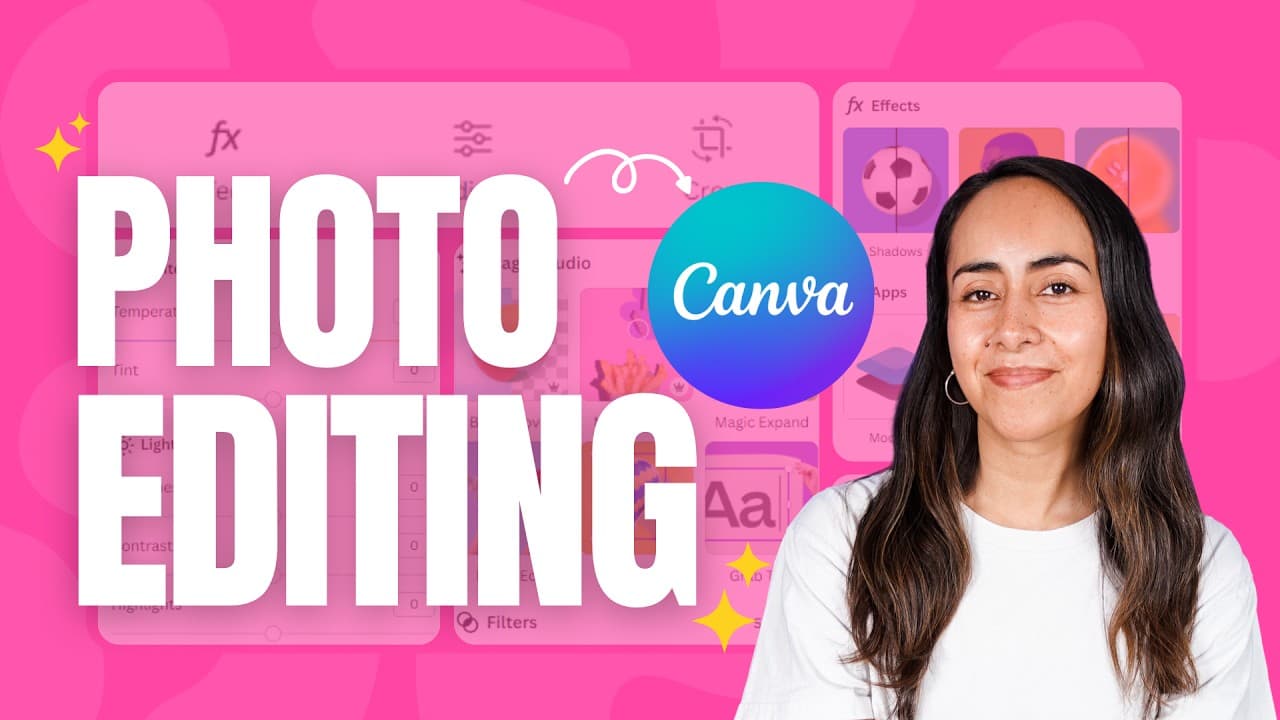
How to Edit & Transform your Photos in Canva ✨ | Beginner's Guide
TL;DR
Learn how to upload, edit, and enhance your photos in Canva using various tools and effects.
Transcript
transform a simple photo like this into something like this this or even this let me start with a pretty cool trick and it is that you can upload and edit your photos directly from the canva homepage without having to create a new document on the upper right corner you will see a button that says upload you're going to click here and then you can e... Read More
Key Insights
- 📷 Canva's photo editor on the homepage offers basic editing features like cropping, adjusting colors, and rotating images.
- 😀 The editor also provides options to add filters, effects, and retouch faces, allowing you to enhance your photos.
- ✊ Canva Pro users have access to advanced tools like the Magic Eraser, background removal, and AI-powered effects.
- 😒 You can use Canva to edit photos in existing designs or templates, simply by dragging and dropping your image.
- 👻 The editor allows you to adjust transparency, flip images, and change background colors to create different looks.
- ✊ Canva's Magic Edit feature offers AI-powered editing options like expanding images and changing colors.
- 💁 You can download your edited photos in various file formats, such as PNG, and choose the quality and compression settings.
- 😒 Canva also provides a library of images that you can use to create compositions using your own photos.
Install to Summarize YouTube Videos and Get Transcripts
Explore YouTube Video Summarizer or Get YouTube Transcript Extractor
Questions & Answers
Q: Can I edit my photos directly from the Canva homepage?
Yes, you can upload and edit photos from the Canva homepage by clicking the "upload" button and selecting your files.
Q: What editing options are available in Canva's photo editor?
Canva's photo editor allows you to crop, adjust colors, add filters, and retouch faces. You can also rotate, adjust brightness and contrast, and enhance saturation.
Q: Are there any advanced editing features for Canva Pro users?
Yes, Canva Pro users have access to advanced features like the Magic Eraser, which allows you to remove details from your photo, and AI-powered effects like background removal and color changes.
Q: Can I use my own photos or choose from Canva's library?
You can both upload your own photos and choose from Canva's extensive library of images. Simply drag and drop or search for specific images.
Summary & Key Takeaways
-
Canva allows you to easily upload and edit photos directly from the homepage, with options to crop, adjust colors, and add effects.
-
The editor offers features like cropping, adjusting brightness and contrast, adding filters, and retouching faces.
-
Canva Pro users have access to advanced tools like the Magic Eraser, background removal, and AI-powered effects.
Read in Other Languages (beta)
Share This Summary 📚
Summarize YouTube Videos and Get Video Transcripts with 1-Click
Try YouTube Summary with ChatGPT & Claude or YouTube Transcript Generator
Explore More Summaries from Design with Canva 📚





Summarize YouTube Videos and Get Video Transcripts with 1-Click
Try YouTube Summary with ChatGPT & Claude or YouTube Transcript Generator