How to Stream a Linux Desktop with Docker and Alpine
TL;DR
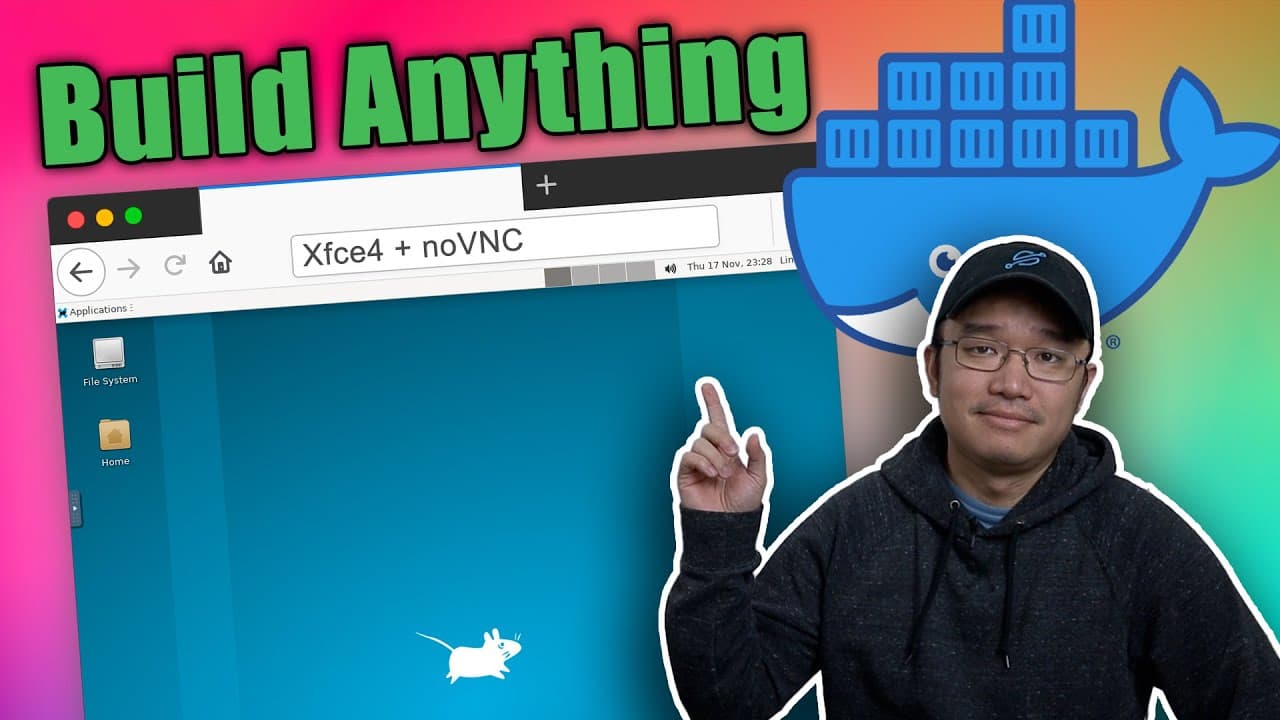
To stream a Linux desktop through a browser using Docker, set up an Alpine container with XFCE4, install TigerVNC and noVNC, create a user, and configure necessary settings. The Dockerfile automates the setup, allowing easy replication and adaptation for different environments or applications.
Transcript
hey guys what's going on it's Don here from Nova Spirit Tech and welcome back to the channel and today I'm going to be showing you guys how to create a Docker to stream your Linux desktop through your browser so let's get started now this is a little bit more advanced than the last video that we shot for the docker container series basically on the... Read More
Key Insights
- 🏃 The tutorial illustrates how to leverage Docker to run a lightweight Linux environment suitable for streaming applications directly from a browser.
- 👤 It emphasizes the importance of user management and permissions when configuring accessibility for remote desktop applications.
- 🧑🦽 The steps to convert manual setup processes into an automated Dockerfile make it easier for users to replicate and share their configurations.
- ⚾ Using noVNC enables browser-based VNC connections, simplifying remote desktop usage compared to traditional methods.
- 👤 Troubleshooting common issues encountered during setup ensures a smoother user experience and better understanding of the configuration process.
- ❓ The tutorial highlights the collaborative aspect of the community through Discord channels for support and further learning.
- 😒 Flexibility in the setup allows for adaptations to various use cases, like running game servers alongside a desktop environment.
Install to Summarize YouTube Videos and Get Transcripts
Explore YouTube Video Summarizer or Get YouTube Transcript Extractor
Questions & Answers
Q: What are the key applications installed for streaming the Linux desktop?
For streaming the Linux desktop, the key applications installed include TigerVNC for the VNC server, noVNC to interface with the browser, and XFCE4 as the desktop environment. Additional utilities such as Bash and Python 3 are also required, alongside the Git application to clone necessary repositories.
Q: Why is Alpine Linux chosen for this setup?
Alpine Linux is chosen for its lightweight nature, which makes it ideal for setting up minimal environments like Docker containers. Its ability to run efficiently with reduced resource usage allows users to easily stream a desktop while keeping the overhead low—ideal for virtualization purposes.
Q: What troubleshooting advice does the video provide?
The video offers several troubleshooting tips, such as checking the ownership of directories when creating user-specific files and ensuring the use of correct commands in the Dockerfile. Mistakes are highlighted along with the corrective actions taken, emphasizing the importance of careful syntax in entries.
Q: How can users customize the Docker image further?
Users can customize the Docker image by editing the Dockerfile and entry files to include additional applications they need. This might involve installing browsers or other software suites, adjusting commands, and rebuilding the image to ensure the new applications work as intended.
Summary & Key Takeaways
-
This tutorial explains the process of creating a Docker container to stream a Linux desktop environment using Alpine Linux and XFCE4.
-
It covers essential installation steps for applications like TigerVNC and noVNC, user creation, and configurations necessary for remote desktop streaming.
-
The content also includes troubleshooting tips and highlights the conversion of setup steps into a Docker file for replicable builds.
Read in Other Languages (beta)
Share This Summary 📚
Summarize YouTube Videos and Get Video Transcripts with 1-Click
Try YouTube Summary with ChatGPT & Claude or YouTube Transcript Generator
Explore More Summaries from Novaspirit Tech 📚





Summarize YouTube Videos and Get Video Transcripts with 1-Click
Try YouTube Summary with ChatGPT & Claude or YouTube Transcript Generator