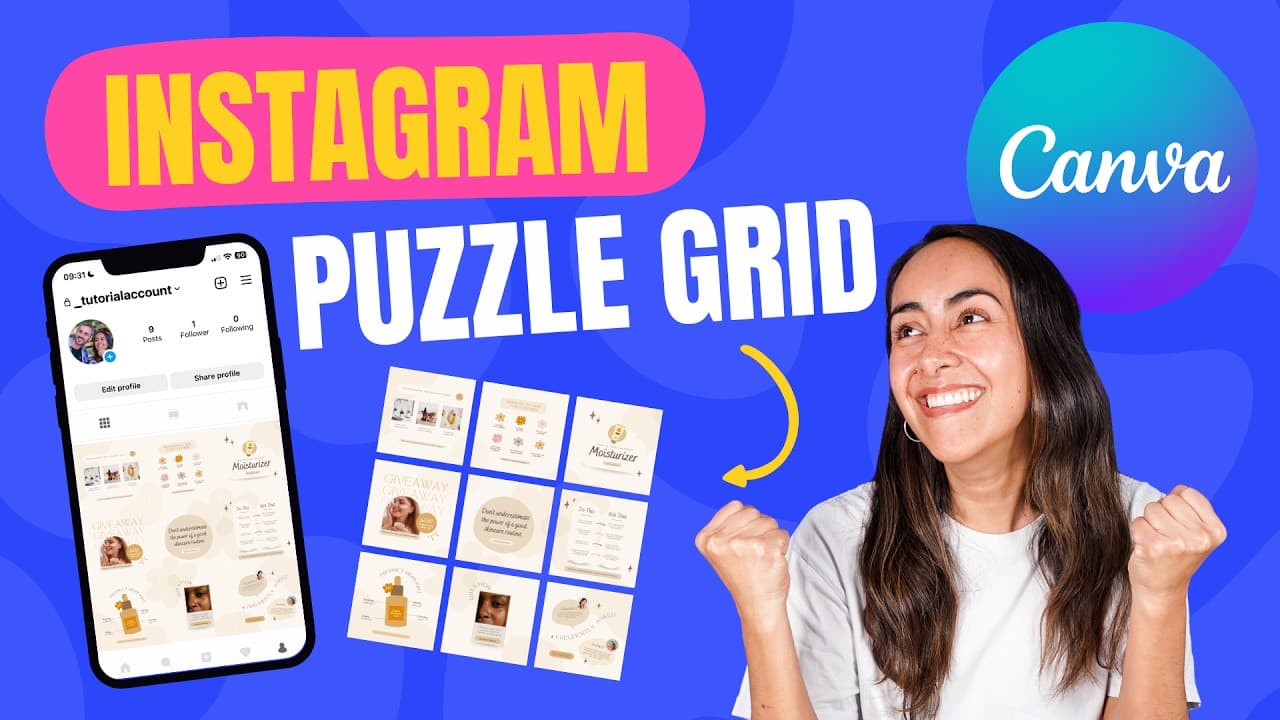
How to make an INSTAGRAM PUZZLE feed with Canva [2024] - FREE, fun and easy!
TL;DR
Learn how to create an Instagram puzzle using Canva, including steps for calculating size, creating guides, using templates, and splitting the puzzle into individual images.
Transcript
in this tutorial I'll show you step by step how to create an Instagram puzzle in canva how to download it and how to split it all the steps that I'm going to show you today are free so you can follow this tutorial if you have a free or Pro canva account and it is also a beginner proof tutorial as I'll show you all the steps you need to follow make ... Read More
Key Insights
- 🥶 Canva offers a free, beginner-friendly solution for creating Instagram puzzles.
- 🧩 Calculating the size of the puzzle and creating a custom size Canva document are essential steps.
- ⌛ Using templates can save time and provide a consistent aesthetic for the puzzle.
- 👻 Customization options in Canva allow you to personalize the design and make it your own.
- 🏣 Splitting the puzzle into individual images and renaming them correctly is crucial for posting on Instagram.
- ✋ Canva Pro offers additional features, such as increased image size, for those who want higher quality results.
Install to Summarize YouTube Videos and Get Transcripts
Explore YouTube Video Summarizer or Get YouTube Transcript Extractor
Questions & Answers
Q: Can I use Canva to create an Instagram puzzle for free?
Yes, all the steps shown in the tutorial can be done using a free Canva account.
Q: How do I calculate the size of the puzzle?
Multiply the size of a single square post (1080x1080) by three to get the dimensions for the custom size Canva document.
Q: Can I customize the design elements and colors in Canva?
Yes, Canva allows you to customize text boxes, colors, and elements. You can also change the images by accessing the graphics or photo library.
Q: Can I preview how each individual post will look before posting the puzzle?
Yes, you can use the "r" key on your keyboard in Canva to bring up a square shape and cover the surrounding posts to preview each post as a standalone image.
Q: Do I need a Canva Pro account to download the puzzle design?
No, you can download the design for free. However, with Canva Pro, you have the option to increase the image size for better quality.
Q: How can I split the puzzle design into individual images?
Use an online tool like the one mentioned in the tutorial to upload the puzzle image and download the individual images. Rename them in the correct order for posting on Instagram.
Q: Can I create a carousel post as part of the puzzle?
Yes, you can include a carousel post within the puzzle design. Customize the carousel design separately and download it. Then, add it to your Instagram feed in the correct order.
Q: How can I use the puzzle pieces as Instagram Real covers?
Convert each puzzle piece into an Instagram Real cover by uploading it to Canva, adjusting the background color, and optionally adding additional elements. Download the image and use it as a cover for your Instagram Reels.
Summary & Key Takeaways
-
Calculate the size of the complete puzzle by multiplying the size of a single square post (1080x1080) by three.
-
Create a custom size Canva document using the calculated dimensions.
-
Use guides to clearly define the boundaries of each post in the puzzle design.
-
Start with a template to save time and ensure a cohesive aesthetic for each post.
-
Customize the design by resizing elements, adding or removing elements, and adjusting the background.
-
Download the completed puzzle design and use an online tool to split it into individual images.
-
Rename each image in the correct order for posting on Instagram.
-
Airdrop or transfer the images to your phone and start posting them to create the puzzle on your Instagram feed.
Read in Other Languages (beta)
Share This Summary 📚
Summarize YouTube Videos and Get Video Transcripts with 1-Click
Try YouTube Summary with ChatGPT & Claude or YouTube Transcript Generator
Explore More Summaries from Design with Canva 📚


Summarize YouTube Videos and Get Video Transcripts with 1-Click
Try YouTube Summary with ChatGPT & Claude or YouTube Transcript Generator