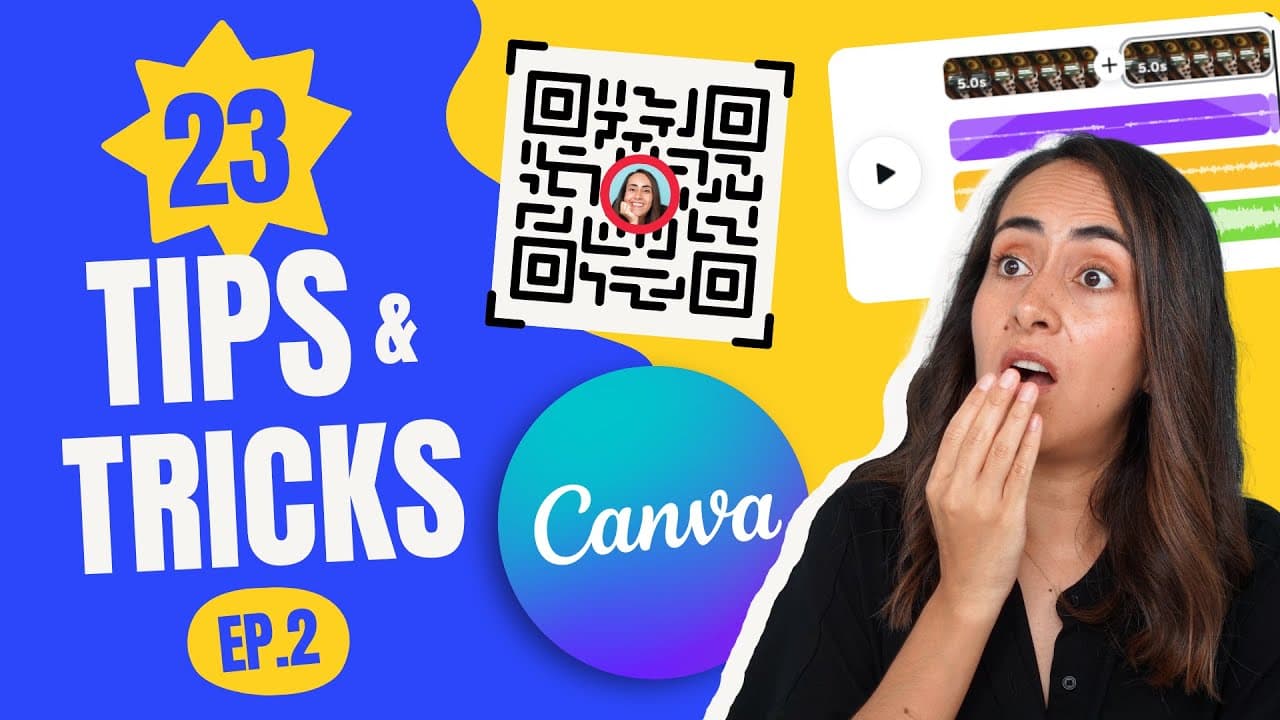
The Ultimate CANVA TIPS AND TRICKS [2022] - PART 2 | Canva Tutorial for Beginners | Ep. 02
TL;DR
Learn 23 valuable tips and tricks for using Canva to create better designs and be more productive.
Transcript
in this video i'm gonna show you 23 combat tips and tricks that will help you be more productive and create better designs so if you guys are interested in this tutorial let's go to my computer i'm gonna start by showing you trendy text effects that i believe everyone using canva must know we're gonna start by adding shadow to text you're gonna sel... Read More
Key Insights
- 🎨 Canva offers a variety of text effects like shadows, borders, and backgrounds to enhance your designs.
- ⌛ Keyboard shortcuts can significantly improve your efficiency in Canva, saving time on various tasks.
- 👣 Canva's video editing capabilities include transitions, multiple audio tracks, and effects like fading and fading out.
- 👨💻 Canva provides tools and features for customization, such as changing colors, customizing QR codes, and creating unique color palettes.
- ❤️🩹 Embedding YouTube videos and customizing their start and end times is possible in Canva presentations and websites.
- 👻 Canva's website editor allows flexibility in adjusting page sizes and creating linkable footers.
- 📁 The unlimited folder feature in Canva allows for better organization and merging of designs across multiple folders.
- 🎨 Canva's brand kits let you create and manage multiple sets of brand elements for consistent design.
Install to Summarize YouTube Videos and Get Transcripts
Explore YouTube Video Summarizer or Get YouTube Transcript Extractor
Questions & Answers
Q: How can I add shadow effects to text in Canva?
To add a shadow effect to text in Canva, select the text box, go to effects, and choose the shadow effect. Adjust the settings for blur, transparency, direction, and offset to customize the shadow.
Q: Is it possible to change the color of a logo in Canva?
Yes, you can change the color of a logo in Canva using the Duotone app. Select the logo, go to edit image, and search for Duotone. Apply the app and adjust the highlights or shadows to the desired color.
Q: Can I customize QR codes in Canva?
Yes, you can customize QR codes in Canva by adding an image on top of the QR code. Make sure the image covers no more than 20% of the QR code, and it will still work when scanned.
Q: How can I change the colors on multiple pages in a Canva document?
To change colors on multiple pages in a Canva document, select the element with the desired color, go to background color, and click on the "Change All" option. The color will be changed on all pages.
Summary & Key Takeaways
-
Learn how to add trendy text effects like shadows, borders, and backgrounds to your designs in Canva.
-
Discover useful keyboard shortcuts for arranging and resizing elements in Canva.
-
Learn about new transitions and audio features for video editing in Canva.
-
Explore tricks for changing colors, customizing QR codes, and creating unique color palettes in Canva.
-
Learn how to embed and customize YouTube videos in Canva presentations and websites.
-
Find out how to quickly apply changes to multiple pages in Canva websites.
-
Unlock the unlimited folder feature and learn how to merge pages from different Canva designs.
-
Discover how to create and manage multiple brand kits in Canva.
-
Explore advanced techniques for using the background remover tool in Canva to improve photo editing.
Read in Other Languages (beta)
Share This Summary 📚
Summarize YouTube Videos and Get Video Transcripts with 1-Click
Try YouTube Summary with ChatGPT & Claude or YouTube Transcript Generator
Explore More Summaries from Design with Canva 📚




Summarize YouTube Videos and Get Video Transcripts with 1-Click
Try YouTube Summary with ChatGPT & Claude or YouTube Transcript Generator