How to Build a MERN Stack E-commerce Website with Stripe
TL;DR
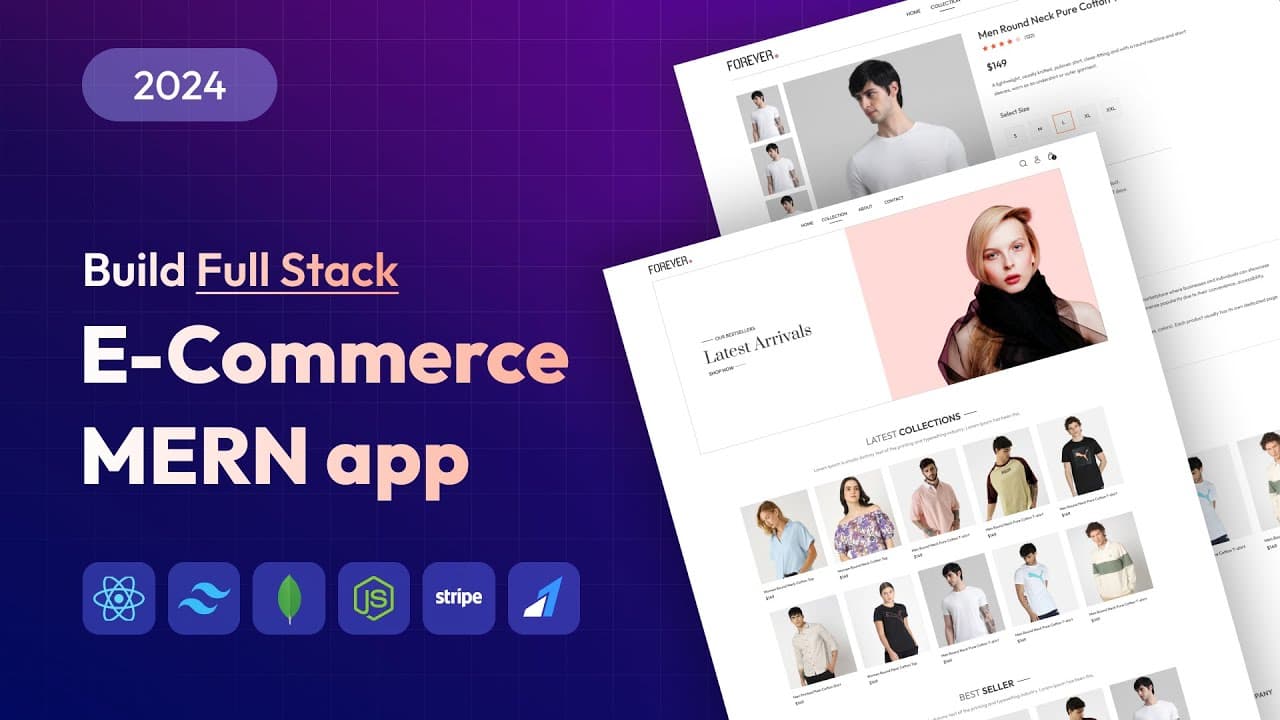
A full stack e-commerce website can be built with the MERN stack (MongoDB, Express, React, Node.js) plus Stripe and Razorpay for payments. The project includes a shoppable storefront with product filtering, cart, and checkout, an order tracking flow, and a separate admin panel for uploading products and updating order status.
Transcript
hello and welcome to another exciting tutorial of great stack in this tutorial we will create a full stack e-commerce website using M Stack we are going to use mongod DV Express react and nodejs to build this e-commerce website project so this is the homepage of our e-commerce website let me scroll this web page so here you can see the latest colle... Read More
Key Insights
- The MERN stack combines MongoDB, Express, React, and Node.js to build a complete full stack e-commerce website, covering both the customer-facing storefront and the backend admin dashboard in one project.
- The storefront homepage displays a latest collections section with 10 recently added products and a best seller section with 5 products, each product card showing the image, title, and price with a hover transition effect.
- Product filtering on the collection page works by category and type, letting users combine selections such as kids plus topwear or men plus bottomwear, while a sort dropdown arranges products by price low-to-high or high-to-low.
- The search feature opens a search bar where typing a keyword returns matching products, so typing a shirt-related term filters the list down to only t-shirts.
- The product page has a gallery of small thumbnail images that update the main image on click, alongside product title, reviews, price, description, and size selection before adding to cart.
- The cart page lets users increase or decrease quantity and delete products, and shows cart totals including total product value, shipping charge, and the final cart amount.
- Checkout collects delivery information and offers multiple payment options including Stripe, Razorpay online payments, and cash on delivery, after which the order appears on the My Orders page with date, size, quantity, and a track order button.
- The admin panel is accessed with an email and password login and allows admins to view new orders, update order status such as out for delivery, list all products, and add new products with images, name, description, category, price, and sizes.
Install to Summarize YouTube Videos and Get Transcripts
Explore YouTube Video Summarizer or Get YouTube Transcript Extractor
Questions & Answers
Q: What technologies are used to build this full stack e-commerce website?
The project uses the MERN stack, which combines MongoDB, Express, React, and Node.js, to build the full stack e-commerce website. For payments, it integrates two online payment gateways, Stripe and Razorpay, alongside a cash on delivery option. The front end is created with React using the Vite (wheat/vite) package, and additional packages like react-router-dom for routing and react-toastify for toast notifications are installed during setup.
Q: How does product filtering work on the collection page?
On the collection page, a filter panel on the left side lets users filter products based on category and type. Selecting a category like kids shows only kids products, and adding a type like topwear narrows it further. Selections can be combined, such as men plus bottomwear, and unchecking a filter returns to displaying all products. A sort dropdown on the right arranges products by price, either low to high or high to low.
Q: How can users search for products on the website?
The website has a search icon that opens a search bar when clicked. In the search bar, users type a search keyword and the product list updates to show only products related to that keyword. For example, typing a shirt-related term returns only the t-shirts in the product list. A cross icon in the search bar closes it. This lets users quickly find specific products without browsing the full collection.
Q: What payment options are available at checkout?
At checkout, users first enter their delivery information on the place order page. They then choose a payment method from multiple options: they can pay online using Stripe or Razorpay, or they can select cash on delivery. In the demo, cash on delivery is selected and the place order button is clicked, after which the order is placed and the user is taken to the My Orders page showing the ordered product, date, size, and quantity.
Q: How does the product page and cart functionality work?
The product page shows a gallery of small images on the left that update the main image when clicked, and product information on the right including title, reviews, price, and description. Users select a size and click add to cart, which increments the cart icon quantity. On the cart page, users can increase or decrease quantity or delete products, and cart totals display total product value, shipping charge, and the total cart amount.
Q: What can an admin do in the admin panel?
The admin panel is accessed by providing an email ID and password then clicking login. From the sidebar, admins can view orders, including newly placed ones showing the customer name, and update the order status using a dropdown, for example changing it to out for delivery, which then reflects on the customer's track order page. Admins can also list all products and add new items by uploading images and entering name, description, category, price, and sizes.
Q: How do you add a new product from the admin panel?
In the admin panel, clicking add items opens the product upload form. The admin uploads product images, selecting variants so multiple images can be added, then enters the product name and description. Next they select a category and subcategory such as topwear, provide a price, and choose available sizes like small, medium, large, and excel. They can optionally check add to best seller, then click the add button, which shows a product added notification.
Q: How do you set up the React front end project for this tutorial?
Setup begins by creating a folder named e-commerce app and opening it in the VS Code editor. In the integrated terminal, the React project is created using the Vite package with the command npm create vite@latest, entering the project name front end, selecting React as the framework and JavaScript. After changing into the front end directory with cd, npm install installs dependencies, then react-router-dom and react-toastify are installed, and npm run dev starts the project on localhost port 5173.
Summary & Key Takeaways
-
The tutorial builds a full stack e-commerce website using the MERN stack (MongoDB, Express, React, Node.js) with Stripe and Razorpay payment gateways. The demo walks through the finished homepage showing latest collections of 10 products and a best seller section with 5 products, plus policies, an email subscription form, and footer.
-
On the collection page users can filter products by category and type, combining choices like kids topwear or men bottomwear, and sort by price low-to-high or high-to-low. A search bar filters products by keyword, and the product page offers an image gallery, size selection, and add-to-cart, with cart totals covering product value and shipping.
-
Checkout captures delivery details and supports Stripe, Razorpay, or cash on delivery, then shows orders on the My Orders page with tracking. The admin panel, reached via email and password login, lets admins update order status and add or list products. Development starts by creating a Vite React front end and installing react-router-dom and react-toastify.
Read in Other Languages (beta)
Share This Summary 📚
Summarize YouTube Videos and Get Video Transcripts with 1-Click
Try YouTube Summary with ChatGPT & Claude or YouTube Transcript Generator
Explore More Summaries from GreatStack 📚





Summarize YouTube Videos and Get Video Transcripts with 1-Click
Try YouTube Summary with ChatGPT & Claude or YouTube Transcript Generator