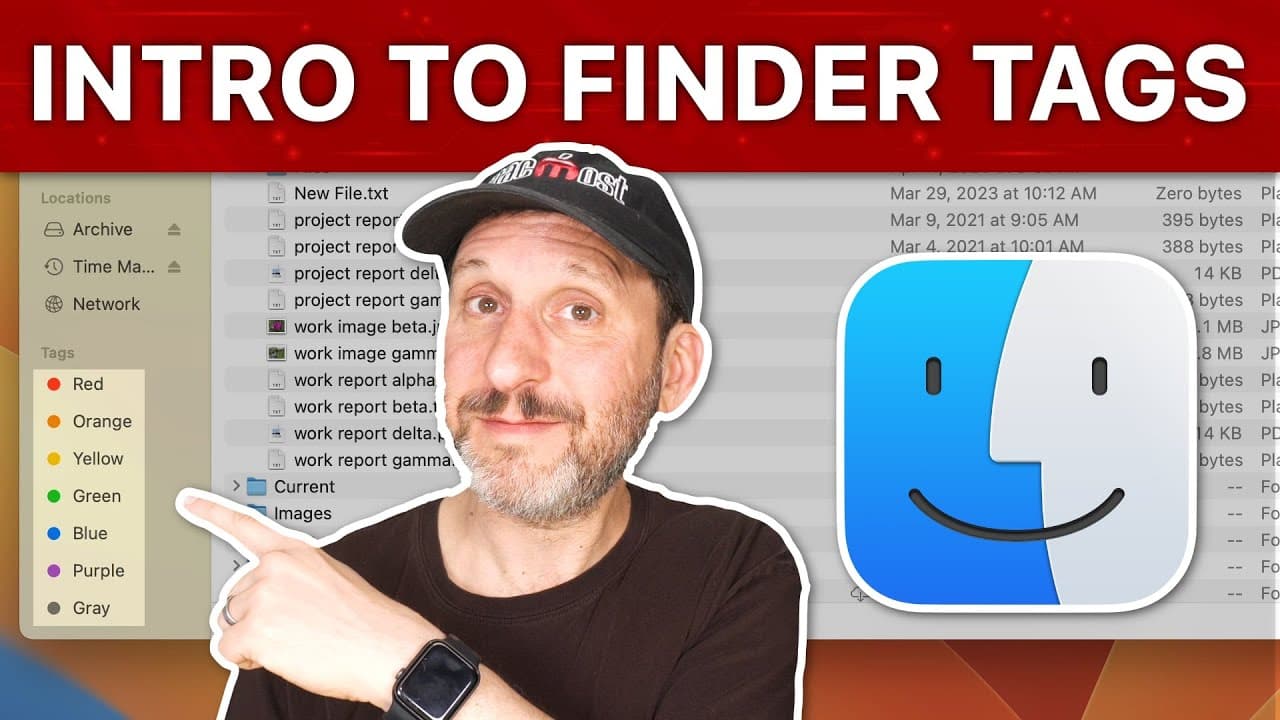
An Introduction To Mac Finder Tags
TL;DR
Mac users can use Finder tags to label and categorize files and folders, creating their own organizational system.
Transcript
hi this is Gary with macmost.com let's take a look at the basics of using Mac finder tags macmost is brought to you thanks to a great group of more than a thousand supporters go to macmost.com patreon there you could read more about the patreon campaign join us and get exclusive content and course discounts in the finder on your Mac you can apply o... Read More
Key Insights
- 🔦 Tags in the Mac Finder can help users label and categorize files and folders, creating an organizational system for easy file management. Tags can be applied using various methods such as right-clicking, dragging and dropping, or using the Inspector tool.
Install to Summarize YouTube Videos and Get Transcripts
Explore YouTube Video Summarizer or Get YouTube Transcript Extractor
Questions & Answers
Q: How can Mac users apply tags to files in the Finder?
Mac users can apply tags to files in the Finder by right-clicking on the file, selecting a tag from the options, or by dragging and dropping the file onto a tag in the left sidebar.
Q: Can files have multiple tags?
Yes, files can have multiple tags. Users can assign more than one tag to a file, and each tag will be represented by a colored dot next to the file's name in the Finder.
Q: How can users manage their tags?
Users can manage their tags by going to Finder settings and selecting the "Tags" tab. From there, they can assign colors to tags, delete tags, and choose which tags appear in the left sidebar.
Q: Are tags synchronized across devices?
Yes, tags are synchronized across devices using iCloud Drive. Mac users will see the same tags on all their devices, including iPhones and iPads. Tags can also be viewed and managed in the Files app on iOS devices.
Q: How can tags be used to organize files efficiently?
Tags allow users to easily organize and locate files based on categories or projects. Files can be tagged with multiple criteria, such as client names or specific topics, making it easier to find relevant files without being restricted to a folder-based system.
Q: Can tags be used to locate all files with a specific tag?
Yes, users can simply select a tag from the left sidebar in the Finder to view all files with that tag applied. This provides a quick and efficient way to access files based on specific categories or labels.
Q: Can tags be used to locate files that belong to multiple categories?
Yes, files can be tagged with multiple categories, allowing them to appear in different tag views. For example, a file can be tagged with multiple client names, and it will be visible when viewing any of those client tags.
Q: Are tags compatible with iCloud Drive?
Yes, tags work seamlessly with iCloud Drive. Tags are synchronized across all devices, ensuring consistency in file organization and making it easy to access tagged files from any device connected to the user's iCloud account.
Summary & Key Takeaways
-
Mac users can apply one or more tags to files and folders in the Finder to label and categorize them.
-
Tags appear as color-coded dots next to file names, making it easy to visually identify tagged items.
-
Users can manage tags, create new ones, and easily locate files by filtering them with specific tags.
Read in Other Languages (beta)
Share This Summary 📚
Summarize YouTube Videos and Get Video Transcripts with 1-Click
Try YouTube Summary with ChatGPT & Claude or YouTube Transcript Generator
Explore More Summaries from macmostvideo 📚






Summarize YouTube Videos and Get Video Transcripts with 1-Click
Try YouTube Summary with ChatGPT & Claude or YouTube Transcript Generator