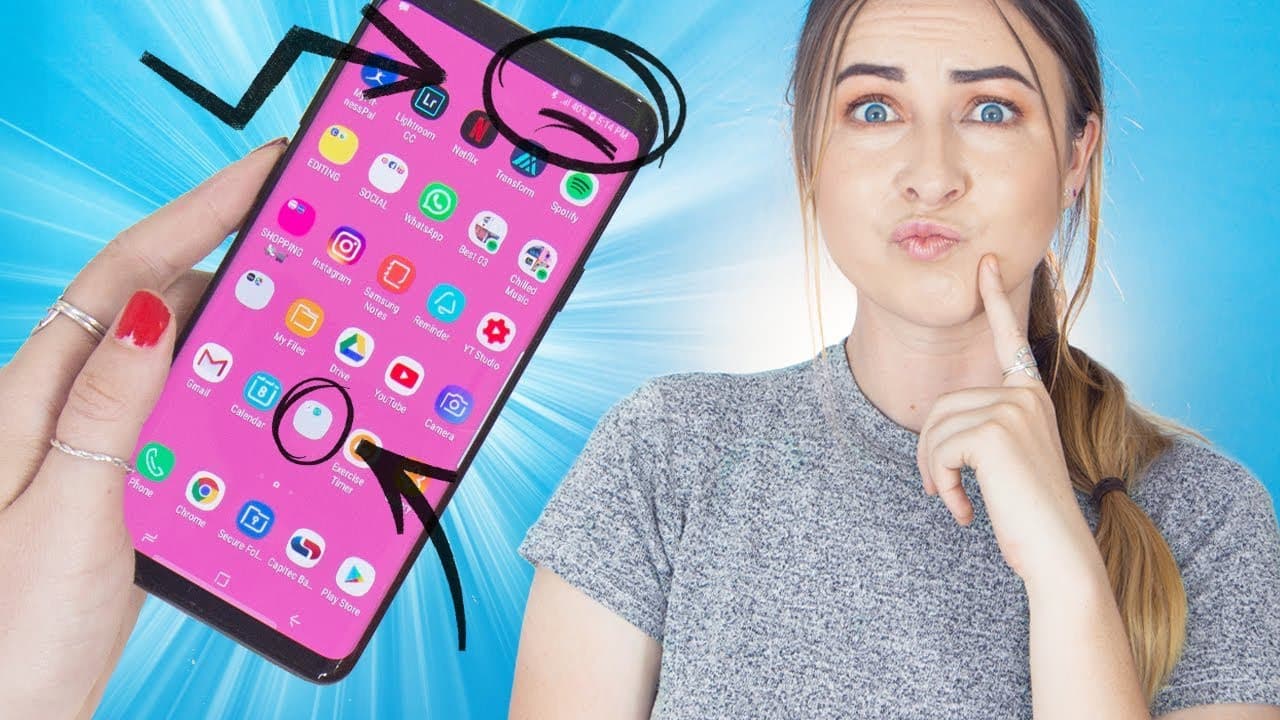
Samsung Galaxy S9+ | Tips, Tricks & Hidden Features
TL;DR
Learn 15 helpful tips and tricks for making the most out of your Samsung Galaxy S9.
Transcript
guys what's up what's up how you doing why is this making a noise in this video I'm going to show you 15 tips tricks and pictures for all my glorious Samsung Galaxy S 9 users yes if you are new to my channel I have done many a tip trick and hack video I hope them linked in the cards or down below in the description box you know how it is importantl... Read More
Key Insights
- 😀 Pop-up windows on the Samsung Galaxy S9 allow for multitasking and easy access to apps.
- 🔔 Edge screen notifications add a visually appealing touch to receiving notifications.
- 😀 Instant paired split-screen apps provide convenience for multitasking on the Samsung Galaxy S9.
- 🤟 Fingerprint gestures can be used to check notifications quickly and easily.
- 😀 Customizing folder colors and using emojis adds a personalized touch to organizing apps.
- 👏 The one-handed mode is a helpful feature for reaching all apps with just one hand.
- 💨 Secure folders are a great way to keep sensitive information private on the Samsung Galaxy S9.
- 👻 Moving the shutter button on the screen allows for easier selfie-taking on the device.
- ↔️ Left and right-handed modes provide flexibility for navigating the device.
- ⌛ Multi-selecting images in the gallery saves time when organizing photos.
- 😀 The must view option in recent apps allows for easier navigation between open apps.
- 👏 Pinning apps restricts access to specific apps, keeping other content on the device private.
- 😀 The Samsung Galaxy S9 is versatile in landscape mode, with apps and settings adjusting accordingly.
- 👻 Creating quick GIFs is a hidden feature that allows for capturing and sharing video snippets.
Install to Summarize YouTube Videos and Get Transcripts
Explore YouTube Video Summarizer or Get YouTube Transcript Extractor
Questions & Answers
Q: How can I enable pop-up windows on my Samsung Galaxy S9?
There are two ways to enable pop-up windows. You can swipe down diagonally across the screen or drag and drop apps into the blue box in the recent icon.
Q: How do I customize the edge screen notifications on my Samsung Galaxy S9?
Go to settings, select display, and then edge screen. Toggle on edge lighting and customize the effects and colors.
Q: How can I use instant paired split-screen apps on my Samsung Galaxy S9?
Open the edge screen settings, click on the edit button, and create app pairs. This allows you to quickly access two apps at once, such as a shopping list and calculator.
Q: Is there a way to check notifications with a fingerprint gesture on the Samsung Galaxy S9?
Yes, you can enable fingerprint gestures in the advanced features settings. This allows you to swipe down on the fingerprint sensor to display or hide notifications.
Summary & Key Takeaways
-
Enable pop-up windows on apps by swiping down diagonally or dragging and dropping apps into a blue box in the recent icon.
-
Activate edge screen notifications for a visually appealing way to receive notifications. Customize the edge lighting styles and colors.
-
Use instant paired split-screen apps for multitasking by creating app pairs in the edge screen settings.
Read in Other Languages (beta)
Share This Summary 📚
Summarize YouTube Videos and Get Video Transcripts with 1-Click
Try YouTube Summary with ChatGPT & Claude or YouTube Transcript Generator
Explore More Summaries from Hayls World 📚


Summarize YouTube Videos and Get Video Transcripts with 1-Click
Try YouTube Summary with ChatGPT & Claude or YouTube Transcript Generator