Record A Gif - How To Make A Gif From A Video (Video To GIF Tutorial) Phil Pallen
TL;DR
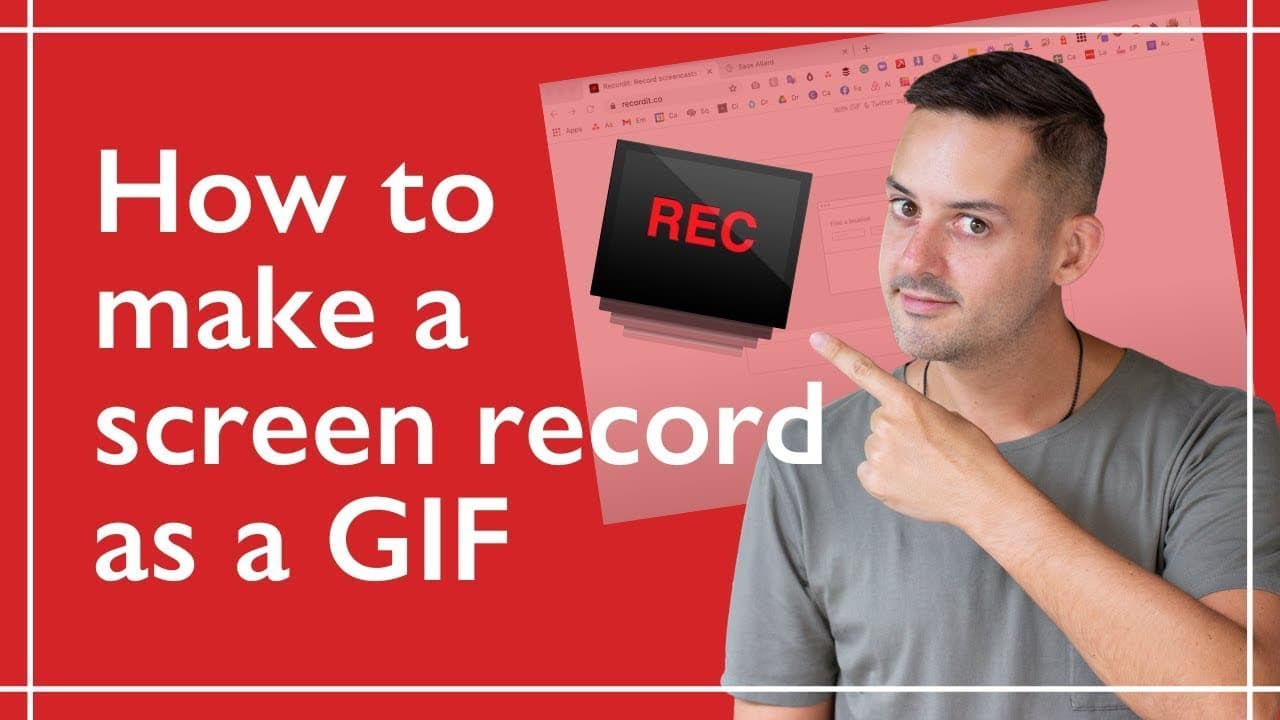
Learn how to create and send screen recordings as GIFs, a more engaging and visual method compared to screenshots.
Transcript
i'm going to show you how to quickly make a screen record as a gif i use this often to send to people as an accompanying visual to give instructions highlight steps to take and so much more it is so much more exciting than sending a screenshot on this channel i talk a lot about practical advice to look good online consider subscribing for more vide... Read More
Key Insights
- 💨 Creating screen recordings as GIFs provides a more visual and engaging way to communicate instructions or explanations.
- 👤 The "Record It" tool is suitable for both Mac and Windows users.
- 👻 Adjusting the settings of Record It allows for a customized recording experience.
- ✋ The process of making a screen record as a GIF involves selecting the recording area, starting the recording, and stopping it when finished.
- 🥶 Record It allows for recordings of up to five minutes in the free version.
- 💌 GIFs created with Record It can be downloaded and shared via email or other platforms.
- 📁 The resulting file format may vary based on the length, with some recordings being saved as movie files.
Install to Summarize YouTube Videos and Get Transcripts
Explore YouTube Video Summarizer or Get YouTube Transcript Extractor
Questions & Answers
Q: How does making a screen record as a GIF benefit communication?
Creating a screen record as a GIF adds visuals and makes instructions or explanations more engaging and easy to understand. It is particularly useful for demonstrating steps or changes in a process.
Q: Can I adjust the settings before making a screen recording?
Yes, Record It allows you to customize general settings, such as launching on login, mouse highlight color, and password protection. You can also set shortcut keys to enhance your recording experience.
Q: Is there a time limit for screen recordings using Record It?
The free version of Record It allows recordings of up to five minutes. If your recording exceeds this limit, it will be saved as a movie file, which can then be converted into a GIF.
Q: Can I share the GIFs created with Record It through email or other platforms?
Yes, once your screen recording is complete, Record It provides a hyperlink that you can click to download the GIF. You can then include it in an email or use it on various platforms to enhance your communication.
Summary & Key Takeaways
-
The content teaches viewers how to make a screen record as a GIF, which can be used to provide instructions or visuals beyond screenshots.
-
The recommended tool is "Record It," a software that can be downloaded for both Mac and Windows computers.
-
The process involves installing the tool, adjusting settings if necessary, selecting the area to record, hitting the record button, and stopping the recording when finished. The resulting GIF can be downloaded or converted from a movie file.
Read in Other Languages (beta)
Share This Summary 📚
Summarize YouTube Videos and Get Video Transcripts with 1-Click
Try YouTube Summary with ChatGPT & Claude or YouTube Transcript Generator
Explore More Summaries from Phil Pallen 📚





Summarize YouTube Videos and Get Video Transcripts with 1-Click
Try YouTube Summary with ChatGPT & Claude or YouTube Transcript Generator