Import Journal Entry into QuickBooks Desktop (From Excel) using IIF File
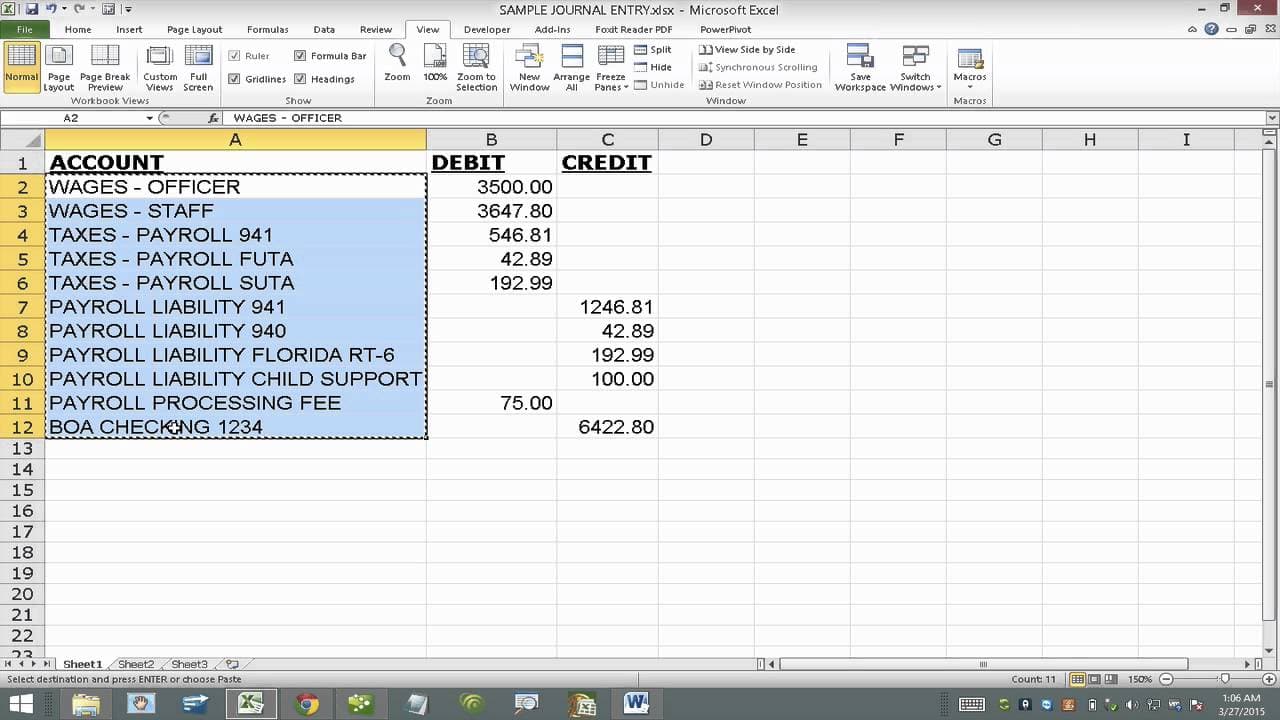
TL;DR
Learn to import Excel journal entries into QuickBooks using IIF files.
Transcript
Read and summarize the transcript of this video on Glasp Reader (beta).
Key Insights
- The process begins with downloading a sample IIF file to use as an import template for QuickBooks. This template is essential for formatting the data correctly.
- Excel files must be opened with the 'All Files' option to access IIF files, ensuring the correct data format is maintained for QuickBooks compatibility.
- Positive numbers in the data represent debits, while negative numbers are credits, which is crucial for accurate financial reporting in QuickBooks.
- Expense accounts must be input in column E of the IIF file, with each line item marked with the 'SPL' tag for proper categorization.
- Consistency in date entries is vital for journal entries, requiring uniform dates across all rows in the imported data.
- The amount column in the IIF file should use a formula to calculate debit and credit values, ensuring they are rounded to two decimal places.
- Saving the modified IIF file over the existing template is necessary, despite warnings about file format changes, to facilitate import into QuickBooks.
- Close the IIF file in Excel before importing into QuickBooks to avoid errors, ensuring a smooth data transfer process.
Install to Summarize YouTube Videos and Get Transcripts
Explore YouTube Video Summarizer or Get YouTube Transcript Extractor
Questions & Answers
Q: How do you start the process of importing journal entries into QuickBooks?
The process begins by downloading a sample IIF file, which serves as an import template for QuickBooks. This template is crucial for formatting the Excel data correctly to ensure compatibility with QuickBooks' import requirements.
Q: What is the significance of positive and negative numbers in the IIF file?
In the IIF file, positive numbers are used to represent debits, while negative numbers represent credits. This distinction is critical for accurate financial reporting and ensures that the data is correctly interpreted by QuickBooks during the import process.
Q: Why is it important to have consistent date entries in the IIF file?
Consistent date entries across all rows in the IIF file are vital because they ensure that all journal entries are recorded on the same date in QuickBooks. This uniformity is essential for maintaining accurate and organized financial records.
Q: What should you do if you receive a warning about the file format when saving the IIF file?
If you receive a warning about the file format when saving the IIF file, you should proceed with saving it over the existing template. This step is necessary because the IIF format is the only type of file that QuickBooks can import, despite the warning.
Q: How do you ensure that the import process into QuickBooks is error-free?
To ensure an error-free import process into QuickBooks, you must close the IIF file in Excel before attempting to import it. Keeping the file open in Excel can cause errors during the import, preventing a successful data transfer.
Q: What is the role of the 'SPL' tag in the IIF file?
The 'SPL' tag in the IIF file is used to mark each line item under the expense accounts column. This tagging is necessary for QuickBooks to categorize and process the imported data correctly, ensuring accurate financial records.
Q: Why is it necessary to round amounts to two decimal places in the IIF file?
Rounding amounts to two decimal places in the IIF file is necessary to ensure that the financial data is precise and compatible with QuickBooks' requirements. This precision is crucial for maintaining accurate financial records and avoiding discrepancies during the import process.
Q: What should be done if new accounts are created as 'Bank Accounts' during the import?
If new accounts are created as 'Bank Accounts' during the import, it indicates a mismatch between the spreadsheet accounts and the QuickBooks chart of accounts. To prevent this, ensure that the account names in your spreadsheet match the chart of accounts in QuickBooks verbatim.
Summary & Key Takeaways
-
This tutorial guides users on importing journal entries from Excel to QuickBooks using IIF files. It emphasizes the importance of using a sample IIF file as a template and maintaining specific formatting for successful import.
-
Users must ensure that positive numbers represent debits and negative numbers represent credits, with all amounts rounded to two decimal places. Consistent date entries across all rows are also essential.
-
The tutorial warns against keeping the IIF file open in Excel during the import process into QuickBooks to prevent errors, ensuring a seamless integration of financial data.
Read in Other Languages (beta)
Share This Summary 📚
Summarize YouTube Videos and Get Video Transcripts with 1-Click
Try YouTube Summary with ChatGPT & Claude or YouTube Transcript Generator
Explore More Summaries from Hector Garcia CPA 📚


Summarize YouTube Videos and Get Video Transcripts with 1-Click
Try YouTube Summary with ChatGPT & Claude or YouTube Transcript Generator