How to Use the Glasp Android Mobile/Tablet App

Sep 01, 2025
5 min read
3869 views

Want to highlight and save content on your Android phone or tablet? With the Glasp Android app, you can capture insights from articles, organize them, and sync seamlessly with your desktop account. Released on September 22, 2023, the Glasp Android app is the easiest way to start building your personal knowledge library on the go.
This tutorial will walk you through installing the app, highlighting articles, and syncing with desktop for advanced features.
Here's the simple video tutorial for Android.
👉 How to use the Glasp Android app (YouTube Tutorial)
If you'd like to see a tutorial for iOS, please check here.
Step 1: Install the Glasp Android app
Please open the link below and install the Glasp Android app.
👉 Glasp: Collect your favorite words
Step 2: Sign up or log in to the Glasp account
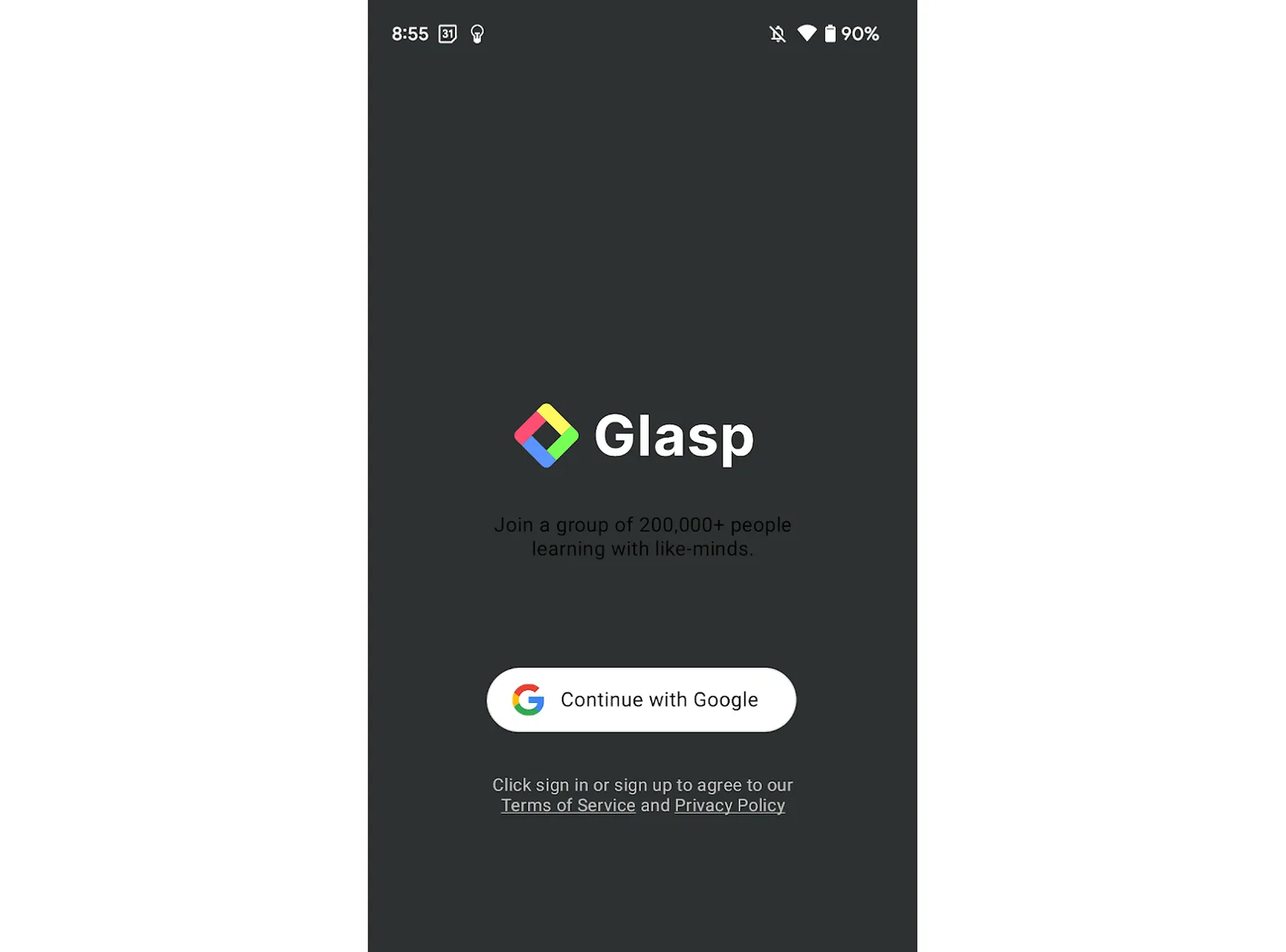
After installation of the Glasp Android app, please click and open it.
If you're new to Glasp, please sign up for Glasp. You can sign up with Google Sign-in.
If you already have a Glasp account, please log in to Glasp with the same account you signed up for Glasp. If you aren't sure which account you used to sign up before, please check your email inbox and search for Glasp. You should find the email address from us.
If you're asked to sign in to your Google account, please do so.
Step 3: Open an article to highlight with a browser
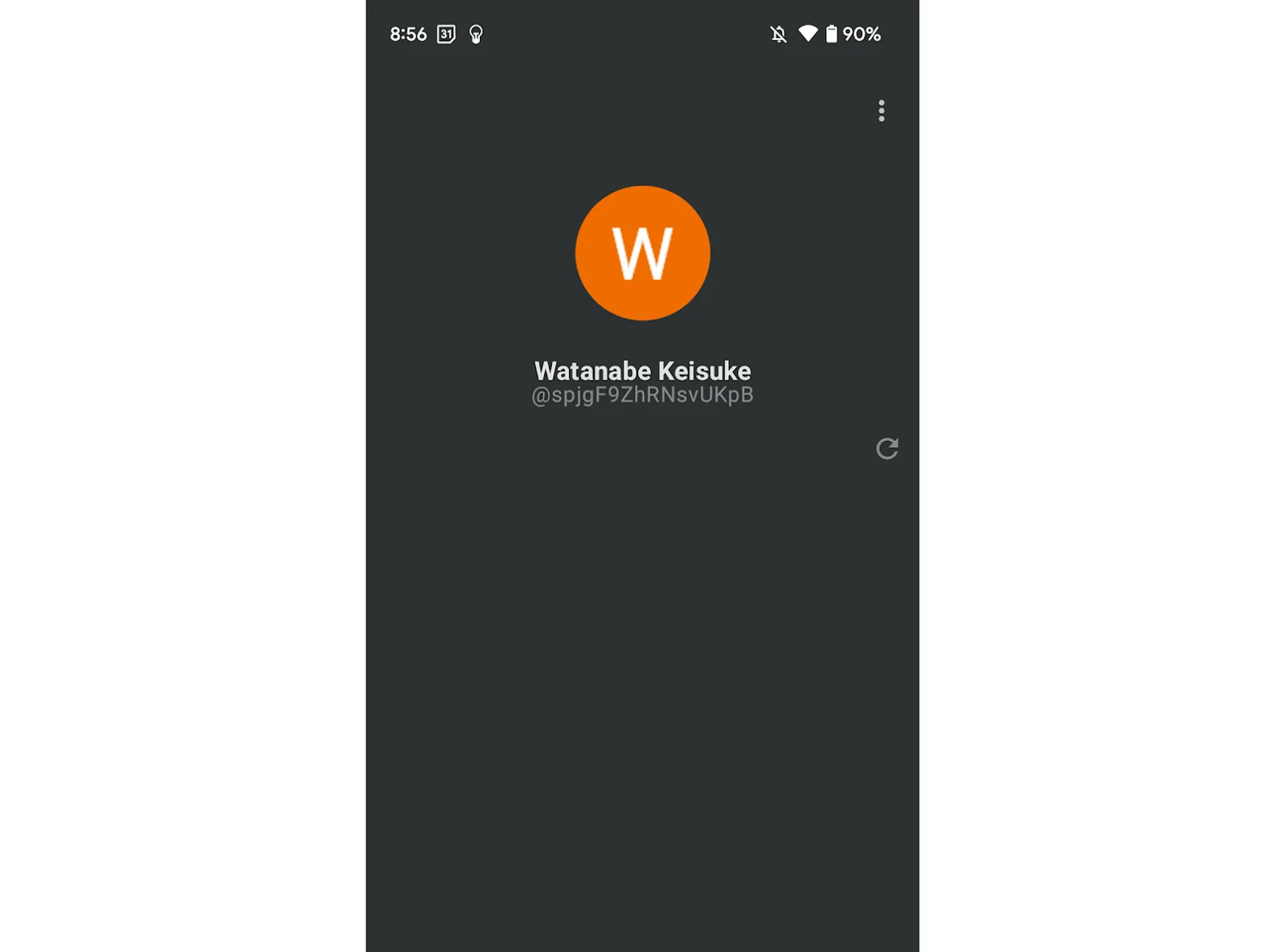
If you're new to Glasp, you can see an empty screen below.
To start highlighting with Glasp, you need to open an article you'd like to highlight through a browser such as Chrome, Edge, etc.
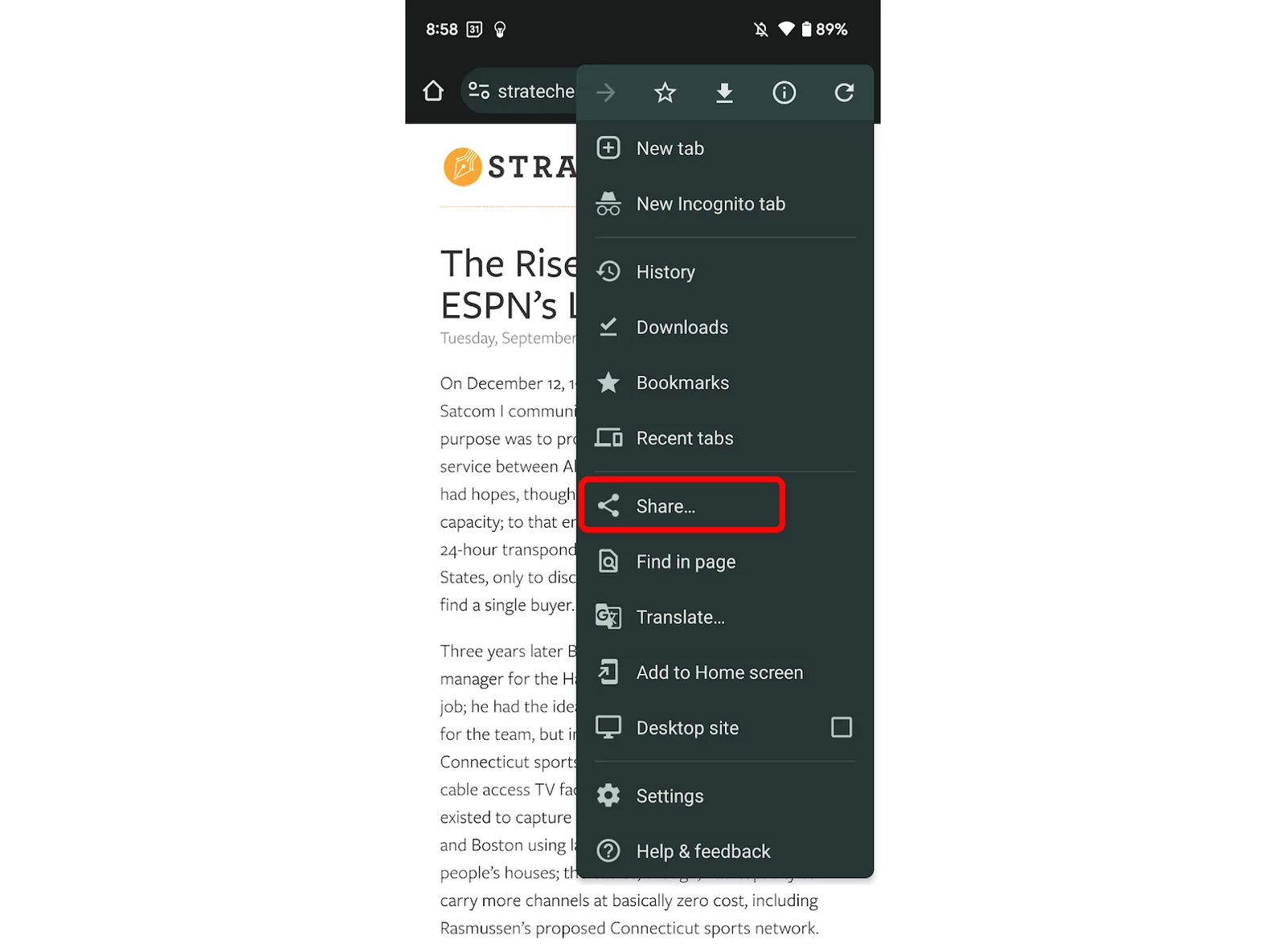
Please open an article with your browser. You can open it with any browser such as Safari, Chrome, Firefox, Edge, etc. Please click the three dots button at the top right and Share in the modal.
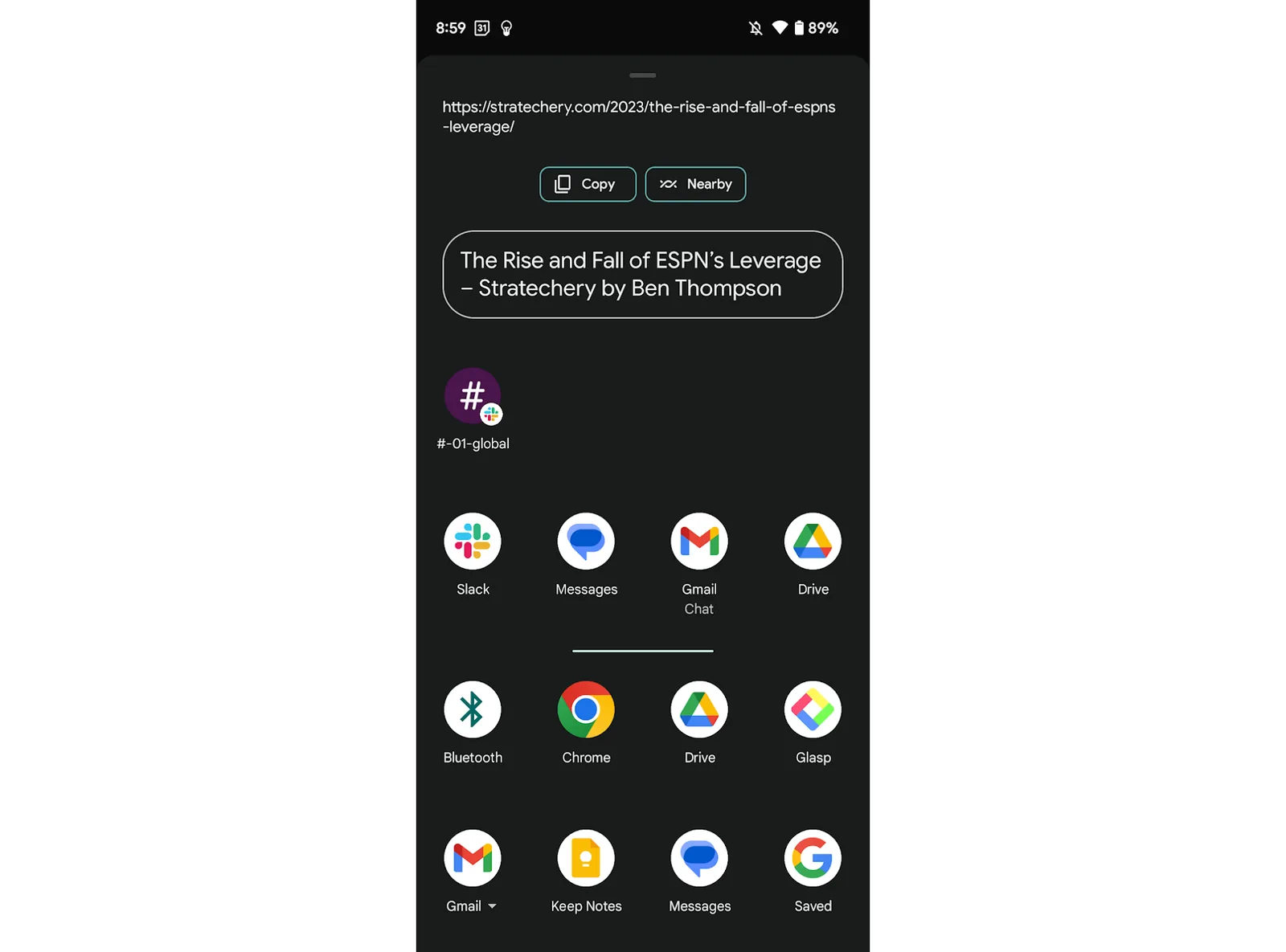
In the next screen, find Glasp in the list and click it.
It opens the article in the Glasp app. You can start highlighting it by selecting a sentence. Click any color in the color palette at the bottom.
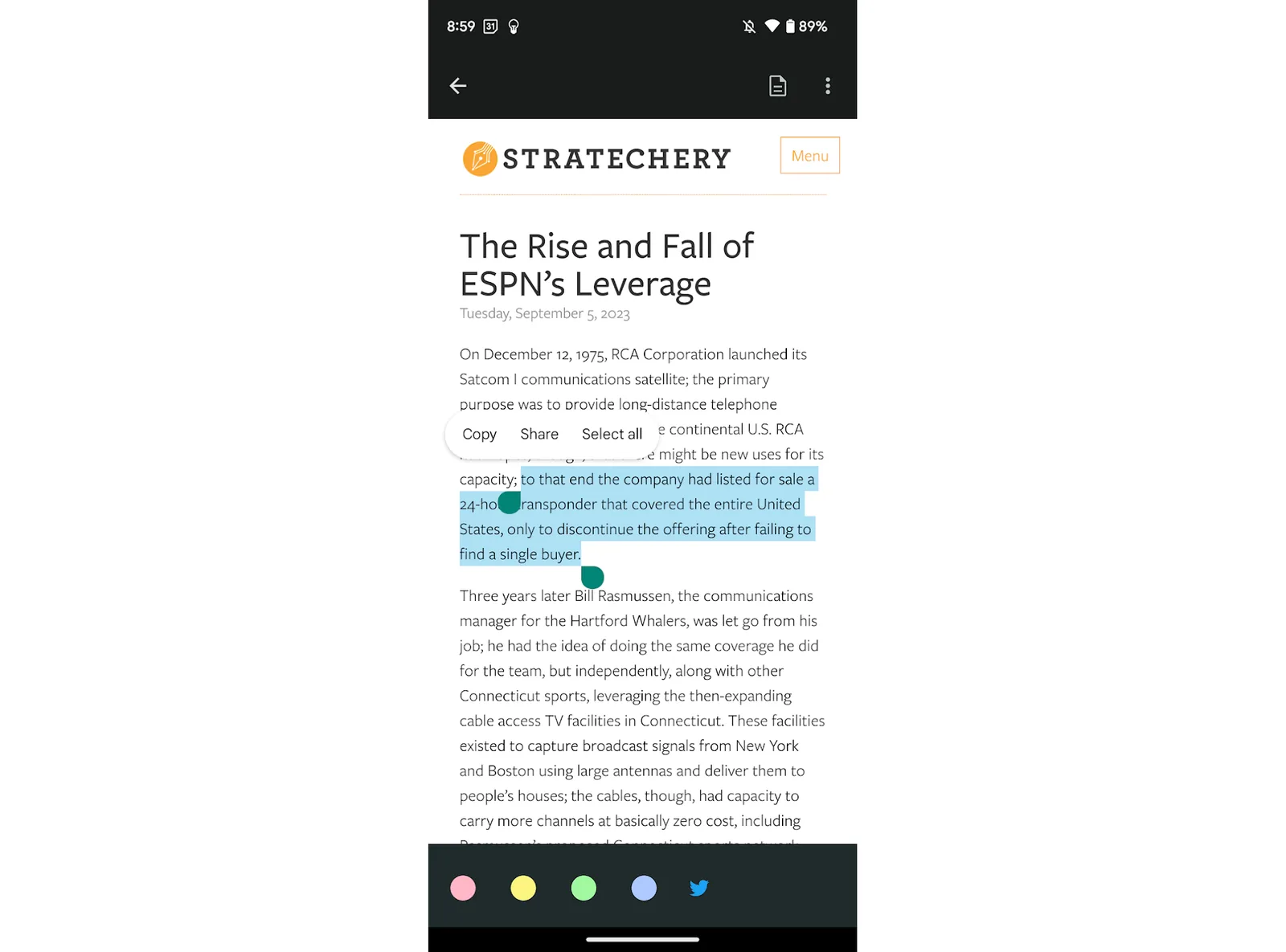
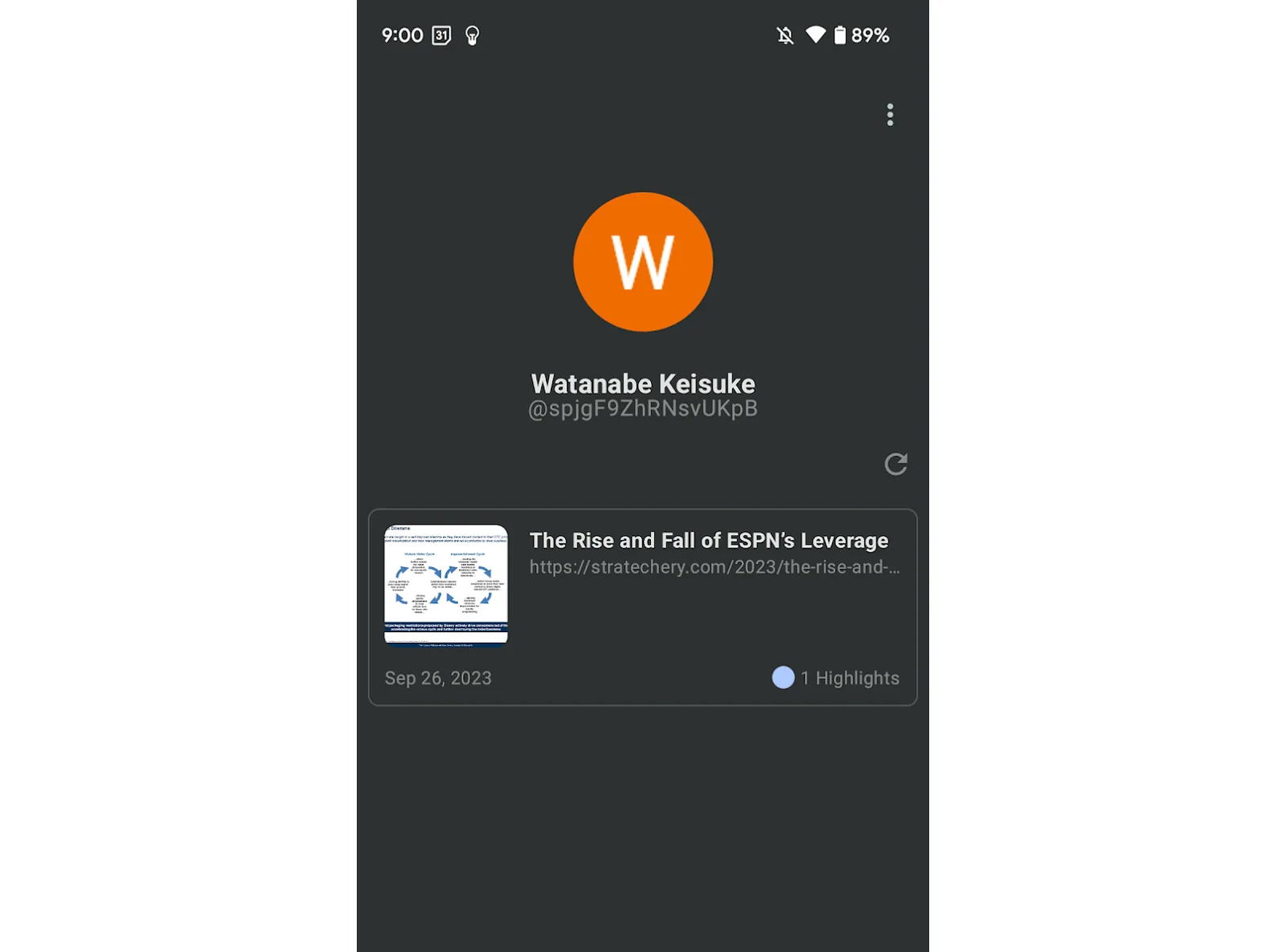
Click a back arrow at the top left to see your highlighted articles list.
(Optional) Step 4: Sync highlights on a desktop device
Glasp works more on a desktop device. In this step, we'll introduce how to see your highlights on a desktop and unlimited more features such as following like-minded people on Glasp, leaving a page comment, and adding a category tag.
Step 4-1: Log in to Glasp on a desktop browser
Please access glasp.co and log in to your Glasp account on a desktop. Make sure you use the same Google account as the one you signed up through the mobile app.
Step 4-2: Install the Glasp browser extension
After logging in to the Glasp account, please install the Glasp browser extension. You don't need to install the extension if you don't highlight the web articles on a desktop or import Kindle highlights.
👉 Install the Chrome extension
👉 Install the Safari extension
Step 4-3: View your highlights
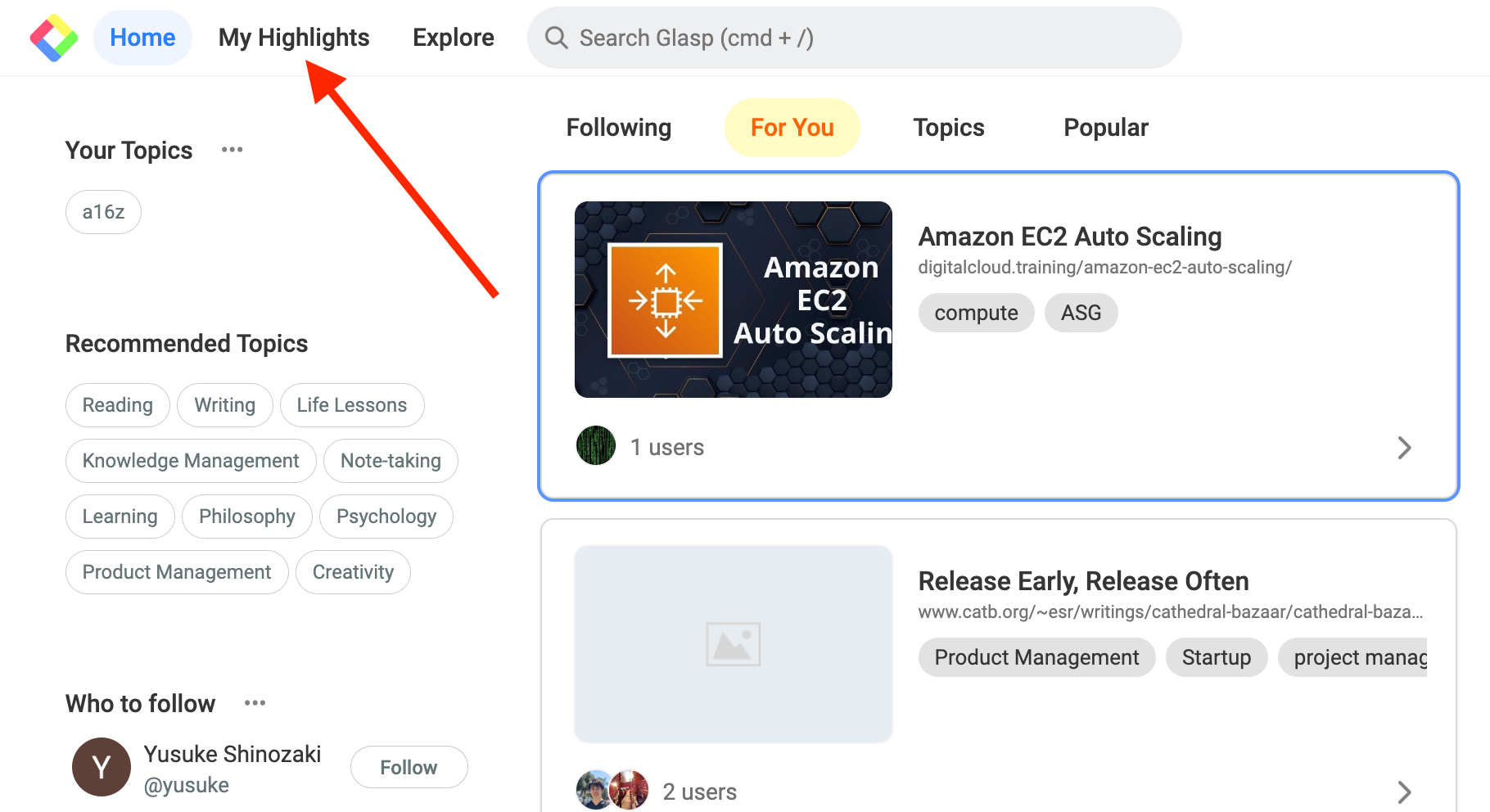
Then, click My Highlights at the top left. It takes you to your Glasp profile page.
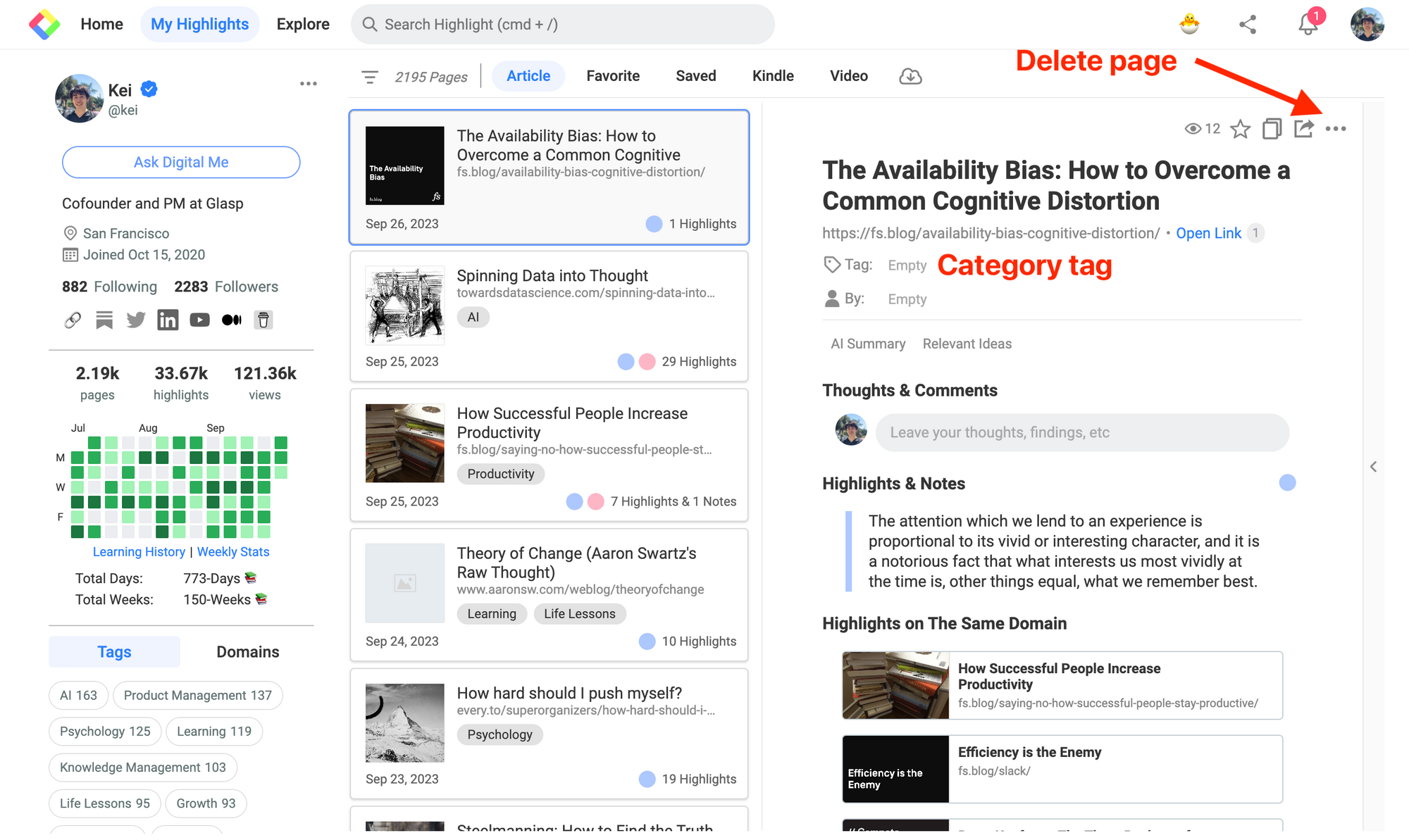
On the My Highlights page, you can see all the highlights you made, add a category tag, and delete the page.
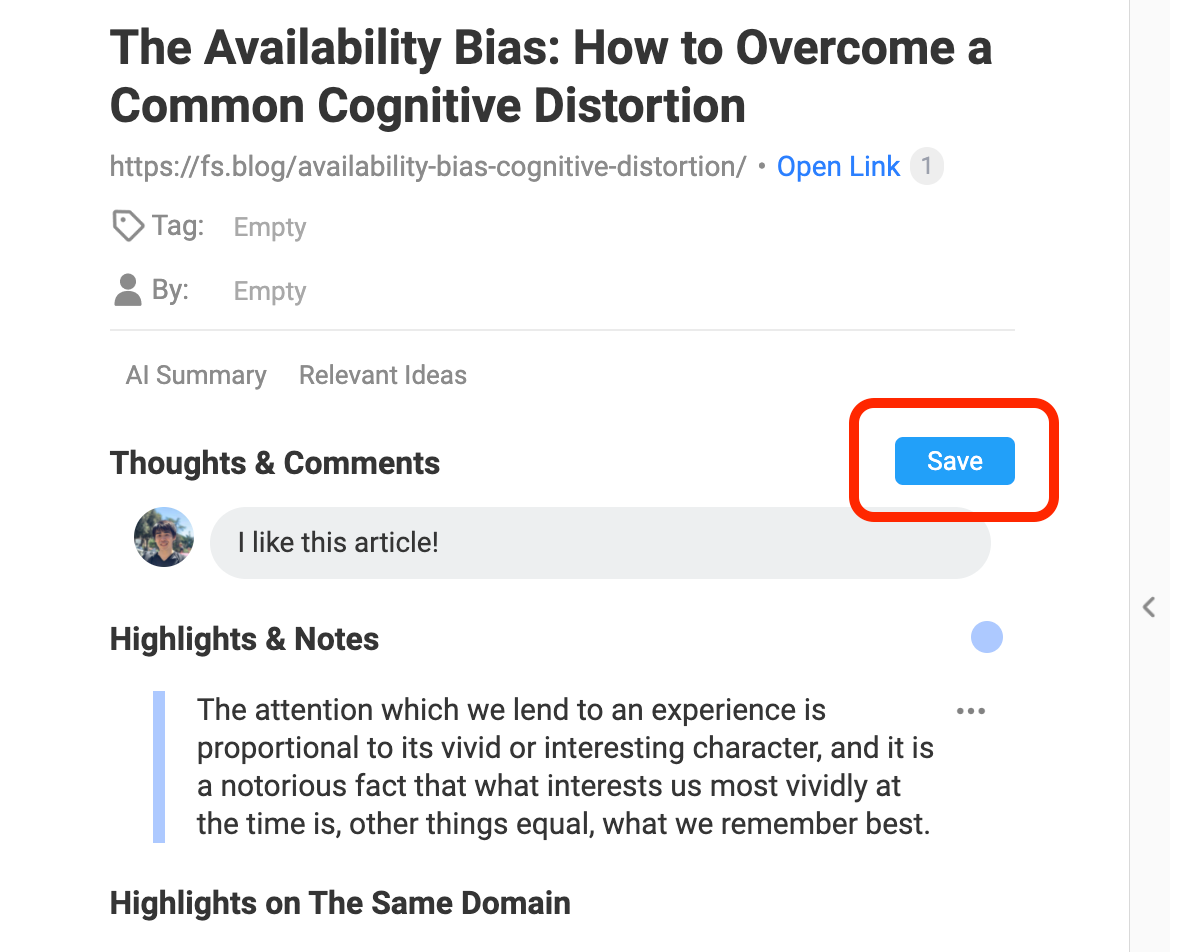
Step 4-4: Leave a page comment
You can leave a page comment. Type whatever you want in a cell and click the Save button.
Step 4-5: Follow like-minded people
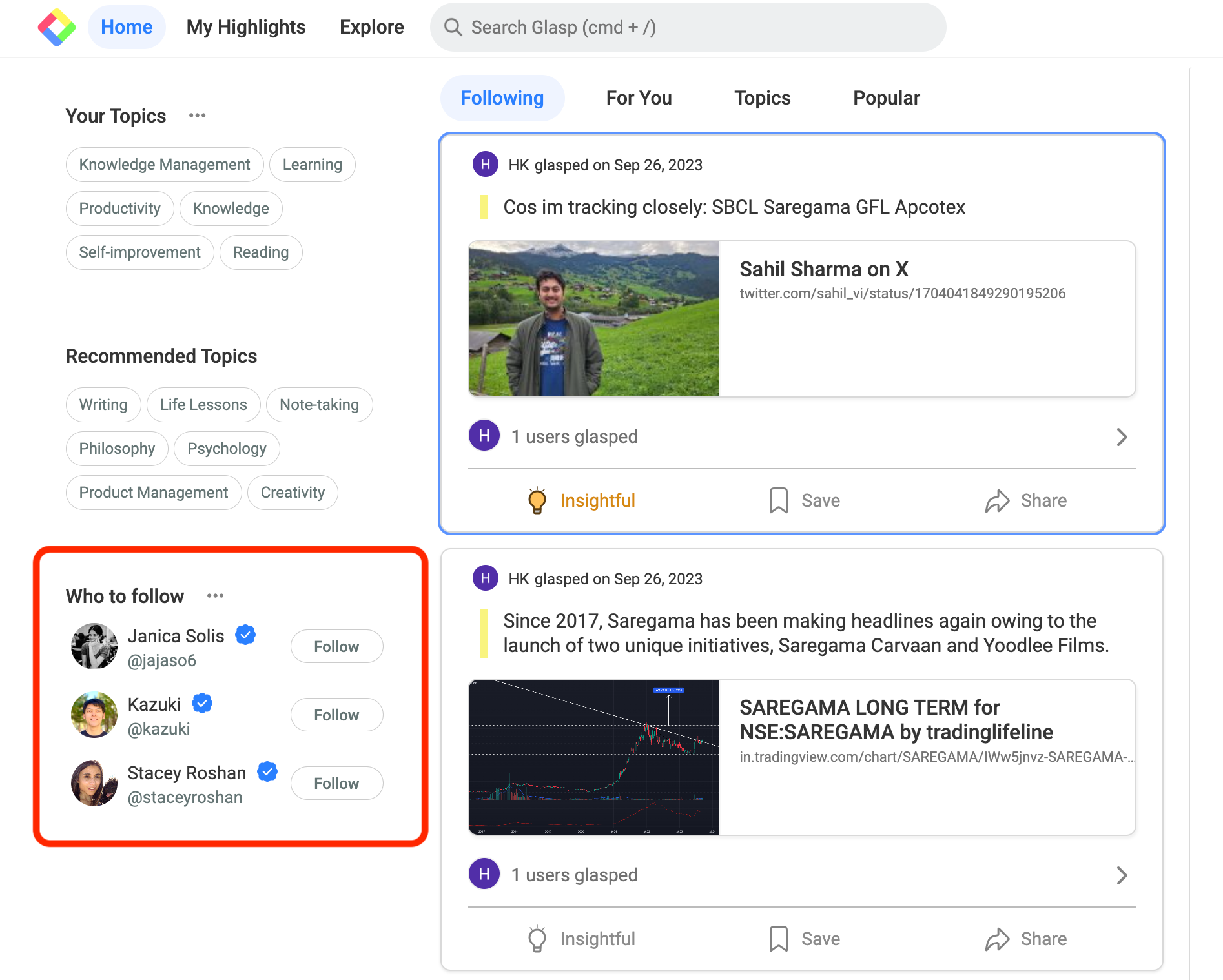
To follow like-minded people, please go to the Home feed by clicking the Glasp icon or Home at the top left.
You can see featured curators on Glasp.
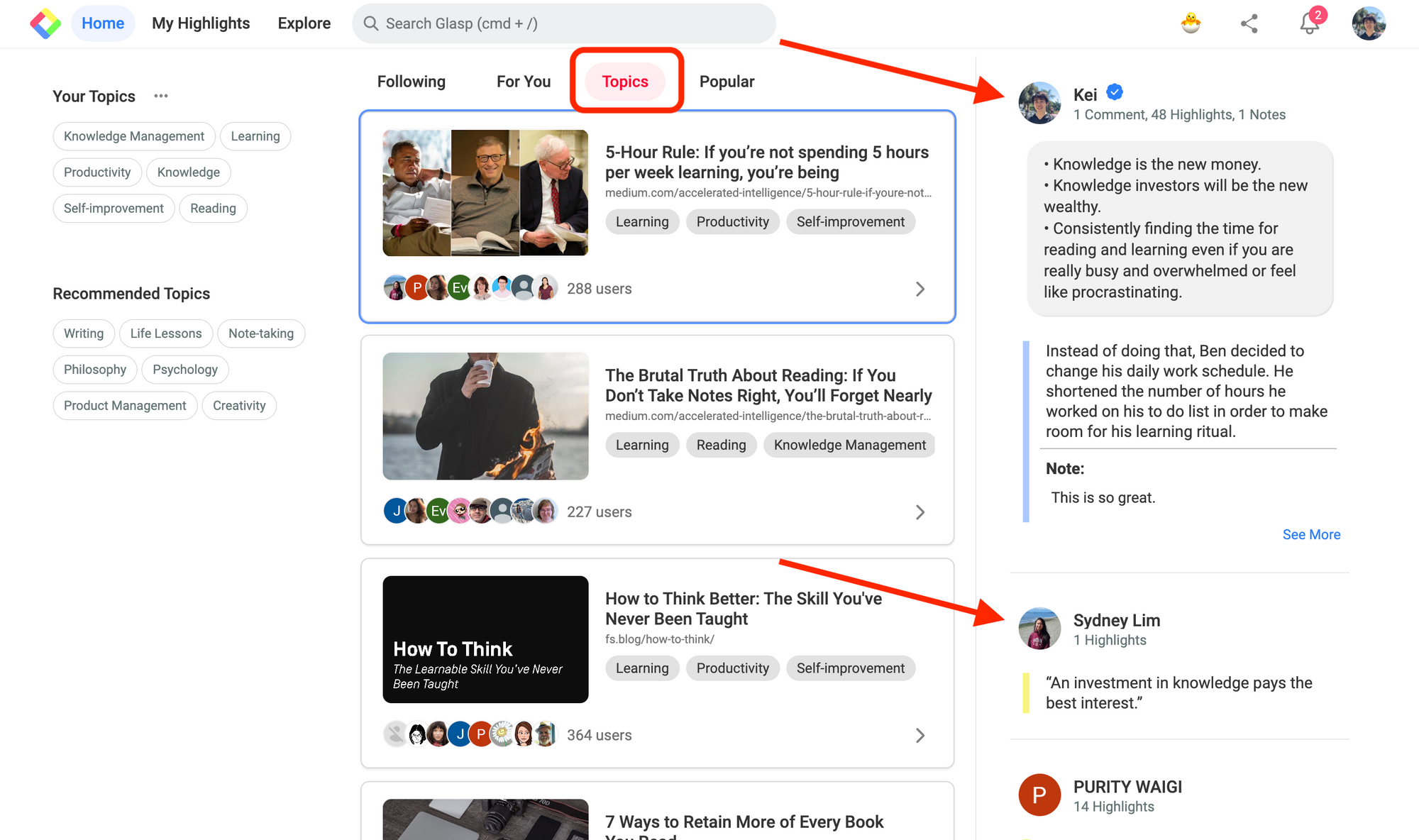
Also, when you click Topic on the Home feed, you can see popular content based on your interest. So, explore other readers and find your learning partner!
Note: The Glasp app keeps getting better. You can now also summarize YouTube videos and read their transcripts right inside the app. If you find any issues, please report them here.
FAQs
Q. Is the Glasp Android app free?
Yes. The Glasp app for Android is completely free to download and use.
Q. Can I highlight articles directly inside the Glasp app?
Yes. When you share an article from your browser (Chrome, Edge, Firefox, etc.) to Glasp, it opens in the app and allows you to highlight text with different colors.
Q. Does the Android app sync with my desktop Glasp account?
Yes. If you log in with the same Google account, your highlights are automatically synced across devices.
Q. Can I highlight PDFs or YouTube videos with the Android app?
The app supports highlighting web articles, and you can also summarize YouTube videos and read their transcripts right inside the app — see How to Summarize YouTube Videos with the Glasp iOS & Android App. For PDFs and Kindle highlights, you’ll need to use Glasp on desktop with the browser extension.
Q. Can I organize highlights by tags or topics on Android?
Basic highlighting works on Android. For advanced features like adding tags, leaving page comments, and following others, log in to your desktop Glasp account.
Q. Do I need the browser extension if I use the Android app?
Not necessarily. The app works independently, but the browser extension (Chrome, Safari, Edge, Brave) unlocks more powerful features on desktop.
🎥 Want to do more with the Glasp app?
👉 How to Summarize YouTube Videos with the Glasp iOS & Android App
👉 How to Use the Glasp iOS Mobile/Tablet App
Before you leave
If you have any questions, please refer to the FAQ or contact us.
See you next time,
Glasp team