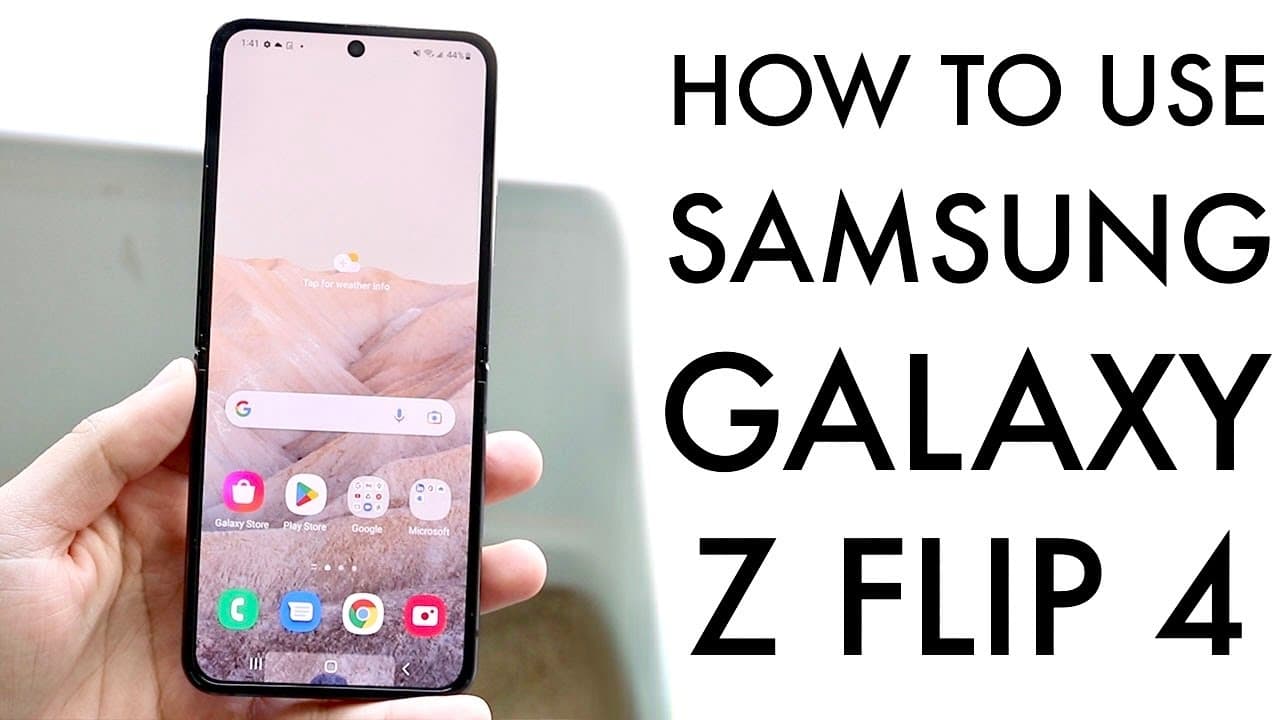
How To Use Samsung Galaxy Z Flip 4! (Complete Beginners Guide)
TL;DR
This guide provides essential setup and usage tips for the Samsung Galaxy Z Flip 4.
Transcript
congratulations you may have just picked up a samsung galaxy z flip 4 so i'll go and give you a quick breakdown on how to use this phone even if you're a beginner now starting off with the outside the breakdown is very very basic we have a little display on the front we have a dual camera up as well we have on the left side our sim card slot and ju... Read More
Key Insights
- 💤 The Samsung Galaxy Z Flip 4 features a sleek design with dual cameras and an accessible outside display for notifications.
- 😒 Inserting the SIM card requires careful use of the eject tool, ensuring your device is ready for cellular connectivity.
- 👤 Users can benefit from customizing their cover display for personal notifications and quick access to essential functions.
- 👻 Taking screenshots and screen recordings is straightforward and allows users to capture and share moments easily.
- 👪 Organizing your home screen with widgets and navigating through settings are crucial for optimizing usage.
- 👻 The device allows a seamless transition from the cover display to the main display when unfolded.
- 🥹 The phone supports various options for backing up data, making it manageable before performing a factory reset.
Install to Summarize YouTube Videos and Get Transcripts
Explore YouTube Video Summarizer or Get YouTube Transcript Extractor
Questions & Answers
Q: How do I insert the SIM card into the Samsung Galaxy Z Flip 4?
To insert your SIM card, use the SIM eject tool included in the box. Locate the SIM card slot on the left side of the device, insert the eject tool into the small hole to pop out the tray, place the nano SIM card into the tray, and then push it back into the phone to secure your cell service.
Q: What should I keep in mind when using the cover display?
The cover display allows for quick access to notifications and features. To customize it, double-tap the display or swipe to view music, alarms, or a calendar. You can add or rearrange widgets on this screen, enhancing your user experience without fully opening the phone.
Q: How can I take a screenshot on the Galaxy Z Flip 4?
To take a screenshot, press the power button and volume down button simultaneously. You'll see a notification indicating the screenshot has been taken. You can find it in the Gallery app and options to share or edit the screenshot will be available within that interface.
Q: What’s the process for screen recording on the device?
Swipe down to access the quick settings panel, find the screen recording toggle, and tap it. Choose your sound and resolution preferences. Start recording, and you can pause or stop the recording whenever needed. The video will be saved in your Gallery for later access.
Summary & Key Takeaways
-
The guide introduces the exterior features of the Samsung Galaxy Z Flip 4, highlighting its dual camera, display, and various buttons for navigation and connectivity.
-
It details how to insert the SIM card using the eject tool, attach or remove the case, and customize the cover display settings for notifications and widgets.
-
Users learn about accessing apps, settings, taking screenshots, and screen recording, alongside tips for factory resetting the device before selling or giving it away.
Read in Other Languages (beta)
Share This Summary 📚
Summarize YouTube Videos and Get Video Transcripts with 1-Click
Try YouTube Summary with ChatGPT & Claude or YouTube Transcript Generator
Explore More Summaries from Simple Alpaca 📚


Summarize YouTube Videos and Get Video Transcripts with 1-Click
Try YouTube Summary with ChatGPT & Claude or YouTube Transcript Generator