Android Studio how to add picture to the resource
TL;DR
This tutorial covers how to insert images into Android Studio projects.
Transcript
hello this time we will talk about how to insert picture into Android Studio first I'd like to create a new project so we'll use the basic activity go to next we're using language using Java and the API 21 is run 98 percent of the device so let's finish okay we finished build so let's see go to the resource and we go to layout first we have four la... Read More
Key Insights
- 👻 Starting a new project in Android Studio is straightforward and allows for image integration after initial setup.
- 🤩 The drawable folder is key for storing and organizing images used in Android applications, making them easily accessible.
- 😫 Properly setting up constraints in layout design is crucial for achieving the desired appearance of UI elements within Android applications.
- 📼 Android Studio's resource manager simplifies the process of managing image files, converting them into usable assets in your application.
- 🎟️ Addressing common errors, such as missing constraints, is essential for maintaining the layout integrity of an application.
- 🎨 Adding content descriptions for images promotes accessibility in application design, making it easier for those using screen readers to understand visual content.
- 🈸 Utilizing action buttons linked to the application enhances user interaction and allows for more dynamic functionality, like sending emails directly from the app.
Install to Summarize YouTube Videos and Get Transcripts
Explore YouTube Video Summarizer or Get YouTube Transcript Extractor
Questions & Answers
Q: What is the first step to insert a picture in an Android Studio project?
The first step is to create a new project in Android Studio using a basic activity template. When setting up the project, choose Java as the programming language and ensure that the API level is compatible with most devices. This foundation allows you to add images and additional functionalities later in the development process.
Q: How do you import an image into Android Studio?
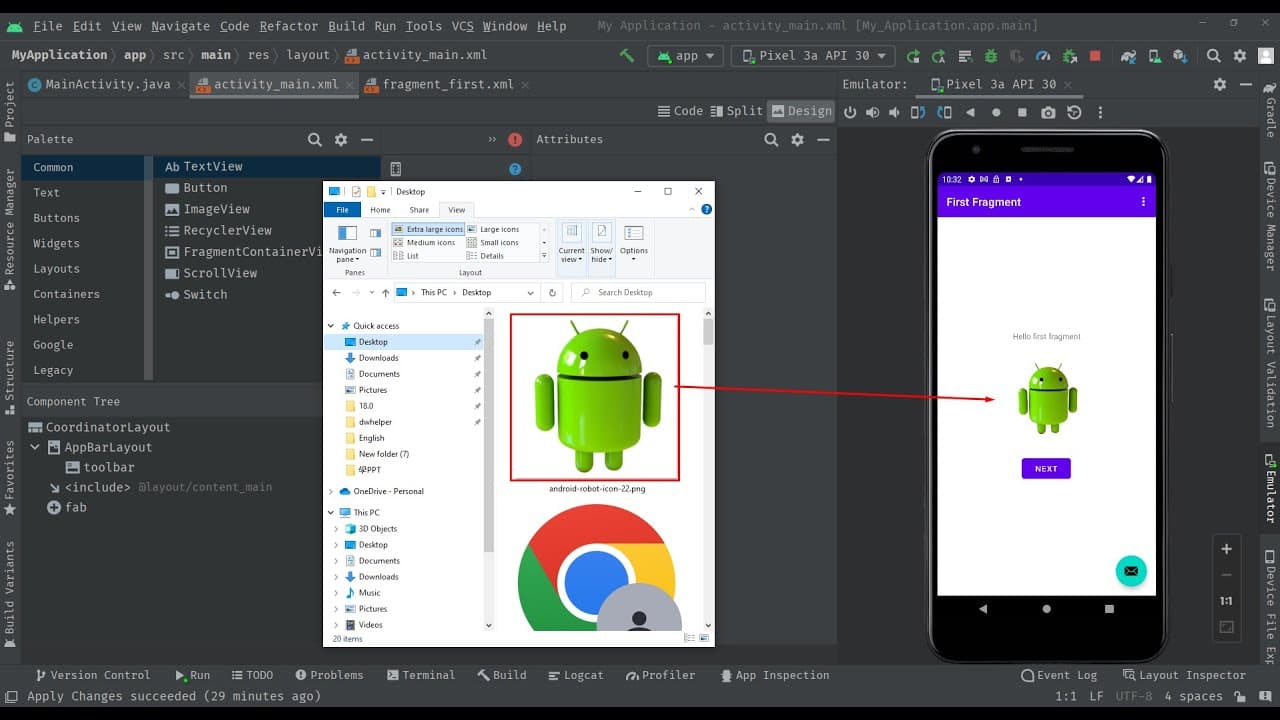
To import an image, you need to navigate to the drawable folder in the resource manager, which is accessible from the sidebar. You can drag and drop your image file from your desktop into this folder. Once the image is in the drawable directory, it becomes available for use in the application's layouts, which can enhance its visual appeal.
Q: What issue arises when an image is not correctly constrained in a layout?
If an image is not correctly constrained in a layout, it can appear in an unexpected position, such as the top-left corner instead of the center. This usually happens if the constraints for the image view are not set up. Setting the appropriate constraints ensures the image is positioned correctly within the layout as intended.
Q: What steps should be taken if the image view shows a missing constraint error?
To resolve the missing constraint error, select the image view and check the Layout Inspector. You should establish distances from the image view to the surrounding borders by adjusting the constraints for the top, left, right, and bottom. After the constraints are adequately set, rebuilding the project should position the image correctly in the layout.
Summary & Key Takeaways
-
The tutorial begins with creating a new Android project in Android Studio using a basic activity and Java programming language. It emphasizes the importance of selecting an API level that is widely supported.
-
It details the process of adding an image to the project, including navigating to the drawable folder and using the resource manager to import images from the desktop into the project.
-
The video explains how to properly set up constraints for the image view to ensure that the image appears in the desired location, addressing common errors that may arise during the layout process.
Read in Other Languages (beta)
Share This Summary 📚
Summarize YouTube Videos and Get Video Transcripts with 1-Click
Try YouTube Summary with ChatGPT & Claude or YouTube Transcript Generator
Explore More Summaries from E Micro Tech 📚

Summarize YouTube Videos and Get Video Transcripts with 1-Click
Try YouTube Summary with ChatGPT & Claude or YouTube Transcript Generator