Photoshop for Complete Beginners | Lesson 1
TL;DR
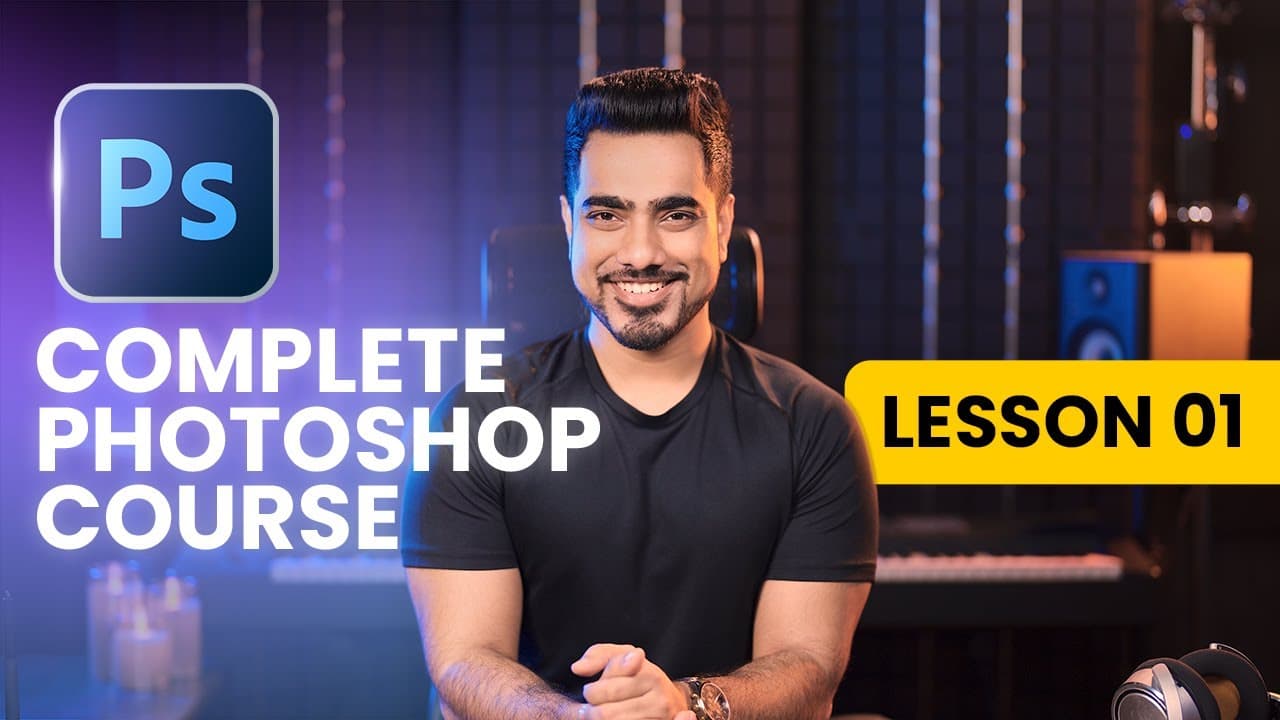
Learn the basics of Photoshop, including navigating the workspace, using tools and panels, opening and saving files, and applying transformations to images.
Transcript
by the end of this video Photoshop will never look intimidating to you and if it does I'm gonna give you a hundred percent money back guarantee please refer to these chapters to skip to any section of the video and don't forget to download the practice files in the description so what in the world is Photoshop Photoshop is a program to edit and cre... Read More
Key Insights
- 🔨 Photoshop is a powerful tool for editing and creating images using pixels.
- 👪 The home screen and workspace are two different views in Photoshop, with the home screen showing recent projects and the workspace being where you work on your projects.
- 🥳 The workspace consists of tools, panels, and the canvas, which are the three major parts of Photoshop.
- 💨 Opening, creating, and saving files in Photoshop is essential, and there are different ways to do it.
- 👻 Customizing the Photoshop workspace allows you to create a personalized environment that suits your needs.
- 🤢 The status bar provides information about the zoom level and document dimensions.
- 😥 Transforming images in Photoshop involves scaling, rotating, and flipping, and anchor points can be used to control the transformation.
- ❓ The layers panel is crucial for managing different elements in Photoshop and maintaining a stack of layers.
- 👻 The history panel keeps track of all the steps taken in the editing process and allows for easy undo/redo actions.
- ❓ Understanding how to select, blur, and smudge images in Photoshop is essential for advanced editing techniques.
Install to Summarize YouTube Videos and Get Transcripts
Explore YouTube Video Summarizer or Get YouTube Transcript Extractor
Questions & Answers
Q: What is Photoshop?
Photoshop is a program used for editing and creating images made up of pixels.
Q: How do you switch between the home screen and workspace in Photoshop?
You can switch between the home screen and workspace by clicking on the home button or the Photoshop icon in the top left corner.
Q: What are the three major parts of the Photoshop workspace?
The three major parts of the Photoshop workspace are tools, panels, and the canvas.
Q: How do you open, create, and save files in Photoshop?
To open a file, go to File > Open or simply drag and drop the file into Photoshop. To create a new file, go to File > New. To save a file, go to File > Save or use the shortcut Ctrl/Cmd + S.
Q: How do you customize the Photoshop workspace?
You can customize the Photoshop workspace by rearranging and closing panels, docking properties and tools, and saving your customized workspace.
Q: What is the status bar in Photoshop?
The status bar shows the zoom level, document dimensions, and other parameters of the image.
Q: How do you change the background color of the canvas in Photoshop?
You can right-click on the canvas background and choose a preset color or select a custom color.
Q: How can you remove the background from an image in Photoshop?
Use the Object Selection Tool to select the object you want to remove, then right-click and choose Delete and Fill Selection.
Summary & Key Takeaways
-
Photoshop is a program to edit and create images made up of pixels, which are small boxes with different colors that come together to create an image.
-
The home screen in Photoshop shows recent projects and assets, while the workspace is where you work on your projects.
-
The workspace consists of tools for editing, panels for controlling different functions, and the canvas where the work and painting happen.
Read in Other Languages (beta)
Share This Summary 📚
Summarize YouTube Videos and Get Video Transcripts with 1-Click
Try YouTube Summary with ChatGPT & Claude or YouTube Transcript Generator
Explore More Summaries from PiXimperfect 📚


Summarize YouTube Videos and Get Video Transcripts with 1-Click
Try YouTube Summary with ChatGPT & Claude or YouTube Transcript Generator