How to crop a Picture Image Photo into any Shape in PowerPoint
TL;DR
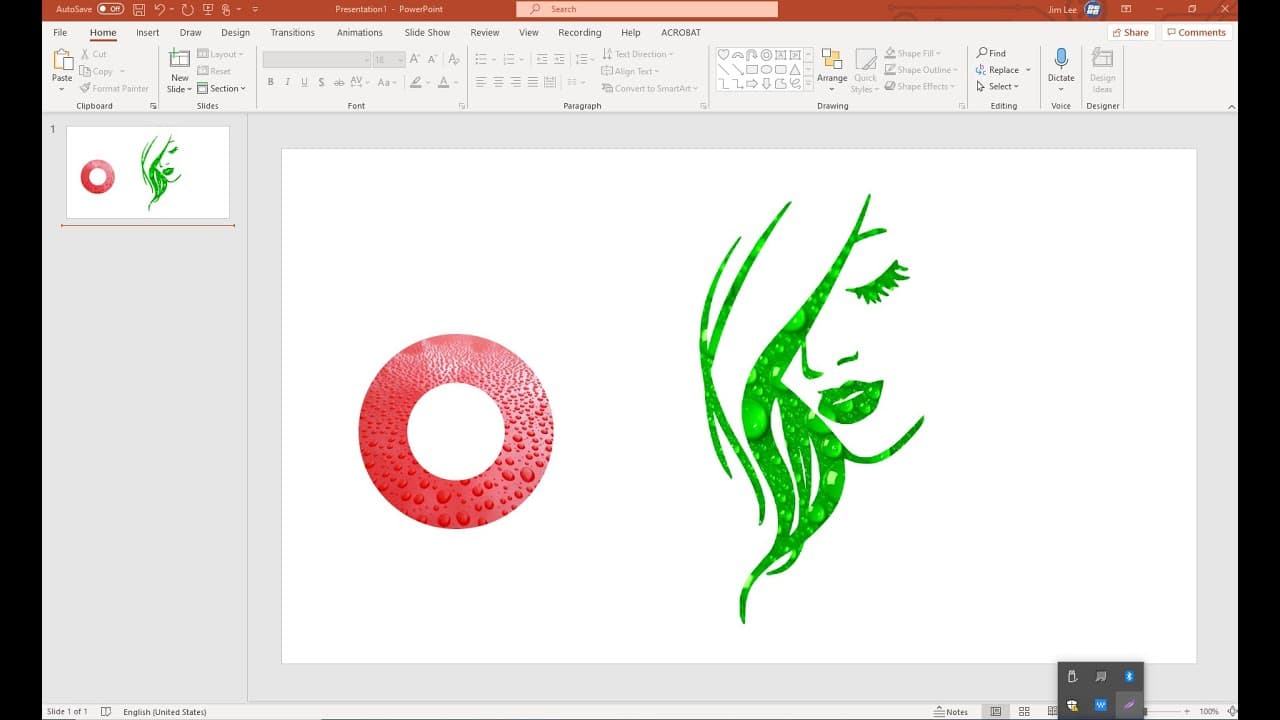
Learn three methods to crop images into shapes.
Transcript
hello in this video i will show you how to crop a picture into a shapes so there are three different ways the first way let me open a new blank page so the first way you in insert shapes the second way is your insert icons and converted to ships and the third way is you insert a png picture then using online tools to convert to svg for format then ... Read More
Key Insights
- 🦮 The video provides a step-by-step guide to three unique methods for cropping pictures into shapes effectively.
- 👻 Inserting predefined shapes is simple and straightforward, allowing users to enhance visuals quickly.
- 🧡 Converting icons into shapes enhances the range of visual styles and customization options available within graphic software.
- 🎨 Utilizing online tools to change PNG images into SVG provides flexibility and improved quality in graphic design.
- 💁 Understanding the compatibility between different image formats is essential for successful image editing.
- 💠 Shape formatting options, including no outlines and shape fills, allow for a personalized and engaging presentation of images.
- 👀 This video caters to beginners and intermediate users looking to develop their graphic design skills.
Install to Summarize YouTube Videos and Get Transcripts
Explore YouTube Video Summarizer or Get YouTube Transcript Extractor
Questions & Answers
Q: What are the three methods shown for cropping a picture into shapes?
The video outlines three distinct methods for cropping images: inserting standard shapes directly and filling them with images, converting icons to shapes before filling them, and transforming PNG images into SVG format using online tools prior to cropping.
Q: Why might someone choose to convert a PNG image to SVG before cropping?
Converting a PNG to SVG expands the options for cropping, allowing for more flexible editing. SVG files retain clear scalability and are compatible with shape formatting tools used in software, enabling users to fill shapes with complex images effectively.
Q: Can you directly crop a PNG image into a shape without conversion?
No, the video suggests that PNG images cannot be directly converted to shapes. Users need to convert them to SVG format first using online tools before they can fill shapes with the PNG images effectively.
Q: What are some practical applications of cropping images into shapes?
Cropping images into shapes can enhance presentations, create unique graphics for social media, customize marketing materials, and improve the visual appeal of documents. It allows for creative designs tailored to specific themes or branding guidelines.
Summary & Key Takeaways
-
The video demonstrates three techniques to crop an image into shapes: using built-in shapes, converting icons to shapes, and transforming PNG images to SVG format.
-
The first method involves inserting standard shapes and filling them with images by selecting no outlines and adjusting the shape fill options.
-
The second and third methods provide alternative avenues for cropping through converting icons and using online tools to transform PNG images into SVG formats for further editing flexibility.
Read in Other Languages (beta)
Share This Summary 📚
Summarize YouTube Videos and Get Video Transcripts with 1-Click
Try YouTube Summary with ChatGPT & Claude or YouTube Transcript Generator
Explore More Summaries from E Micro Tech 📚

Summarize YouTube Videos and Get Video Transcripts with 1-Click
Try YouTube Summary with ChatGPT & Claude or YouTube Transcript Generator