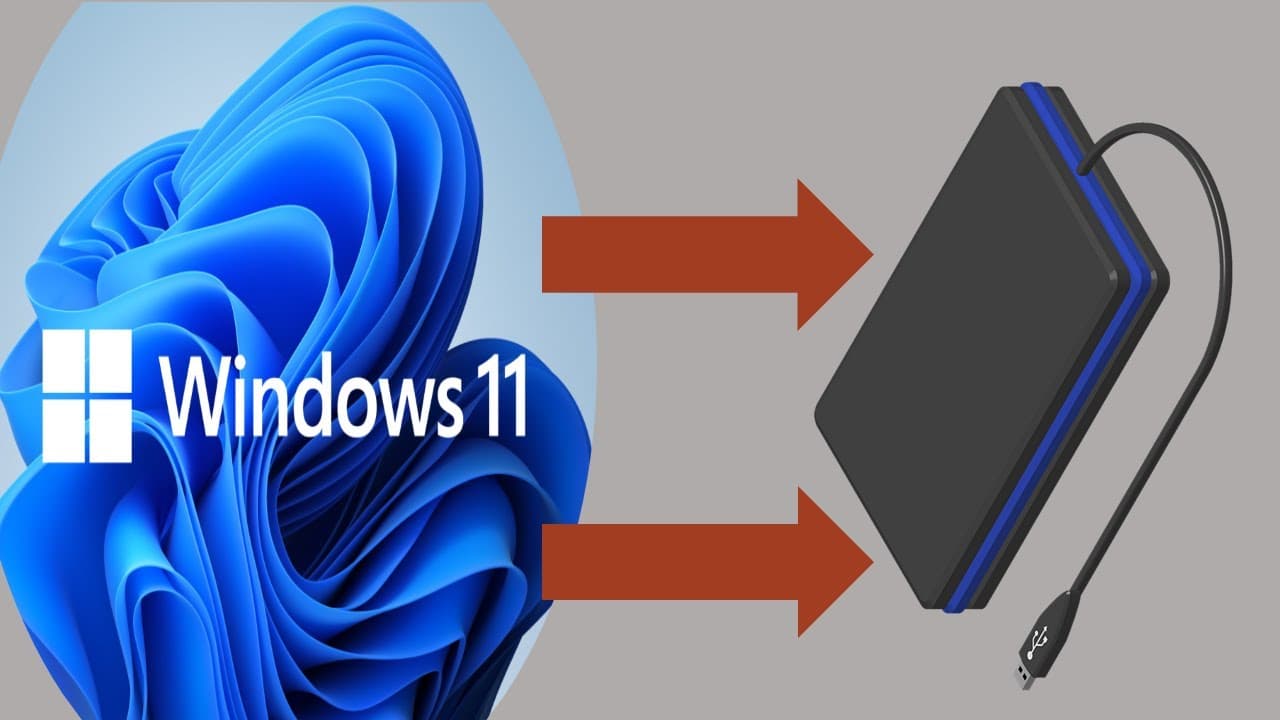
How to create windows 11 backup system image
TL;DR
Learn how to create a system image backup for Windows 11.
Transcript
hello dj's video i will show you how to make a windows 11 image backup so to do that you need to make sure you have enough external hard disk and also when you right click the external hard disk go to properties make sure it is ntfs format okay and then you'll need to go to the search type in control panel i will just type in control here you will ... Read More
Key Insights
- 👾 Proper preparation, including ensuring an external hard disk has enough space and is NTFS formatted, is vital before starting a backup.
- 👤 Users are instructed to navigate the Control Panel to access backup options, highlighting ease of use in Windows 11.
- ⌛ Creating a system image involves selecting the appropriate external drive and starting the backup process, with an estimated completion time provided based on hardware type.
- 🍧 The video emphasizes the importance of having both system images and repair disks for comprehensive data protection and recovery.
- 🧑🏭 Using SSDs for backups can significantly reduce the time required compared to traditional hard drives, which is an important factor for users to consider.
- 👤 The process of creating a backup may vary based on the user's system configuration and available external devices.
- 🫵 Viewers are encouraged to explore the channel for additional troubleshooting videos related to backup and system recovery.
Install to Summarize YouTube Videos and Get Transcripts
Explore YouTube Video Summarizer or Get YouTube Transcript Extractor
Questions & Answers
Q: What prerequisite do you need before starting the backup process?
Before initiating the backup process, it’s important to ensure that you have enough space on an external hard disk formatted in NTFS. This is crucial as failing to have a properly formatted and sufficiently spacious disk could lead to errors during the backup process.
Q: How can you access the backup settings on Windows 11?
To access backup settings on Windows 11, you should search for “Control Panel” in the search bar. Once opened, navigate to “System and Security” and find “Backup and Restore (Windows 7).” This section will allow you to create a system image of your Windows 11 setup.
Q: What happens if you encounter a shadow copy error during backup?
If you receive a shadow copy error indicating insufficient space or that it's not enabled, you should check other resources or tutorials to troubleshoot the issue. The creator also mentions a separate video on their channel specifically for resolving shadow copy-related problems, guiding viewers through the necessary steps.
Q: Why is it important to create a system repair disk?
Creating a system repair disk is essential for recovery purposes, especially if you don't have a Windows 11 installation CD/DVD. The repair disk allows you to restore your system in case of corruption. It is also useful for systems lacking an internal CD-ROM drive, as it can be made via an external device.
Summary & Key Takeaways
-
The video provides a step-by-step guide to making a Windows 11 image backup, focusing on the necessary preparations, such as having sufficient external hard disk space and ensuring it is formatted in NTFS.
-
It details navigating through the Control Panel to access backup settings, creating a system image, and the importance of also making a system repair disk if Windows 11 installation media isn't available.
-
The process is straightforward but may vary in duration depending on the type of hard disk being used, with SSDs offering faster backups compared to standard hard drives.
Read in Other Languages (beta)
Share This Summary 📚
Summarize YouTube Videos and Get Video Transcripts with 1-Click
Try YouTube Summary with ChatGPT & Claude or YouTube Transcript Generator
Explore More Summaries from E Micro Tech 📚

Summarize YouTube Videos and Get Video Transcripts with 1-Click
Try YouTube Summary with ChatGPT & Claude or YouTube Transcript Generator