How To Password Protect a USB Drive in Windows (2019)
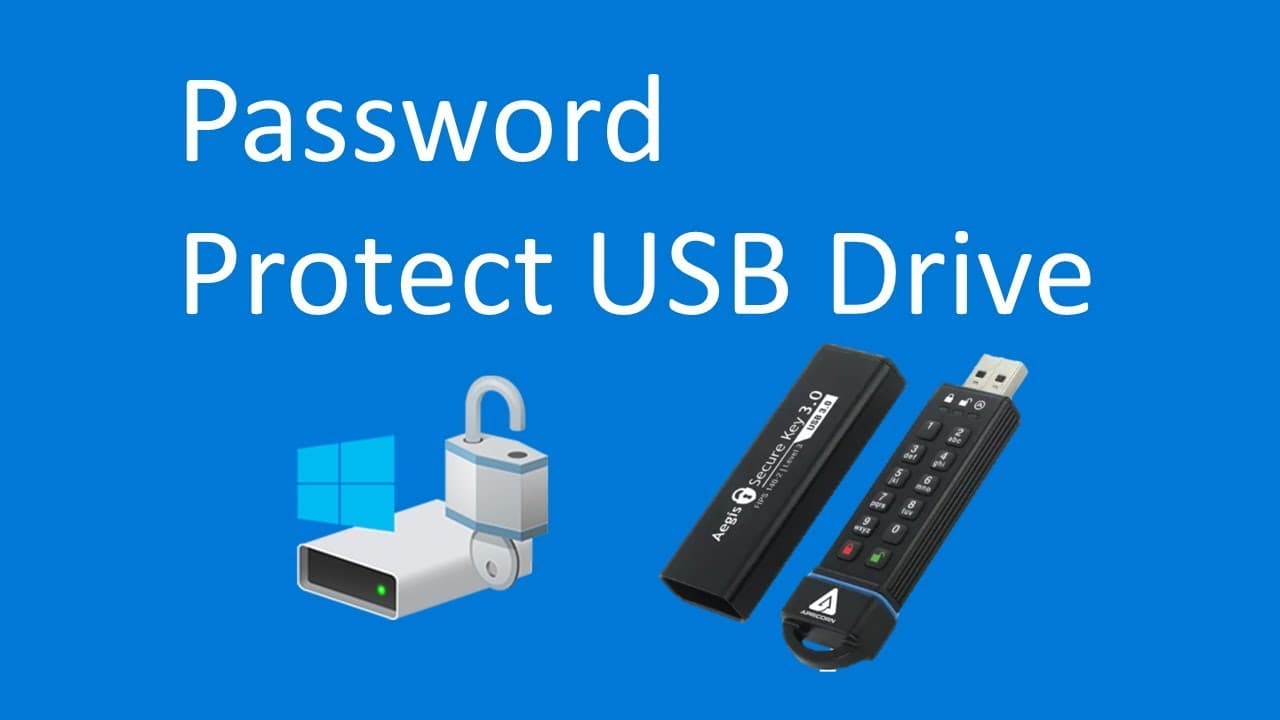
TL;DR
You can easily password protect your USB drive using Windows 10's built-in BitLocker feature.
Transcript
if we want password protect your USB Drive Windows 10 already has that option available so it's a free and you do need by Electra software for that to do that first insert your USB Drive there has that so this one is empty one but you can also if you already have some file in this Drive will show your step and step what's the difference so you'll p... Read More
Key Insights
- 💨 BitLocker provides an effective way to encrypt USB drives on Windows 10, ensuring data confidentiality.
- 😒 It is essential to use a strong password that meets specific complexity requirements to maximize security.
- 🔑 Users should save their encryption key securely as it will be needed for future access in case they forget the password.
- 🪛 The process of encrypting a USB drive is quick for empty drives but can be time-consuming for those with existing data, requiring patience.
- 🥶 The encryption method can be tailored to maintain compatibility with older Windows systems, expanding usability across devices.
- 🥺 Always ensure that you properly back up important data before applying encryption, as a loss of the password could lead to permanent data inaccessibility.
- 🔓 The unlock process is straightforward, requiring just the input of the assigned password upon reconnection of the USB drive.
Install to Summarize YouTube Videos and Get Transcripts
Explore YouTube Video Summarizer or Get YouTube Transcript Extractor
Questions & Answers
Q: What is BitLocker and how does it function in Windows 10?
BitLocker is a built-in encryption tool in Windows 10 that allows users to secure their drives by encrypting the data and requiring a password to access it. Users can find the option by right-clicking their USB drive and selecting BitLocker. This ensures that even if someone finds your USB, they cannot access the contents without the password.
Q: What are the requirements for creating a password for the USB drive?
The password for the USB drive must include a combination of uppercase letters, lowercase letters, numbers, and special symbols. This complexity requirement ensures a higher level of security by making it more difficult for unauthorized users to guess or crack the password.
Q: What should users do if their USB drive contains data before enabling BitLocker?
If the USB drive already contains data, users should choose the setting that allows password protection without losing existing files. The process may take longer for drives with significant amounts of data, so it is advisable to prepare for a longer encryption time when enabling BitLocker in such cases.
Q: Can BitLocker be used on USB drives formatted for older versions of Windows?
When configuring BitLocker, users have the option to select a compatible mode that allows the encrypted drive to be accessed on older Windows versions. This is important for users who may need to use their USB drives with computers that do not run the latest Windows operating systems.
Summary & Key Takeaways
-
Windows 10 includes a built-in feature called BitLocker, which allows users to password protect their USB drives without needing additional software. This is a free and straightforward option for securing your data on removable storage.
-
To set up password protection, insert your USB drive, right-click on it, and select BitLocker. You'll need to create a password that includes uppercase, lowercase, numbers, and symbols, with suggestions for proper security.
-
The process may take longer if data is already stored on the USB drive, so users should note that encrypting large volumes of data will extend the setup time considerably.
Read in Other Languages (beta)
Share This Summary 📚
Summarize YouTube Videos and Get Video Transcripts with 1-Click
Try YouTube Summary with ChatGPT & Claude or YouTube Transcript Generator
Explore More Summaries from E Micro Tech 📚

Summarize YouTube Videos and Get Video Transcripts with 1-Click
Try YouTube Summary with ChatGPT & Claude or YouTube Transcript Generator