Permanently Restore the Old Right Click Menu in Windows 11
TL;DR
This guide explains how to revert to the classic right-click menu in Windows 11.
Transcript
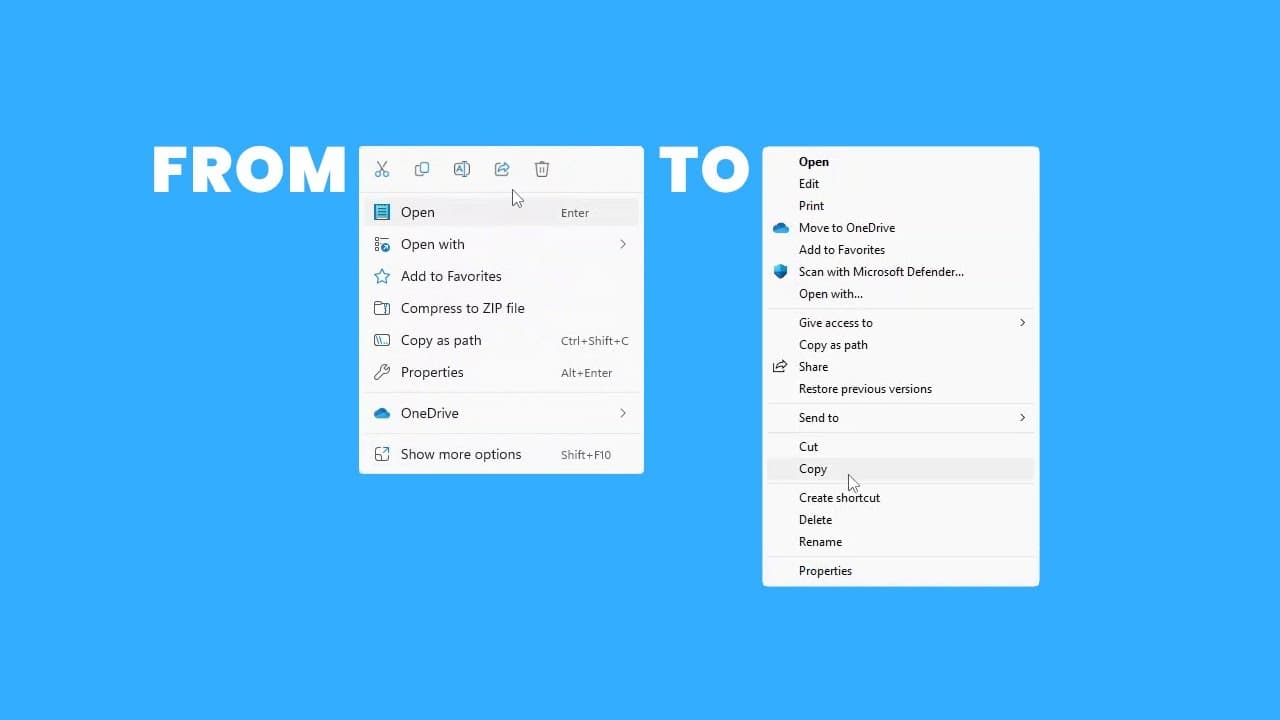
hi when you right click anything in Windows 11 it looks like this we don't like that if we click show more options though we feel right at home however the next time we right click we have to click show more options again and again and again to get rid of this horrible Behavior we do the following first there is no on off toggle for the right click... Read More
Key Insights
- 👤 The Windows 11 right-click menu design has received criticism for being less user-friendly than its predecessor, leading to user frustration.
- 🗯️ Making changes to the Windows registry is essential for restoring the classic right-click menu, and users must be cautious when doing so.
- 💱 Creating a backup of the registry is a vital precaution to mitigate any potential issues stemming from incorrect changes.
- 🗯️ Restarting Windows Explorer after modifications ensures that changes to the right-click menu are applied correctly.
- 🤩 Users have the flexibility to revert back to the new menu anytime by deleting the registry key created.
- 👤 This customization reflects the desire among users for retaining familiarity while using updated operating systems.
- ❓ The steps provided are relatively straightforward but require careful execution to avoid complications.
Install to Summarize YouTube Videos and Get Transcripts
Explore YouTube Video Summarizer or Get YouTube Transcript Extractor
Questions & Answers
Q: Why does Windows 11's right-click menu change annoy users?
Many users find the new right-click menu in Windows 11 cumbersome and non-intuitive compared to the classic version. The necessity to click "Show more options" to access familiar commands disrupts workflow and adds unnecessary steps, which is particularly frustrating for those accustomed to the previous layout.
Q: What are the initial steps before editing the Windows registry?
Before making changes to the Windows registry, it is crucial to create a backup to prevent potential issues. This is done by opening the registry editor with Windows key + R, typing "regedit," and choosing "File" then "Export" to save a copy of existing settings to a safe location.
Q: How do I implement the command that changes the right-click menu?
Users must open the Command Prompt as an administrator and paste the specific code provided in the video description. This code modifies the registry to signal Windows to use the classic right-click menu. After this, it's necessary to restart the Windows Explorer process for the changes to take effect.
Q: What should I do if the command in the prompt fails?
If the Command Prompt command fails, users can opt to manually add the registry changes by navigating through the registry editor to the specified path provided in the video and creating new keys as instructed. It’s vital to follow every step carefully to ensure success.
Summary & Key Takeaways
-
The video provides a step-by-step guide on restoring the classic right-click menu in Windows 11, emphasizing the frequent need to click "Show more options."
-
Users must interact with the Windows registry, creating a backup before entering specific commands in the Command Prompt to enable the classic menu permanently.
-
If users wish to revert back to the new right-click menu, they can simply execute a different command or manually delete the registry key created.
Read in Other Languages (beta)
Share This Summary 📚
Summarize YouTube Videos and Get Video Transcripts with 1-Click
Try YouTube Summary with ChatGPT & Claude or YouTube Transcript Generator
Explore More Summaries from Get There Faster 📚




Summarize YouTube Videos and Get Video Transcripts with 1-Click
Try YouTube Summary with ChatGPT & Claude or YouTube Transcript Generator