How To Use Canva For Beginners (2024 Updated)
TL;DR
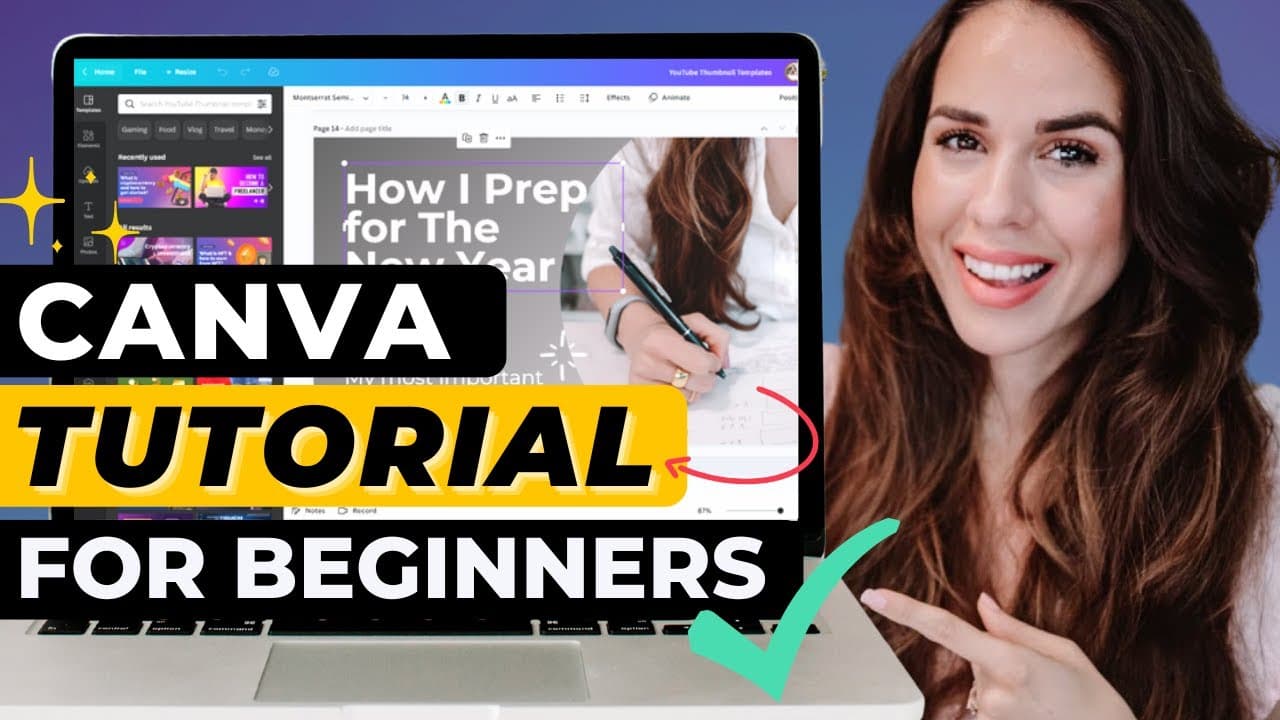
Learn to create stunning graphics with Canva 2.0 effortlessly.
Transcript
if you've ever wanted to create high-quality social media graphics newsletter headers website graphics blog images really anything visual but didn't have a lot of design experience I got you covered because today we're gonna learn how to dominate canva in a few simple steps what's up familia welcome to another episode of Kim TV if this is the first... Read More
Key Insights
- Canva offers two pricing plans: a free version and a paid version called Canva for Work, which provides additional features like the brand kit and folders.
- The interface of Canva 2.0 is user-friendly, allowing users to search and select from a wide range of templates for various purposes like social media and newsletters.
- Customization options in Canva include changing fonts, colors, and images, which can be done easily by using the drag-and-drop feature.
- Canva allows uploading personal images and logos, making it easier to maintain brand consistency across all designs.
- The brand kit feature in Canva for Work enables users to save color palettes, fonts, and logos, streamlining the design process for branded content.
- Templates in Canva are organized by categories such as real estate, quotes, and sales, helping users find suitable designs quickly.
- Canva provides design flexibility with features like grouping and ungrouping elements, making it easy to edit specific parts of a template.
- Users can download designs in various formats, including PNG, PDF, and GIF, with Canva for Work offering additional options like transparent backgrounds.
Install to Summarize YouTube Videos and Get Transcripts
Explore YouTube Video Summarizer or Get YouTube Transcript Extractor
Questions & Answers
Q: What are the pricing plans available for Canva?
Canva offers two pricing plans: a free version and a paid version known as Canva for Work. The free version provides access to a wide range of templates and basic design tools. Canva for Work, on the other hand, includes advanced features such as the brand kit, which allows users to save color palettes, fonts, and logos, as well as the ability to organize designs into folders.
Q: How can users customize templates in Canva?
Users can customize templates in Canva by changing fonts, colors, and images. This is achieved through Canva's intuitive drag-and-drop interface, which allows users to easily manipulate design elements. Additionally, users can upload their own images and logos to ensure brand consistency. The tutorial also demonstrates how to group and ungroup elements for more precise editing.
Q: What is the brand kit feature in Canva for Work?
The brand kit feature in Canva for Work is a tool that allows users to save and manage their brand's color palettes, fonts, and logos. This feature is particularly useful for businesses and individuals who need to maintain a consistent brand identity across various designs. By having these elements readily available, users can streamline their design process and ensure all content aligns with their brand guidelines.
Q: How are Canva templates organized?
Canva templates are organized into categories based on their intended use, such as social media graphics, quotes, and sales promotions. This organization helps users quickly find templates that suit their specific needs. The tutorial highlights the ease of browsing through these categories and selecting templates that can be customized to fit individual or brand requirements.
Q: What download options are available in Canva?
Canva offers multiple download options, allowing users to save their designs in various formats such as PNG, PDF, and GIF. Canva for Work users have additional options, including downloading designs with transparent backgrounds, which is particularly useful for creating logos and other graphics that need to be overlaid on different backgrounds. The tutorial advises using PNG for high-quality images suitable for social media.
Q: How does Canva support brand consistency?
Canva supports brand consistency by allowing users to upload and save their brand's logos, color palettes, and fonts through the brand kit feature available in Canva for Work. This ensures that all designs adhere to the brand's visual identity, making it easier to maintain a cohesive look across different platforms and materials. The tutorial emphasizes the importance of using these features for effective branding.
Q: What are the benefits of using templates in Canva?
Using templates in Canva offers several benefits, especially for beginners. Templates provide a starting point that simplifies the design process, allowing users to focus on customization rather than creating designs from scratch. They are organized by category, making it easy to find suitable designs for specific needs. Templates also help users learn design principles and branding basics while providing a professional appearance.
Q: How can Canva's interface assist in the design process?
Canva's interface is designed to be user-friendly, with features like a search bar for templates, drag-and-drop functionality, and intuitive editing tools. These elements make it easy for users to navigate the platform and create designs efficiently. The tutorial showcases how users can quickly customize templates, adjust elements, and apply branding, all within a streamlined interface that enhances productivity and creativity.
Summary & Key Takeaways
-
This tutorial provides a comprehensive guide to using Canva 2.0, focusing on creating high-quality graphics for social media and other online platforms. It covers the basics of navigating Canva's interface, selecting and customizing templates, and utilizing both free and paid features effectively.
-
Users are encouraged to start with Canva's free version and explore the tool's capabilities before considering an upgrade to Canva for Work. The tutorial emphasizes the importance of branding and how Canva's features like the brand kit and custom uploads can help maintain consistency.
-
The tutorial also highlights practical tips for beginners, such as using templates to simplify the design process and leveraging Canva's organizational features to streamline workflow. It concludes with instructions on downloading and sharing completed designs.
Read in Other Languages (beta)
Share This Summary 📚
Summarize YouTube Videos and Get Video Transcripts with 1-Click
Try YouTube Summary with ChatGPT & Claude or YouTube Transcript Generator
Explore More Summaries from Kimberly Ann Jimenez 📚





Summarize YouTube Videos and Get Video Transcripts with 1-Click
Try YouTube Summary with ChatGPT & Claude or YouTube Transcript Generator