How to use split screen & multi windows on Samsung phones
TL;DR
Learn how to enable split screen view on Samsung devices.
Transcript
this video will show you how to enable the split video in Samsung cell phone okay so I have the Samsung a53 but it should work for all the Samsung phone so the first thing you need to do is open at least one of the app and then you press the task icon at the bottom open open that you will see all the lists that opened all the apps that opened in yo... Read More
Key Insights
- 😀 The split screen feature enhances multitasking capabilities on Samsung devices, facilitating using two apps simultaneously.
- 🤗 Accessing the task icon is a crucial step in enabling split screen, as it provides visibility of currently opened applications.
- 💻 Not all applications support the split screen function, so it’s important to verify compatibility before attempting to enable this feature.
- 💦 Users can benefit from multitasking scenarios, such as listening to music while gaming or working on another task.
- 👤 The tutorial is designed to be simple for all Samsung phone users, not just those with the Galaxy A53 model.
- 😀 Understanding app compatibility helps users make better decisions on when and how to utilize split screen effectively.
- 😀 Adjusting app window sizes allows for personalized multitasking experiences tailored to individual needs.
Install to Summarize YouTube Videos and Get Transcripts
Explore YouTube Video Summarizer or Get YouTube Transcript Extractor
Questions & Answers
Q: How do I start using split screen on my Samsung phone?
To enable split screen, first open at least one app on your Samsung phone. Then, tap the task icon at the bottom of your screen to see a list of opened apps. By selecting the top icon on the app, you will find the option for "split view," which allows you to multitask between two applications.
Q: Are all apps on Samsung phones compatible with split screen mode?
No, not all apps support split screen functionality. For instance, games like Candy Crush do not provide the option for split screen. It's essential to check if the app you want to use in split view is compatible by tapping the task icon to see available applications for this feature.
Q: Can I adjust the size of the apps in split screen mode?
Yes, you can adjust the size of the apps in split screen mode. After enabling split view, you can press and hold the divider between the two apps. This allows you to resize the windows according to your preference, optimizing your workspace on the screen.
Q: How can I exit split screen mode on my Samsung device?
To exit split screen mode, simply click the home button. If you want to return to split view later, tap the task button again, where you will find the option to restore the split screen with your most recently used apps.
Summary & Key Takeaways
-
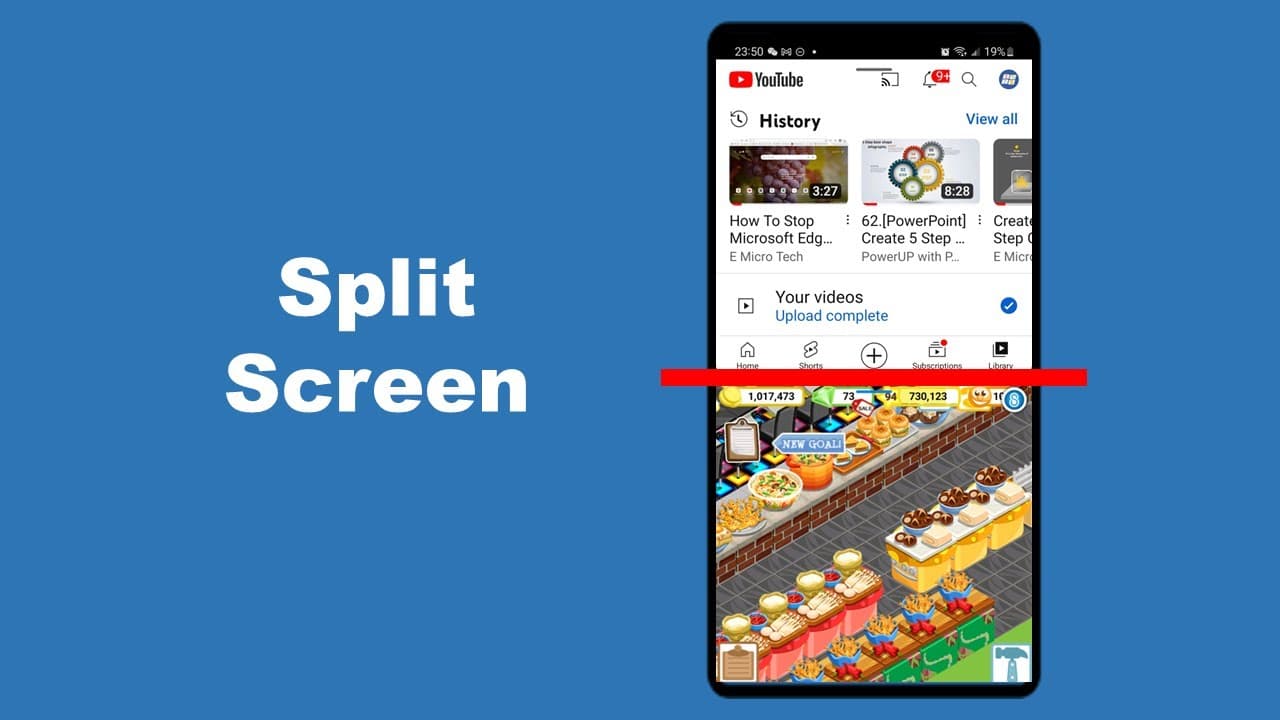
This video demonstrates how to enable the split screen feature on Samsung phones, including the Galaxy A53, applicable to various models.
-
Users are guided to access the app switcher, where they can find the split view option for compatible applications, allowing multitasking.
-
The tutorial emphasizes that not all apps support split screen, providing examples, and guides users on adjusting window sizes for optimal viewing.
Read in Other Languages (beta)
Share This Summary 📚
Summarize YouTube Videos and Get Video Transcripts with 1-Click
Try YouTube Summary with ChatGPT & Claude or YouTube Transcript Generator
Explore More Summaries from E Micro Tech 📚

Summarize YouTube Videos and Get Video Transcripts with 1-Click
Try YouTube Summary with ChatGPT & Claude or YouTube Transcript Generator