How Do Photoshop Layer Masks Work for Adjustments?
TL;DR
Photoshop layer masks allow users to selectively show or hide adjustments by using white and black masks. A white mask reveals the entire adjustment, while a black mask hides it completely. Utilizing brushes and adjusting opacity enables precise control, allowing for gradual application of effects to specific areas of an image.
Transcript
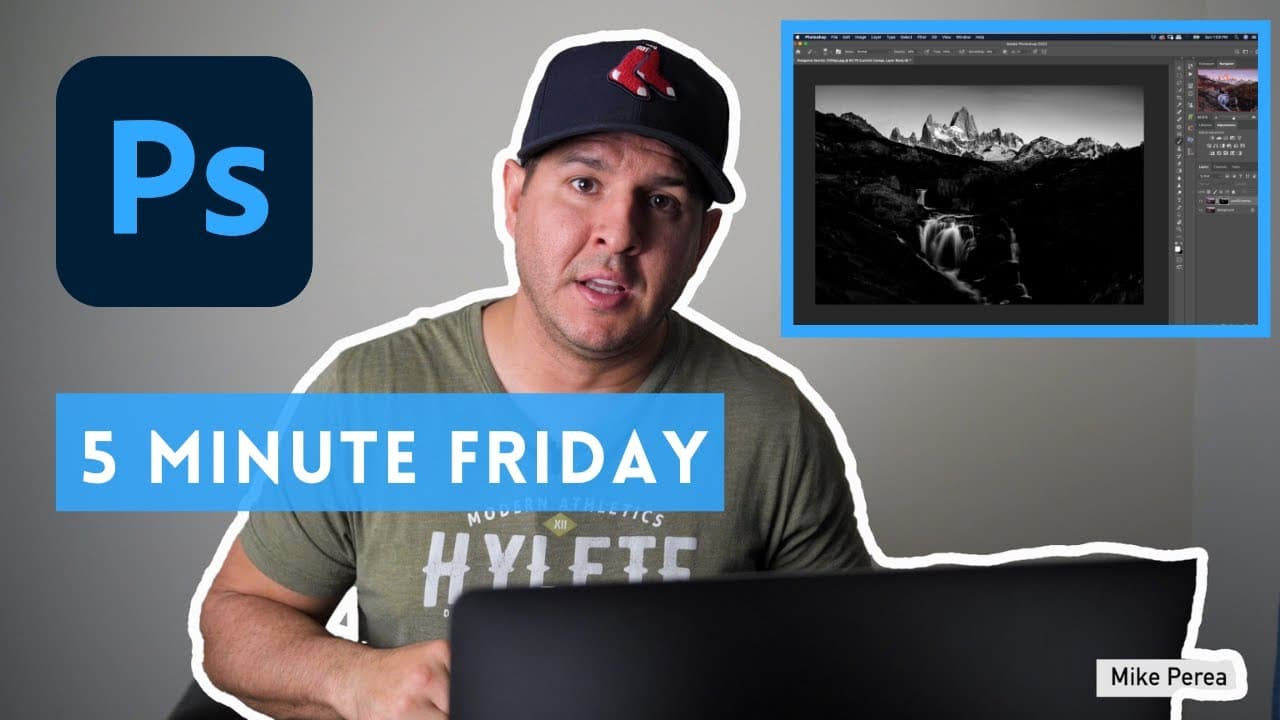
what's up guys welcome to another five minute friday in this one we're gonna continue off of last week's video on photoshop layers this one is gonna be all about photoshop masks no not that mask not that mask either nope not that one either all right guys let's jump into photoshop and let's get started masking is simply choosing what to show on a l... Read More
Key Insights
- 😷 Masks in Photoshop allow users to selectively apply adjustments to specific parts of an image, enhancing control and precision.
- 🖌️ Using brushes and adjusting opacity is crucial for achieving accurate and desired masking effects.
- 😷 Understanding the difference between white and black masks is essential for effectively using Photoshop masks.
- 😷 By inverting a mask and using a white brush, adjustments can be selectively revealed in specific areas of an image.
- 😘 Painting adjustments slowly and gradually using low opacity brushes helps create natural and seamless effects.
- 😷 Masks can be used for various adjustments, such as saturation, color correction, or creative effects like the Orton effect.
- 😷 Photoshop masks offer a powerful tool for artists and photographers to bring out the best in their images.
Install to Summarize YouTube Videos and Get Transcripts
Explore YouTube Video Summarizer or Get YouTube Transcript Extractor
Questions & Answers
Q: What is a Photoshop mask?
A Photoshop mask is a tool that allows users to choose what to show or hide on a layer. It can be used to selectively apply adjustments to specific areas of an image.
Q: How does a white mask work?
A white mask shows 100% of the adjustment on the layer. This means that the adjustment will be visible across the entire image unless parts of it are hidden using brushes or other techniques.
Q: How does a black mask work?
A black mask completely hides the adjustment on the layer. This means that the adjustment will not be visible unless parts of it are revealed using brushes or other techniques.
Q: How can brushes be used in masking?
Brushes are essential tools for masking in Photoshop. By adjusting the opacity and size of the brush, users can precisely paint in or out adjustments, controlling where and how much of the adjustment is applied.
Key Insights:
- Masks in Photoshop allow users to selectively apply adjustments to specific parts of an image, enhancing control and precision.
- Using brushes and adjusting opacity is crucial for achieving accurate and desired masking effects.
- Understanding the difference between white and black masks is essential for effectively using Photoshop masks.
- By inverting a mask and using a white brush, adjustments can be selectively revealed in specific areas of an image.
- Painting adjustments slowly and gradually using low opacity brushes helps create natural and seamless effects.
- Masks can be used for various adjustments, such as saturation, color correction, or creative effects like the Orton effect.
- Photoshop masks offer a powerful tool for artists and photographers to bring out the best in their images.
- Proper understanding and utilization of masking techniques can greatly enhance the visual impact and quality of photographs.
Summary & Key Takeaways
-
Photoshop masks allow users to choose what to show and hide on a layer, such as adjusting saturation on specific areas of an image.
-
A white mask shows 100% of the adjustment, while a black mask completely hides it.
-
By using brushes and adjusting opacity, users can precisely paint in or out adjustments to create the desired effect.
Read in Other Languages (beta)
Share This Summary 📚
Summarize YouTube Videos and Get Video Transcripts with 1-Click
Try YouTube Summary with ChatGPT & Claude or YouTube Transcript Generator