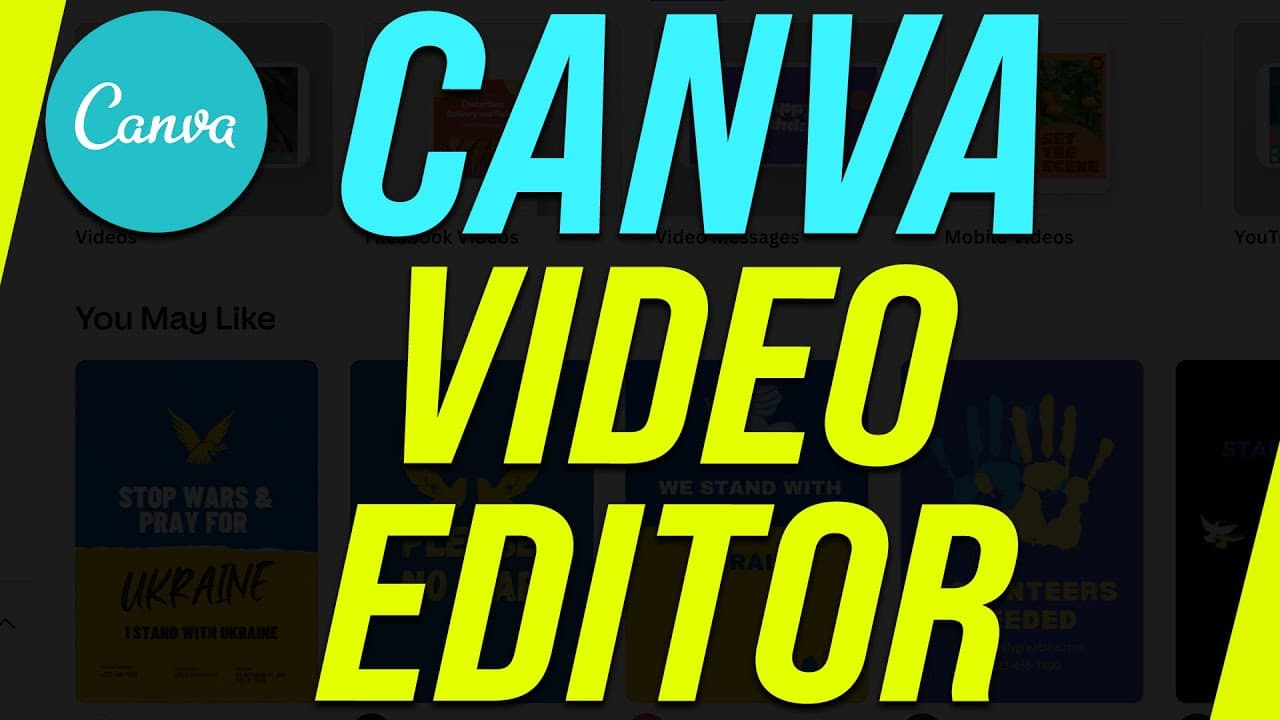
How to Edit Video in Canva - Canva Video Editor Tutorial
TL;DR
Discover hidden Canva video editing features for free, including uploads, trimming, transitions, text, music, and sharing options.
Transcript
canva has a built-in video editor that most people don't know about you could actually edit entire videos using canva.com in this video i want to show you exactly how to edit your video from scratch and i'll show you some of the useful options that are just not obvious that i've learned through experience and because we're going to use canva.com th... Read More
Key Insights
- 🎮 Canva offers a free video editing tool for uploading, editing, and sharing videos.
- 🎮 You can trim, reorder, and split clips on the timeline for precise editing control.
- 🎮 Adding transitions, text, music, and adjusting audio levels enhances video quality.
- 🖼️ Advanced features like cutaways and picture-in-picture effects provide creative options.
- 👤 Canva's user-friendly interface makes video editing accessible for beginners.
- 🎮 Utilizing Canva's editing options can enhance storytelling and visual appeal in videos.
- ❓ Canva's paid version, Canva Pro, offers additional premium features for more advanced editing.
Install to Summarize YouTube Videos and Get Transcripts
Explore YouTube Video Summarizer or Get YouTube Transcript Extractor
Questions & Answers
Q: How can you upload videos and media to Canva for editing?
You can upload videos and media by accessing the upload tab, selecting your files from your computer, and dragging them onto the canvas for editing.
Q: How do you trim the beginning and end of a video clip in Canva?
To trim the beginning and end of a video clip, simply move the slider to the desired start and end points on the timeline and adjust accordingly to cut out unwanted portions.
Q: What are some advanced editing features in Canva for video editing?
Advanced features in Canva include adding transitions between clips, inserting text with various styles and animations, incorporating background music, adjusting audio levels, and sharing or downloading the edited video.
Q: How can you create cutaways without replacing the main video in Canva?
To create cutaways without replacing the main video, place the additional clip on top of the main video on the canvas, resize it, and adjust its position to achieve a picture-in-picture effect without overwriting the original video.
Summary & Key Takeaways
-
Canva has a built-in video editor for editing entire videos.
-
You can upload media, trim, reorder clips, add transitions, text, music, and share your edited video.
-
Features include timeline editing, split pages, transitions, text effects, and background music options.
Read in Other Languages (beta)
Share This Summary 📚
Summarize YouTube Videos and Get Video Transcripts with 1-Click
Try YouTube Summary with ChatGPT & Claude or YouTube Transcript Generator
Explore More Summaries from Howfinity 📚

Summarize YouTube Videos and Get Video Transcripts with 1-Click
Try YouTube Summary with ChatGPT & Claude or YouTube Transcript Generator