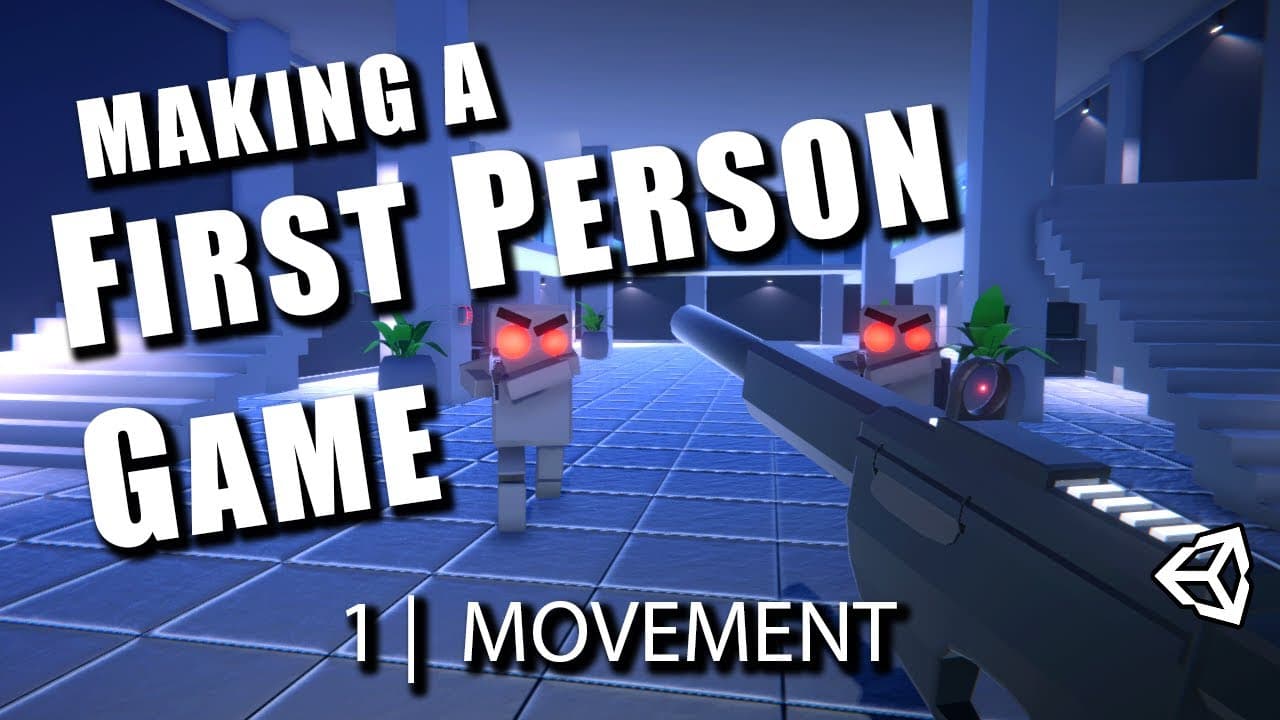
#1 FPS Movement: Let's Make a First Person Game in Unity!
TL;DR
Learn to create a first-person game in Unity, focusing on movement.
Transcript
g'day everyone and welcome to this video this is going to be the start of a series of videos where we work together to create a first person game in the unity game engine while some elements of this series are targeted towards creating more of a first-person shooter there are many skills that we will learn that can be applied to any kin... Read More
Key Insights
- The video is the first in a series aimed at creating a first-person game using Unity, focusing on movement mechanics.
- A character controller is created using Unity's new input system, which offers advanced features for professional control schemes.
- The video demonstrates setting up a basic action map for player movement, including keyboard and gamepad bindings.
- A script called 'Input Manager' is created to channel inputs through and manage player actions within the game.
- The tutorial explains how to add gravity to the player character, ensuring realistic movement and interactions with the game environment.
- The process of creating a 'Player Look' script is shown to allow the player to look around using mouse and gamepad inputs.
- The video highlights the importance of the Unity Input Debugger, which helps in monitoring and debugging input devices during development.
- Additional features like sprinting and crouching are mentioned as potential expansions for the player character, encouraging viewers to experiment.
Install to Summarize YouTube Videos and Get Transcripts
Explore YouTube Video Summarizer or Get YouTube Transcript Extractor
Questions & Answers
Q: How do you set up a character controller in Unity?
To set up a character controller in Unity, begin by creating a new project and adding a capsule to represent the player. Delete the capsule collider and add a character controller component. Parent the main camera to the player object and position it to simulate the player's eyes. Assign the player tag to the object.
Q: What is the Unity Input System used for?
The Unity Input System allows developers to create advanced and professional control schemes by managing input from various devices. It offers features like action maps, which define sets of actions based on game states, and supports both keyboard and gamepad controls. It replaces the older input manager for more complex input handling.
Q: How do you implement player movement in Unity?
Player movement in Unity is implemented by creating an action map for movement, setting up bindings for keyboard (WASD keys) and gamepad (left stick) inputs. A 'Player Motor' script processes these inputs, translating them into movement directions using Unity's character controller component, allowing the player to move within the game world.
Q: What role does the Input Manager script play?
The Input Manager script acts as a central hub for processing all player inputs. It initializes input actions, enables and disables action maps, and channels input values to respective scripts like the Player Motor or Player Look. It ensures that inputs are correctly interpreted and applied to the game character's behaviors.
Q: How is gravity added to the player character?
Gravity is added by creating a velocity vector for the player and applying a constant downward force, typically set to -9.8. The script checks if the player is grounded, and if so, resets the downward velocity to prevent excessive accumulation of force. This ensures the player falls naturally and stays grounded when not jumping.
Q: How can the player look around in the game?
The player can look around by implementing a 'Player Look' script that processes input from the mouse and gamepad right stick. It calculates rotation values for looking up, down, left, and right, applying these to the camera's transform. Sensitivity settings can be adjusted for smooth and responsive camera movement.
Q: What is the Unity Input Debugger and its purpose?
The Unity Input Debugger is a tool that displays all input devices connected to the computer, such as keyboards, mice, and gamepads. It helps developers monitor and debug input signals received by Unity, ensuring that actions are correctly triggered and allowing for troubleshooting of input-related issues during development.
Q: What are some additional features mentioned for the player character?
Additional features for the player character include sprinting and crouching, which are suggested as extensions to the basic movement mechanics covered in the video. Viewers are encouraged to experiment with these features by modifying the code, enhancing the player's interaction with the game environment and adding depth to gameplay.
Summary & Key Takeaways
-
This video is the first in a series focused on creating a first-person game in Unity, with an emphasis on setting up player movement. It covers the basics of creating a character controller using Unity's new input system.
-
The tutorial walks through setting up action maps and input bindings for movement and jumping, using both keyboard and gamepad controls. The video also demonstrates creating an 'Input Manager' script to manage player inputs.
-
Gravity and player look functionalities are added to enhance realism and interactivity. The video concludes with a working character controller and invites viewers to experiment with additional features like sprinting and crouching.
Read in Other Languages (beta)
Share This Summary 📚
Summarize YouTube Videos and Get Video Transcripts with 1-Click
Try YouTube Summary with ChatGPT & Claude or YouTube Transcript Generator